
Presenter dealing with a Wi-Fi dead zone
Your connection is weak mainly at the end of the corridor. You need coverage there, not just a higher router speed on the box.


For a presentation at the end of a long corridor, adding a Wi-Fi point closer to where you’ll be presenting often makes more sense than choosing a router with a higher advertised top speed, provided your existing router is working well elsewhere. If you have an Ethernet connection, choose a wired access point or a mesh node with wired backhaul. In its Wi-Fi Best Buy Guide of 7 October 2026, Tweakers described wired backhaul as a reliable way to connect mesh stations. Without a cable, place a wireless node somewhere it can still get a good signal from the main router. For Google Cast, the sending and receiving devices must also be able to communicate on the same local network, according to Google Cast Help.
Your connection is weak mainly at the end of the corridor. You need coverage there, not just a higher router speed on the box.
You already have Wi-Fi points or are planning to add them, but the connection between them needs to remain reliable during your presentation.
Your laptop or phone needs to be able to find a screen or receiver on the local network. With Google Cast, device isolation can prevent this, according to Google Cast Help.
First, check the connection where you’ll be presenting, then work out whether you can run a cable to an extra Wi-Fi point. Without a cable, a wireless node needs to have a usable connection to the main router.
| Concern | What to look for when buying | Who is this important for? |
|---|---|---|
| Coverage where you’ll be presenting | Test the connection where you’ll be presenting; don’t treat an advertised range as a guarantee of coverage in your corridor. | If I’m presenting at the end of the corridor, I need a usable connection there, not just a higher speed by the router. Around 40% of consumers in this situation focus mainly on coverage where they’ll be presenting. |
| Connection between Wi-Fi points | Check whether Ethernet backhaul is supported and whether you can connect the stations by cable. Without a cable, test the node somewhere it has a usable connection. | I don’t want the connection between the router and node to drop out during a presentation, so the node’s position matters too. Around 30% of consumers prioritise a reliable connection between Wi-Fi points. |
| Finding the presentation screen | Check the presentation method you’re using, the local network and any client or AP isolation settings. | If I’m presenting wirelessly, my laptop needs to be able to find the receiver on the network; stronger Wi-Fi alone isn’t enough. For around 20% of consumers, being able to find the receiver is the main concern. |
| Easy to integrate | Check the network mode, power requirements and connection to your existing router or Wi-Fi system. | I’d rather keep my existing router and only extend the network if I can do so with the right mode and power supply. Easy integration is the main consideration for around 10% of consumers. |
Actual coverage and throughput can vary due to factors such as building materials, obstacles and the device’s position. TP-Link notes these limitations in the Deco X50 manual.
Test the connection where you’ll actually be presenting and check the connection to any extra Wi-Fi points too.
A node needs a usable connection to the main router itself. Long distances or obstacles can weaken that connection.
Try a position somewhere between the two. If you can run a cable, you could also consider wired backhaul or an access point setup.
With Google Cast, device isolation can stop a phone or laptop finding the receiver, even when Wi-Fi is available.
Before your presentation, check the network and settings on the actual sending and receiving devices you’ll be using. Google Cast Help lists AP or client isolation as a possible cause of connection problems.
An access point such as the Ubiquiti UniFi U6+ works alongside a router; it isn’t a standalone replacement. This model uses PoE power.
Check the power requirements, available network port, and installation and management options for the exact model.
You may also need a network cable and a suitable PoE power supply or switch for installation.
The Deco X50 is a mesh product that can be used as a router or access point; the exact setup depends on the mode you choose.
ZenWiFi BD4 is a mesh system for anyone considering a set or a compatible AiMesh setup.
The UniFi U6+ is a standalone access point for a wired location close to where you’ll be presenting.
The FRITZ!Repeater 3000 AX in LAN bridge mode could be a good fit if you already use a FRITZ!Box.
Orbi systems pair a router with satellites and, depending on the version, can use wireless or wired backhaul.
This selection includes mesh systems for providing Wi-Fi in several locations, including versions with Ethernet backhaul, and access points for wired locations. Before choosing, check the size of the set, connection options and power requirements.
 No image available
A good fit if you want to extend your Wi-Fi and can connect the mesh node in a suitable location.
The Joybuy product description lists one mesh node and the option to expand using compatible ASUS mesh systems. It also mentions two 2.5GbE ports and the option of wired backhaul.
Check how many extra nodes you’ll need if you want Wi-Fi in several locations.
 No image available
A good fit if you want to provide Wi-Fi in several locations and can connect the stations via Ethernet if needed.
The product listing describes three stations and optional Ethernet backhaul. TP-Link lists three Gigabit ports per unit.
Actual coverage depends on the surroundings and placement.
 No image available
A good fit if you want to provide Wi-Fi in several locations with a mesh system of three units.
The product name lists tri-band on 2.4, 5 and 6 GHz and Wi-Fi 6E (802.11ax). The product description mentions three Gigabit ports per unit.
Check the position of the units and the connections your network needs.
 No image available
A good fit if you want to set up Wi-Fi in several locations and can use Ethernet or PoE there.
The product listing mentions three units, PoE support and two Ethernet ports per unit.
Check in advance that cabling and power are available where you plan to position the units.
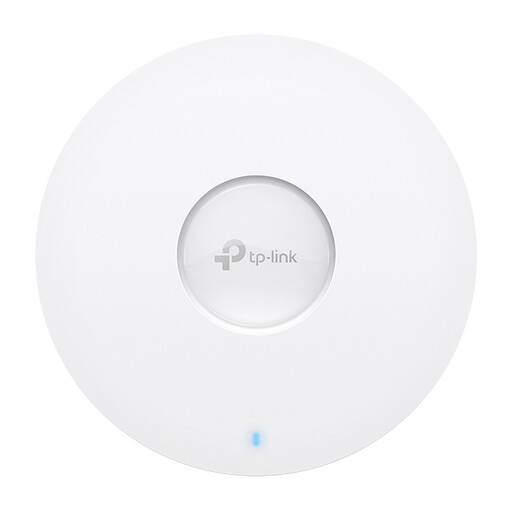 No image available
A good fit if you want to keep your existing router and can install a wired Wi-Fi point in a suitable location.
The product description lists an Ethernet port, PoE or DC power and ceiling or wall mounting. It describes management via the Omada app or a local controller.
Check the available power, mounting location and management method for your setup.
Not necessarily. If coverage is poor mainly where you’ll be presenting, you could consider adding a wired access point or a mesh system in a suitable setup. ACM ConsuWijzer confirms that you can choose your own router in the Netherlands; using your own modem or connecting directly to the network may also involve technical and security requirements.
Place the node somewhere it still has a usable connection to the main router, not just where the Wi-Fi signal has already dropped out. The best position depends on distance and obstacles, so test the connection at the end of the corridor too. If a stable wireless connection isn’t possible, TP-Link describes a wired access point setup as an alternative.
If you’re using Google Cast, check that the sending device and receiver are on the same local network. Google Cast Help lists AP or client isolation, including isolation on some guest networks, as a possible cause of connection problems. For other presentation systems, check their own network requirements.
Check whether there’s an Ethernet cable running to the intended location, what power supply the access point or node needs, and whether the mode you’ve chosen works with your existing router. Mounting and management may also be important for an access point. Follow the manufacturer’s installation and firmware instructions for the exact model.
ACM ConsuWijzer confirms that you can choose your own router in the Netherlands, subject to the applicable technical and safety requirements for connecting to the network. According to the Dutch Authority for Digital Infrastructure, radio equipment placed on the EU market must meet the applicable requirements and carry the required CE marking. Check the marking on the specific version and follow the installation instructions.