If you’re joining on your own, start by thinking about how you’ll hear the trainer clearly and how your own voice will be picked up: a noise-cancelling microphone won’t automatically improve the audio you receive. For several people in one room, a video bar with group framing and room audio may be a better fit. For either setup, check that the connection and microphone settings work with your computer and meeting app.
Who is this guide for?
Speaker at a noisy desk
You’re taking the training on your own and want to be able to ask questions without background noise drowning out your voice. Check which microphone the meeting app uses, and bear in mind that a manufacturer’s noise-cancellation claims don’t guarantee how well it will work in your workplace.
Participant who struggles to hear the trainer
If you can’t hear the trainer clearly, first check the speaker or headset you’re using to listen. In Microsoft Teams, you can choose your microphone and speaker separately.
Group in a small meeting room
If colleagues are taking the training together, compare options for group framing, room audio and connection to the computer in the room. A personal webcam isn’t necessarily suitable for a shared-room setup.
What should you look for when buying?
Personal webcam
Suitable if: you’re joining from your own computer and mainly want others to see and hear you clearly.
Bear in mind: manufacturers describe microphone features for transmitting your voice; these don’t tell you how well you’ll hear the trainer.
Camera with separate audio devices
Suitable if: you want to choose your camera, microphone and listening device separately for your workplace.
Bear in mind: you’ll have extra devices and settings to manage; Microsoft Support explains how to select a microphone and speaker separately in Teams.
Video bar for a group
Suitable if: several colleagues are joining from one small meeting room.
Bear in mind: check the room setup and connection. Logitech’s described one-cable BYOD setup requires an optional active USB cable.
| Consideration |
What should you check? |
Which consumers is this important for? |
| Speaking clearly |
Check which microphone the meeting app uses and, if possible, test your outgoing audio beforehand. |
If I’m asking questions from a noisy workplace, I want others to be able to follow what I’m saying. Around 36% of consumers rank speaking clearly as their top priority. |
| Hearing the trainer clearly |
Select the intended speaker or headset in the meeting app and test whether you can follow the trainer from your workplace. |
If I need to follow the explanations, I look at the audio I receive, not just the camera’s microphone. Around 29% of consumers prioritise hearing the training. |
| Joining as a group |
Check how many people need to be on screen, where they’ll be sitting and how the camera connects to the laptop or room computer. |
If several colleagues are joining together, I want the setup to work for the whole group. Around 21% of consumers rank joining as a group as their top priority. |
| Picture and connection |
Check the computer connection and what software is needed for the features you want. Logitech says Logi Tune is required for RightSight auto-framing on the Brio 500. |
If picture quality and connection are my main considerations, I first check that the camera suits my computer and how I plan to use it. Around 14% of consumers prioritise these points. |
Common mistakes
-
Confusing noise cancellation with better incoming audio
The microphone affects the audio others hear from you. Your speaker choice separately determines how you hear the trainer.
Test both the microphone and the speaker or headset before the training starts.
If the built-in audio doesn’t meet your listening needs, you may need a separate listening device.
-
Choosing a personal webcam for a whole group
A personal webcam and a video bar are designed for different setups. Logitech describes the MeetUp 2 as being for small meeting rooms, with group framing and integrated audio.
Decide in advance whether you need one speaker or several participants to be seen and heard at the same time.
-
Assuming every feature works straight away
Some features or connections have specific requirements. Logitech says Logi Tune is needed for RightSight auto-framing on the Brio 500, while the MeetUp 2’s described one-cable BYOD setup requires an optional active USB cable.
Check the software and connection requirements for the exact feature and setup you want to use.
Your chosen setup may require extra time to install software or a cable that’s sold separately.
Brands to consider for this choice
Logitech
The models mentioned range from the personal Brio 500 to the MeetUp 2 video bar for small meeting rooms.
- Logitech says the Brio 500 has noise-cancelling microphones. The MeetUp 2 is described as having group framing and room audio.
- According to Logitech, RightSight auto-framing on the Brio 500 requires Logi Tune. The described one-cable BYOD setup for the MeetUp 2 requires an optional active USB cable. These are model-specific features, not independently measured performance claims.
Insta360
The Link 2C is a personal webcam with auto-framing and adjustable audio modes.
- Insta360 describes Voice Suppression as a feature for noisy environments.
- The Link 2C and Link 2 are different models: the Link 2C has auto-framing, while the Link 2 has a moving gimbal. A manufacturer’s description of noise cancellation doesn’t prove how well the model will perform in your office.
Poly
The Studio P5 is a personal webcam to consider if you’re looking for an individual setup.
- HP/Poly lists features including 1080p, a directional microphone and a privacy shutter for the Studio P5.
- These product features alone don’t tell you how much nearby office noise will be reduced during your training.
Products related to this topic
This Joybuy selection includes personal webcams, meeting-room cameras and a monitor with an integrated webcam. Check that each model’s connection and features suit your computer and training setup.
 No image available
Dell Pro P P2726DEV 27" QHD IPS 100Hz with webcam
Suitable for a workspace where you want a monitor with an integrated webcam for video calls.
27" QHD IPS screen with 100Hz and an integrated webcam, according to the product name.
Joybuy
 No image available
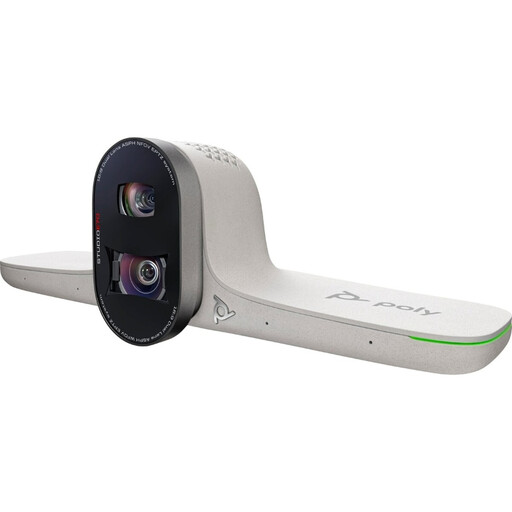
HP Poly Studio E70 Smart Camera
Suitable for a fixed meeting-room setup where several participants need to be in shot. Check in advance how the camera connects to the equipment in the room.
Joybuy
 No image available
Philips 4000 Series 4K UHD webcam SPL6408BT/00
Suitable for personal video calls if you’re looking for a webcam with built-in microphones. Noise cancellation is a product claim, not a guarantee of sound quality in your workplace.
The product name lists 4K UHD, autofocus, dual microphones and a privacy shutter. EU Version, Black.
Joybuy
 No image available
Philips 2K QHD PC Webcam SPL6308S/00
Suitable for online training from a laptop or desktop computer. The product listing mentions a noise-cancelling microphone; check the audio in your meeting app.
The product name lists 2K QHD and a microphone with noise reduction. EU Version, Silver.
Joybuy
 No image available
Insta360 Link 2C Standard Bundle Graphite Black
Suitable for personal video calls if you’re looking for auto-framing and an audio mode for noisy environments. Insta360 describes Voice Suppression for these conditions, but the results depend on more than the product claim alone.
The product name lists a 4K webcam for PC/Mac, 1/2" sensor, auto-framing, HDR and a microphone with AI noise cancellation.
Joybuy
Frequently asked questions
Will a camera with noise cancellation also help if I can’t hear the trainer clearly?
No. The microphone handles the audio others hear from you; the speaker or headset handles the audio you receive. Microsoft Support explains that Teams lets you choose your microphone and speaker separately, so check both settings.
What should I set up before the training starts?
Select and test the camera, microphone and speaker you intend to use. Microsoft Support describes a test call and noise-cancellation settings for Teams; the options available may depend on your organisation’s policies.
Does a video bar need extra setup?
It depends on the setup. Logitech describes connecting the MeetUp 2 to a room computer or directly to a laptop. The standard BYOD setup uses two cables; the described one-cable setup requires an optional active USB cable.
What cooling-off period applies to online purchases in the Netherlands?
The Government of the Netherlands generally states that consumers have 14 days to change their mind about a distance purchase from a business. Don’t assume this automatically applies to a business purchase made by your employer; check the terms that apply to the purchase.
Can I record an online training session or colleagues without asking?
Don’t assume that you can. According to the Dutch Data Protection Authority, an organisation needs a lawful basis under the GDPR to process personal data. Consent is one possible basis and must meet specific requirements. Make sure any recording is in line with the organising organisation’s policies and privacy assessment.


