
Meeting around the table
If colleagues are sitting on different sides of the table, you’ll want remote participants to be able to follow the group and see whoever is speaking. Owl Labs and Kandao describe 360° cameras for a central table set-up.


Choose a central 360° camera if colleagues are sitting on different sides of the kitchen table. A front-facing video bar is a better fit when everyone is looking towards the same side of the screen. Owl Labs and Kandao describe table cameras for 360° views, while Logitech and HP Poly describe front-facing solutions. A camera feed won’t automatically make a digital proposal easy to read: share the document separately using your meeting software.
If colleagues are sitting on different sides of the table, you’ll want remote participants to be able to follow the group and see whoever is speaking. Owl Labs and Kandao describe 360° cameras for a central table set-up.
If the group is looking towards a laptop or screen, a front-facing camera with a microphone and speaker may suit a small room. Logitech and HP Poly describe this type of set-up for their conference cameras.
If a digital proposal is the focus, you’ll need a way to share its content through the meeting platform as well as a camera feed. Microsoft Support explains how to present a screen or window in Teams.
Start with the seating arrangement and how you want to share the proposal. Then choose a camera set-up that suits the table, and check how the power supply, computer and cables will work in the room.
Suitable if: colleagues are sitting on several sides of the table and remote participants need a 360° view.
Bear in mind: the central position takes up table space; check the power and computer connections too.
Suitable if: the group is sitting on one side of the table and a front-facing group view is enough.
Bear in mind: a front-facing camera isn’t a 360° table camera; arrange the seating to suit the chosen set-up.
Suitable if: you want to join meetings without an external computer; Kandao describes this option for the Meeting Pro.
Bear in mind: you’ll still need a screen and power supply; check that the device is compatible with your organisation’s meeting platform.
| What to consider | What should you check? | Who is this most relevant to? |
|---|---|---|
| Everyone at the table in view | Map out the seating and the position of the laptop or screen; compare a central 360° set-up with the front-facing camera’s field of view. | If I’m sitting with colleagues on all sides of the table, I want remote participants to be able to see everyone; around 36% of consumers prioritise a 360° view. |
| Making sure speakers can be heard | Compare the stated microphone range with the furthest seat, and test the set-up at the actual speaking distance. | When colleagues speak from different seats around the table, I want remote participants to be able to hear them; around 29% of consumers give audibility top priority. |
| Sharing a proposal that’s easy to read | Check how the meeting platform shares a window or file, and who is allowed to present during the meeting. | When we discuss a digital proposal together, I want participants to be able to follow the text easily; around 21% of consumers prioritise sharing proposals in a readable format. |
| Connecting the equipment | Check the installation steps, power supply, cables and contents of the box for the exact model. | When I use the camera at a temporary table set-up, I want to know quickly what to connect; around 14% of consumers prioritise ease of set-up. |
A camera films the people in the room, but that won’t automatically make a proposal’s text easy for remote participants to read.
Decide in advance how you’ll present a document or window using your meeting platform.
A video bar at one end of the table and a camera in the middle are designed for different seating arrangements.
Map out all the seats, then check whether they’ll be visible from the camera position you’ve chosen.
The models described may have different computer, power and installation modes. For example, for Meeting Owl 3 and 4+, Owl Labs specifies a USB connection to the computer, a separate power connection and app registration.
Check the instructions and box contents for the exact model. For MeetUp 2, Logitech describes a standard BYOD set-up with two cables; using one cable requires a separate active USB cable.
Depending on the model and set-up, you may also need a suitable screen, computer, accessible power socket or separate accessory.
Owl Labs describes Meeting Owl 3 as a table-focused 360° device with a camera, microphones and speaker.
Kandao describes Meeting Pro as a central 360° set-up with a USB computer mode and a standalone mode.
Logitech describes MeetUp and MeetUp 2 as front-facing conference cameras for small rooms.
HP describes Studio R30 as a USB video bar for small meeting rooms.
Jabra describes PanaCast 50 as a front-facing panoramic video bar for a table arranged towards one side of the screen.
This selection includes webcams and a front-facing conference camera for PC video calls. Check that each model’s framing suits your group size and seating arrangement.
 Image unavailable
This PC webcam may suit meetings held on a computer; the product title mentions a noise-cancelling microphone.
The product title lists 2K QHD, EU Version and Silver. Check that the framing includes everyone at the table.
 Image unavailable
This front-facing conference camera may suit a group looking towards one side of the screen; it isn’t a central 360° table camera.
The product information lists a 120° field of view, built-in microphones and a USB connection to a computer. Logitech describes MeetUp as suitable for small meeting rooms.
 Image unavailable
The product title mentions video calls via PC or Mac; check that the camera can fit the whole group around the table in the frame.
The product title lists a 4K webcam, 1/2" sensor, auto framing, HDR, gesture control and an AI noise-cancelling microphone.
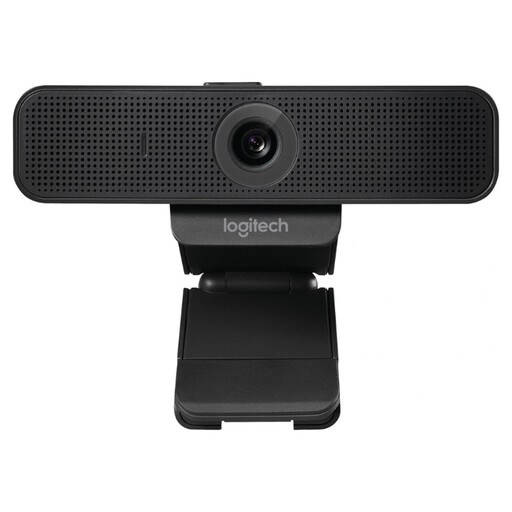 Image unavailable
The product information presents this webcam as suitable for video calls with one or two participants. Check that all your colleagues will fit in the frame.
The product title lists USB, 30 fps and the colour Black.
 Image unavailable
According to the product information, this webcam is designed for HD video calls. Check that its fixed framing suits the number of participants and where they’re sitting.
Not simply by filming the people in the room. In Microsoft Teams, use the feature to share a screen or window; if you use another meeting platform, check which sharing options are available.
For Meeting Owl 3 and 4+, Owl Labs describes a USB connection to the computer, a power connection and app registration. For other models, check their specific installation instructions; an all-in-one design doesn’t automatically mean one cable is all you need.
For a private purchase in the Netherlands, the manufacturer’s warranty is separate from your statutory rights. The Dutch government states that the seller must provide a solution if a product is faulty. For a business purchase, don’t assume the same consumer rights apply.
A recording feature or notification in meeting software does not, in itself, provide a legal basis for recording. According to the Dutch Data Protection Authority, an organisation must determine the applicable GDPR legal basis in advance. Consent is one possible basis, but in an employment relationship it cannot automatically be assumed to be freely given.
The Dutch Data Protection Authority says that organisations must provide employees with secure video-calling options. Assess the meeting environment and your organisation’s policies separately; this alone does not establish that a particular camera model complies with privacy rules.