Choose a camera setup based on what remote participants need to see and hear: one speaker in a fixed position, a group in the room or someone moving around. A webcam, video bar, 360° camera or PTZ camera may suit different situations. Also check microphone coverage at the actual speaking positions, arrange screen sharing separately and assess your privacy setup if pupils or students will be on camera.
Who should consider this choice?
Supporting a student giving a solo presentation
You want remote participants to be able to see and hear one speaker in the classroom, while research slides are shown separately. The UvA Teaching and Learning Centres describe this type of presentation in their guidance on teaching practice.
Teacher with a presenting group
You need to accommodate different speakers and questions from around the classroom. The camera position and microphone coverage together determine how the setup should be arranged. For example, Owl Labs describes a central 360° setup for participants seated around a table.
School administrator setting up a hybrid classroom
You need the equipment to work with the existing laptop, screen and video-calling system. If pupils or students will be on camera, privacy arrangements should also be part of your assessment. The Dutch Data Protection Authority stresses that the school must assess the privacy risks of the specific use.
What should you look for when choosing?
First decide whether your priority is a clearly visible speaker, audible questions, shared research material or compatibility with the existing classroom. Then consider the camera, microphone and screen sharing as separate elements and make sure they work well together.
| What to consider |
What to look for when buying |
Who is this important for? |
| Keeping the speaker in shot |
Match the camera angle and distance to the fixed or changing speaking position. Test whether a directional camera, automatic framing or motorised control is right for you. |
If I mainly want to show remote participants one presenter in a fixed position, they need to remain clearly visible. Around 36% of consumers say keeping the speaker in shot is their top priority. |
| Clear speech |
Test the microphone with your video-calling app from the furthest speaking position and when someone asks a question from the audience. Decide whether you need a separate microphone. |
When several people ask questions from different positions, I want to know whether their voices come across clearly to remote participants. Around 29% of consumers prioritise clear audio in the room. |
| Slides and materials |
Check that your laptop, projection setup and video-calling app can show a camera feed and shared content at the same time. Also test whether text on the board is readable. |
When presenting research findings, I want to show slides or other materials alongside the speaker. Around 21% of consumers put sharing this content first. |
| Room compatibility and privacy |
Check the connections and compatibility with the available screen. If people will be on camera, also review the arrangements for video calls and any recordings. |
If the camera needs to fit into an existing teaching setup, I want to sort out the connections and arrangements for having people on camera in advance. Around 14% of consumers name compatibility and privacy as their top priority. |
Common pitfalls
-
Assuming a wide field of view guarantees good picture and sound throughout the classroom
A wide field of view does not tell you how clearly someone can be heard from the furthest speaking position. Logitech positions MeetUp for small rooms and lists an expansion microphone as an option.
Before settling on a setup, test the picture and sound from every position where someone might present or ask a question.
Depending on the setup, you may need an additional microphone or a different camera position.
-
Expecting a 360° camera to show slides or board text clearly by itself
A full view of the room is not the same as shared slides or a readable close-up. The UvA guide covers camera and screen settings separately.
Choose a 360° setup that suits the seating arrangement, and also test how remote participants will see slides or other materials.
You may need a separate screen-sharing or projection setup to share research material.
-
Choosing a SMART camera without checking the existing display
SMART’s installation guide for the Ultra HD Camera 120 specifies compatible SMART interactive displays with an integrated microphone array.
Check the exact display and its audio setup before choosing the camera.
-
Treating a privacy shutter as a complete privacy solution
A shutter can cover the lens, but it does not determine how video calls or any recordings should be managed at the school.
Follow the school’s video-calling policy and assess recordings separately. The Dutch Data Protection Authority says a DPIA is required for processing that presents a high risk to privacy.
Brands to consider
Logitech
Logitech positions MeetUp as a USB video bar with integrated audio for small rooms. A specific 2021 guide from the UvA Teaching and Learning Centre mentions a Logitech BRIO for a hybrid teaching setup with students giving presentations.
- Logitech describes MeetUp as having a wide field of view and integrated audio.
- Its positioning for small rooms does not automatically make MeetUp suitable for a large classroom. The UvA guide is an example for a specific room, not a general comparison of models.
Owl Labs
Owl Labs describes the Meeting Owl 3 as a central 360° setup with a camera, microphones and speaker, designed for participants sitting around a table.
- Owl Labs gives this model a microphone pickup range of 5,5 m.
- That specification does not tell you how well it will show a speaker at the front of a classroom or text on a board.
AVer
AVer positions the CAM520 Pro3 as a USB conference camera with motorised camera control for medium to large rooms.
- AVer lists 12× optical zoom and camera presets for the CAM520 Pro3.
- The camera specifications do not confirm that the audio, controls, mounting and laptop connection together provide a complete setup.
SMART Technologies
SMART describes the Ultra HD Camera 120 as an add-on for compatible SMART interactive displays in hybrid classrooms.
- SMART mentions automatic framing and a physical camera shutter.
- The straightforward connection described applies to SMART displays with an integrated microphone array, not every existing screen.
HP Poly
HP Poly describes the Studio R30 as a USB video bar for small rooms, with a camera and integrated audio.
- HP Poly lists a 120° field of view and a three-microphone array.
- According to HP Poly, full 4K playback depends on factors including the platform, cable and computer. The product listing does not mean every lesson will run in 4K.
Joybuy products
This selection includes webcams for a fixed presentation setup and a PTZ camera for a speaker moving around a larger room.
 Image unavailable
Razer Kiyo V2 X, Quartz
Suitable for a fixed speaking position when you want to adjust the field of view and cover the camera after use.
The product title lists 1440p/1080p at 60 FPS. The description mentions autofocus, a built-in stereo microphone and an adjustable field of view.
The connection described is USB-A 2.0; the stated system requirements are Windows 10 (64-bit) or Windows 11.
View at Joybuy
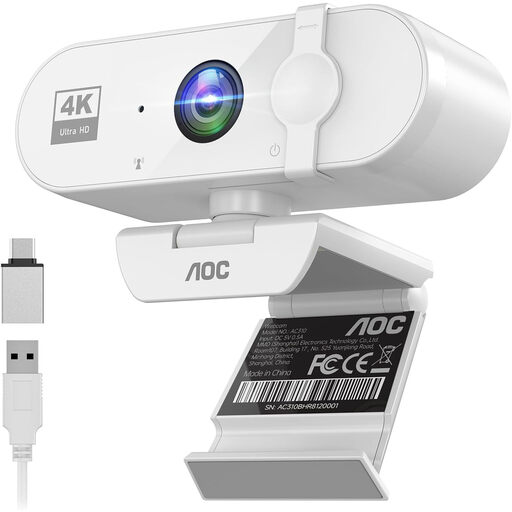 Image unavailable
AOC webcam for PC, 4K
A webcam option for a fixed setup on a monitor, desk or tripod. Test the microphone from the distance at which the speaker will present.
The description lists 4K video, a built-in noise-cancelling microphone and a 99° field of view.
The webcam has a USB connection and comes with a USB-A to USB-C adapter. A built-in sliding cover can protect the lens.
View at Joybuy
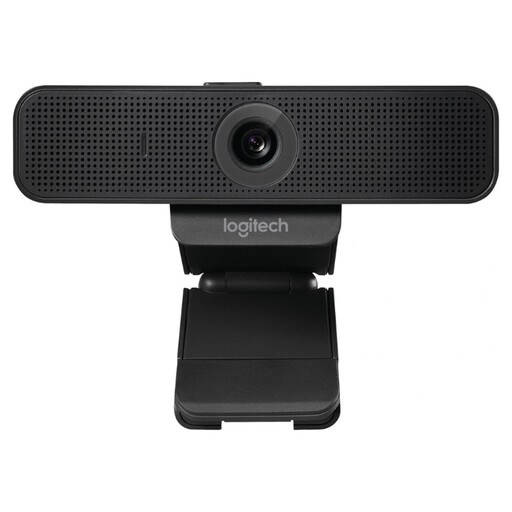 Image unavailable
Logitech C925e, 960-001076
The stated field of view is designed for one or two people, making this model suitable for a fixed, small-scale presentation setup.
The webcam offers 1080p at 30 fps, autofocus and a 78° field of view.
The built-in microphones are described as picking up sound from up to one metre away. The camera has an adjustable clip and a privacy cover.
View at Joybuy
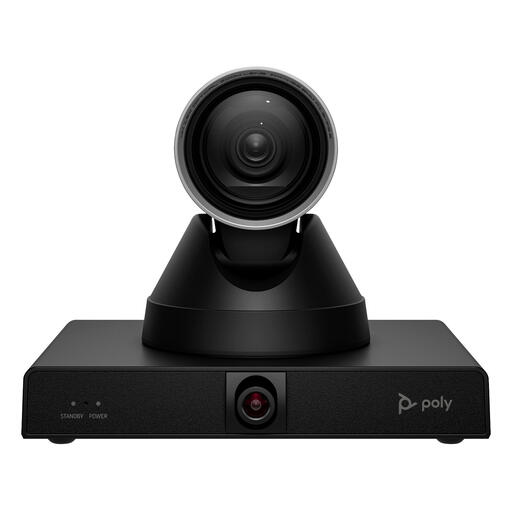 Image unavailable
HP Poly Studio E60 Smart Camera, 4K MPTZ
This PTZ camera is designed for a larger room where a speaker moves around and directional camera control may be needed.
The description lists 12× optical zoom, pan-tilt-zoom control, presenter tracking and smart group framing.
According to the product description, the camera weighs 1,79 kg. The listed power options are a 12V adapter or PoE; make sure you have suitable mounting in place.
View at Joybuy
 Image unavailable
Philips 4000 Series 4K UHD Webcam, EU Version, Black, SPL6408BT/00
A webcam option for a fixed setup on a laptop, desktop or monitor. The included universal clip can be used to mount it.
The product title lists 4K UHD, 8 MP and two built-in microphones. The description mentions autofocus and a USB-A connection.
The webcam has an integrated privacy cover.
View at Joybuy
Frequently asked questions
Do the slides need to be filmed by the conference camera?
No, you can share slides separately. For a presentation controlled from a laptop, use the screen-sharing and projection settings to show the content, and point the camera at the speaker where needed. Test in advance what remote participants can see.
How should you test the setup before the presentation?
Check which camera, microphone and speaker are selected in your video-calling app. Then test a speaker and someone asking a question from their actual positions, and check the shared slides separately. The UvA guide covers camera, audio and screen selection as separate steps.
What should you check when connecting to the existing classroom setup?
Before buying, check that the camera is compatible with the screen and computer in the room, and that you have the connections you need. For the SMART Ultra HD Camera 120, SMART specifies compatible SMART interactive displays with an integrated microphone array.
Can a school simply record a presentation featuring pupils or students?
Do not assume that it can. In recommendations dated 2 October 2020, the Dutch Data Protection Authority says pupils or students cannot simply be shown in lesson recordings for later viewing, and that this is only possible in exceptional circumstances. Assess the specific use and the school’s current arrangements.
Is a DPIA required for every hybrid lesson?
A DPIA is required when processing presents a high risk to privacy. According to the Dutch Data Protection Authority, the school must assess whether the purpose and method of its own video calls present such a risk. Buying a camera does not, by itself, determine this.


