
Vandaag of morgen in huis

Kwaliteit gegarandeerd

Welkomstaanbiedingen ontgrendelen: GRATIS bezorging | Tot 80% korting | Gratis 30 dagen JoyPlus-proefperiode
Download de app
A computer monitor may seem easy to choose at first. However, marketing terms, limited connectivity and the wrong dimensions can mean your screen no longer suits the way you use it after just a few months. A gaming monitor has different requirements from a screen for working from home, design or interactive use.
So don’t focus only on the price or the number of features. Consider the combination of screen size, resolution, panel type, refresh rate and connections.
A monitor with a 180 Hz, 200 Hz or 240 Hz refresh rate can display smooth movement, but only if your computer, graphics card and cable support the rate you want. Check the version and capabilities of HDMI and DisplayPort. Some models need DisplayPort to reach their maximum refresh rate.
A high-refresh-rate monitor is especially relevant for fast-paced games. For word processing, admin and standard office work, 60 to 100 Hz is often sufficient.
A 27-inch monitor with Full HD offers plenty of screen space, but has fewer pixels per inch than a 24-inch monitor with the same resolution. Text and fine lines may therefore look less sharp when you sit close to the screen.
You could also consider a Quad HD or 4K monitor for a 27-inch screen. However, check that your computer can run the higher resolution smoothly. A 4K monitor isn’t automatically suitable for everyone: gaming may require a powerful graphics card.
As well as HDMI or DisplayPort, a touchscreen monitor usually needs a USB cable for its touch function. Without this connection, the picture will work, but touch controls may not. With a USB-C monitor, you should also check whether USB-C supports video, data and Power Delivery. Not every USB-C port can charge a laptop.
A VESA mount gives you more flexibility when positioning your monitor, but check the pattern, such as 75 × 75 mm or 100 × 100 mm, and the monitor’s weight before buying an arm or wall bracket.
Full HD typically means 1920 × 1080 pixels. Quad HD uses, for example, 2560 × 1440 pixels, while 4K UHD uses 3840 × 2160 pixels. Don’t look at pixel count alone: consider your viewing distance and your operating system’s scaling settings too.
An IPS monitor is known for its wide viewing angles and generally consistent colour reproduction. This makes it a good fit for office work, image editing and general use. VA panels often offer higher static contrast, which can enhance dark scenes in films and games. TN panels often have fast response times, but may have more limited viewing angles.
Specifications such as 1 ms or 5 ms aren’t always directly comparable. Manufacturers may use different measurement methods, such as GTG or MPRT. Treat response time as a guide, rather than the only factor in your decision.
Refresh rate is measured in hertz. 60 Hz is common for productivity; 100 Hz, 144 Hz, 180 Hz, 200 Hz and 240 Hz are designed to deliver smoother movement. Adaptive Sync technology can help reduce screen tearing when your computer’s frame rate changes. Always check that your graphics card and connection are compatible.
For everyday use, an adjustable height, tilt function and, where available, swivel are more important than an extra picture mode. A monitor with a VESA mount gives you more choice of monitor arms and wall brackets. Also check the energy class and energy consumption per 1,000 hours, as your screen may be on for several hours each day.
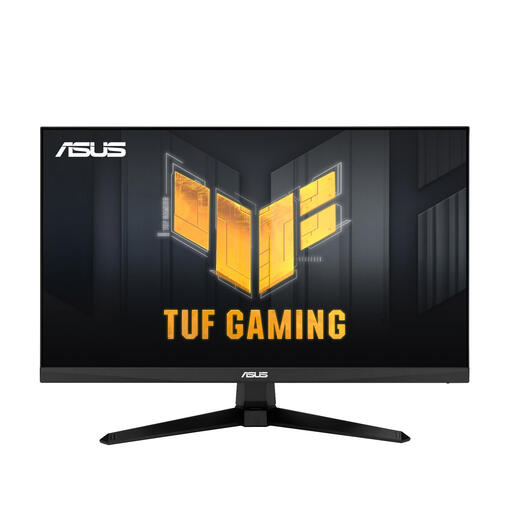
Why it suits this profile: A 23.8-inch Full HD screen for anyone looking for a compact size and gaming features without going straight for a large or ultrawide model.
The product details list 100 Hz, Full HD, two HDMI ports and VESA 100 × 100 mm. This makes the key connections and mounting options clear in advance.
IPS panel, 1920 × 1080 pixels, FreeSync support and a tiltable stand.
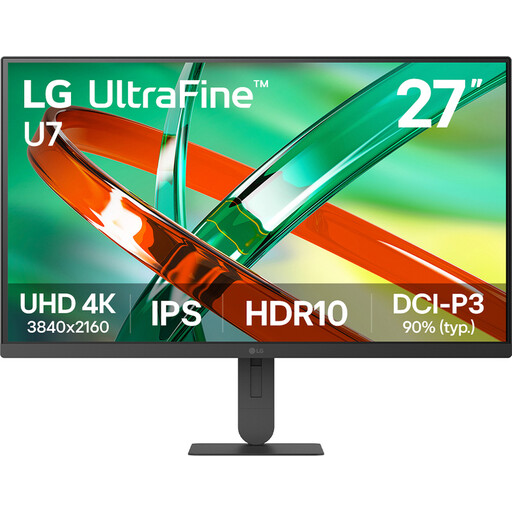
Why it suits this profile: Designed for users who value high resolution for design, photos, video and crisp text.
The combination of 3840 × 2160 pixels, an IPS panel and HDR10 is clearly specified. Check in advance whether your computer supports 4K at 60 Hz.
27 inches, 4K UHD, IPS, 60 Hz and 5 ms response time.
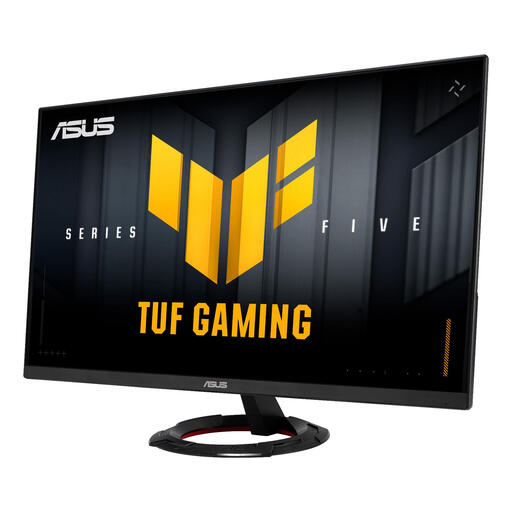
Why it suits this profile: For gamers who want to combine a 27-inch screen and fast movement with a Full HD resolution.
The product information lists the 200 Hz refresh rate, DisplayPort 1.4 and two HDMI 2.0 ports separately. This lets you choose the right connection for your computer.
Fast IPS, 200 Hz, 1 ms GTG, 100% sRGB and VESA 75 mm compatibility.
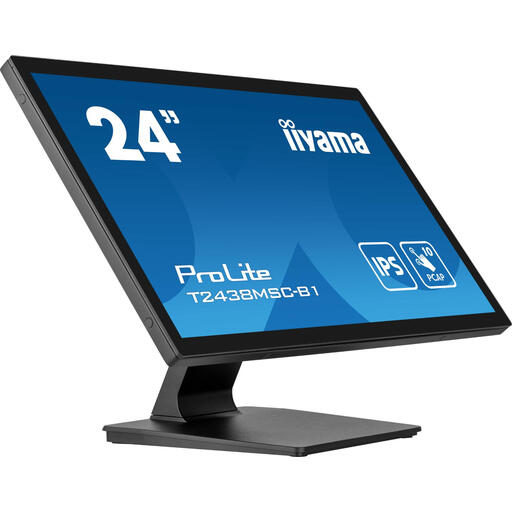
Why it suits this profile: Designed for reception desks, presentations, kiosks and workspaces where direct interaction with the screen is needed.
The touch function, USB hub and VESA 100 mm mounting are listed as separate specifications. For touch controls, you need to connect USB as well as the video cable.
23.8-inch Full HD, IPS, 10-point capacitive touch, 525 cd/m² brightness and two USB 3.2 ports.
We’ve put together a complete, up-to-date list of products that meet these strict selection criteria and the applicable European safety regulations.
Yes. A 24-inch monitor takes up relatively little desk space and, with Full HD, provides enough room for text, email and spreadsheets. If you want to view several windows side by side, a 27-inch or ultrawide monitor may be more practical.
Its lifespan depends on how intensively it’s used, heat, transport and the quality of the power supply. Check the warranty terms when you buy and keep your receipt. In the EU, consumers are entitled to at least the statutory protection for goods to conform to their contract; the products mentioned typically come with a statutory warranty of at least two years. This is separate from any additional manufacturer terms.
It can, but power consumption varies by model. Check the energy class and stated consumption per 1,000 hours. A larger screen, higher brightness, HDR and a higher refresh rate can all affect energy use. Turn off your monitor or use sleep mode if you won’t be using your computer for a while.
