
Vandaag of morgen in huis

Kwaliteit gegarandeerd

Welkomstaanbiedingen ontgrendelen: GRATIS bezorging | Tot 80% korting | Gratis 30 dagen JoyPlus-proefperiode
Download de app
Buying a computer monitor seems straightforward, until you have to choose between Full HD, QHD, 4K, IPS, OLED, 240Hz and ultrawide. Manufacturers often focus on one impressive specification, while other features can be just as important. A high refresh rate, for example, is of little use if your computer cannot output that frame rate.
In this guide, you’ll find out which features are really worth comparing, which common pitfalls can lead to a poor purchase, and which computer monitor suits different needs.
A 240Hz monitor can display motion more smoothly than a 60Hz screen, but you’ll only really notice the difference if your computer can also produce enough frames per second. For office work, admin and browsing, 75Hz or 100Hz is often more than enough. For competitive gaming, 165Hz, 200Hz or 240Hz may be worthwhile.
Also check:
Full HD looks different on a 24-inch screen than it does on a 27-inch screen. Pixels are more visible on a larger screen, so QHD may be a more suitable choice. A QHD monitor with 2560 × 1440 pixels gives you more workspace than Full HD. A 4K monitor with 3840 × 2160 pixels shows even more detail, but also demands more from your graphics card.
For a screen of around 23,8 inches, Full HD and QHD are common options. At 27 inches, QHD is often a good fit for both gaming and office work. At 31,5 inches and above, 4K is worth considering if you want text, photos and videos to stay sharp.
A manufacturer may use terms such as “professional colour reproduction”, “ultra-fast response” or “cinema experience”. So look for verifiable details such as:
According to information from ASUS, MSI and other brands, certain features can improve picture quality or the gaming experience. Treat these as product claims and always compare them with the technical specifications.
An IPS monitor typically offers wide viewing angles and consistent colours. This makes IPS suitable for office work, photo editing and general use. VA panels often have a higher stated contrast ratio and can be a good choice for films and games with dark scenes.
An OLED monitor uses pixels that light up individually, making deep blacks possible. However, check the manufacturer’s information about image retention or burn-in when displaying static images for long periods. A screensaver and varied content may help reduce the risks, according to the product instructions.
TN panels are mainly found in specific models. They can have a fast response time, but their viewing angles and colour reproduction are often less versatile than those of IPS panels.
A 24-inch computer monitor will usually fit on a compact desk. A 27-inch screen gives you more room for windows and games. An ultrawide monitor of 34 inches or larger is ideal for multitasking, racing simulations and wide timelines in editing software.
Consider how much desk space you have. A 49-inch screen needs a wide base and may also require you to sit further away. Check whether the stand is height-adjustable and whether VESA mounting is supported.
Before buying, check that the monitor will connect to your computer, laptop or console. Common connections include HDMI, DisplayPort and USB-C. Some models can use USB-C to transmit both video and power, but the maximum power output varies by model.
Useful ergonomic features include:
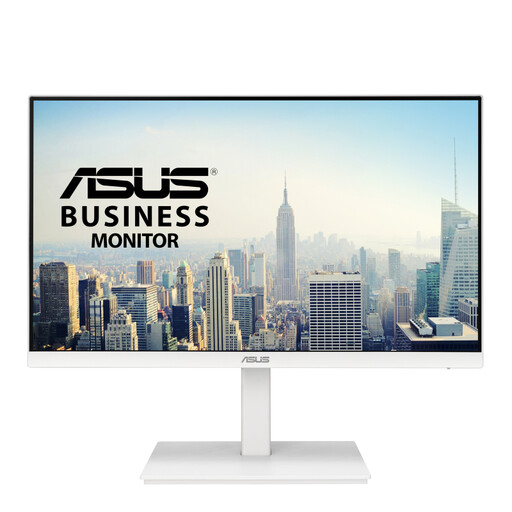
Why it suits this user: This 23,8-inch Full HD IPS screen is suitable for working from home, admin and everyday use. The stand supports height adjustment, swivel, tilt and pivot.
The specifications cover more than just Full HD resolution: they also list the connections, ergonomic features and USB hub. That means you don’t have to rely on a single marketing claim.
IPS panel, 75Hz, HDMI, DisplayPort, VGA and VESA 100 × 100 mm.
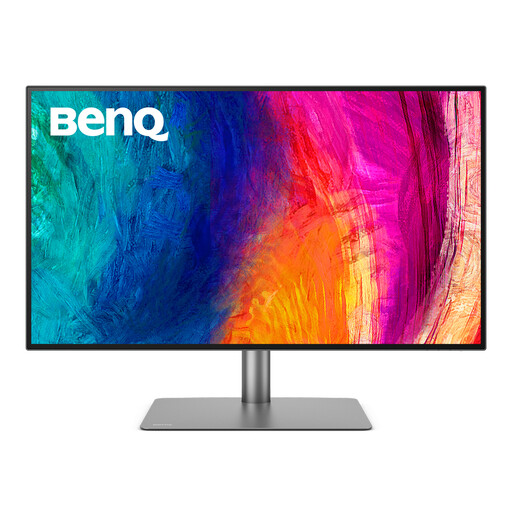
Why it suits this user: This 32-inch 4K monitor is designed for designers and users who need plenty of screen space and connectivity options.
The product information lists the 4K resolution, 60Hz refresh rate, Thunderbolt 3 and 85W Power Delivery separately. So you can see exactly which features you’re getting.
4K IPS panel, Thunderbolt 3, KVM switch, Picture by Picture and height adjustment.
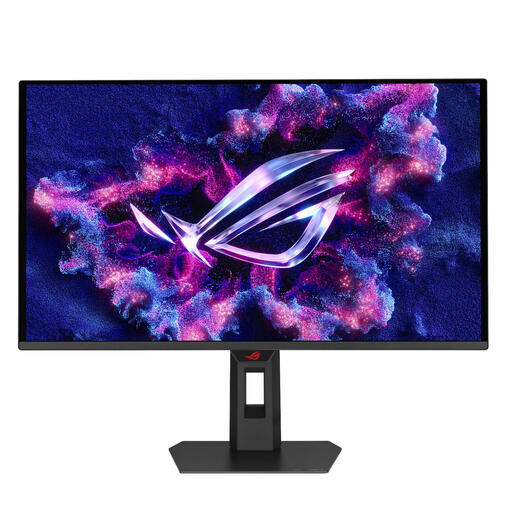
Why it suits this user: This 26,5-inch QD-OLED gaming monitor has a QHD resolution and a stated refresh rate of 500Hz, for users with a suitable system.
The high refresh rate is listed alongside the required DisplayPort and HDMI connections. Bear in mind that your computer needs to be able to make the most of this performance.
QD-OLED, QHD 2560 × 1440, 500Hz, 0,03ms and FreeSync Premium Pro support.
We’ve put together a complete, up-to-date list of products that meet these strict selection criteria and current European safety regulations.
A 23,8 to 27-inch screen is practical for a standard desk. Choose 31,5 inches or larger if you need more workspace and have enough viewing distance. An ultrawide monitor needs extra desk width.
Yes. 4K can give you more workspace, particularly for text, spreadsheets and image editing. Check your operating system’s scaling settings and your computer’s connections, though. For basic office work, QHD may be a less demanding option.
This varies depending on the screen size, brightness, panel type and usage mode. Check the energy label and the stated consumption per 1.000 hours. Higher brightness and HDR mode can increase power use. Switch the monitor off when you’re not using it for an extended period.
