
Vandaag of morgen in huis

Kwaliteit gegarandeerd

Welkomstaanbiedingen ontgrendelen: GRATIS bezorging | Tot 80% korting | Gratis 30 dagen JoyPlus-proefperiode
Download de app
Buying a computer monitor seems straightforward until you have to choose between Full HD, QHD, 4K, IPS, VA, 144Hz and a range of gaming features. Marketing copy often focuses on one impressive figure, while other features can be just as important. A high refresh rate, for example, is of little use if your computer cannot deliver that frame rate.
The main pitfalls are:
For everyday office work and studying, a 24-inch Full HD monitor is often a practical choice. Its 1920 × 1080-pixel resolution puts relatively little demand on your computer and is well suited to word processing, browsing the internet and streaming video.
A QHD monitor with 2560 × 1440 pixels gives you more screen space and sharper text. It’s a good option for a PC monitor, photo editing, multitasking and gaming. A 27-inch QHD screen is a popular combination. If you want to have several windows open side by side, consider an ultrawide monitor. The LG 34WR50QK-B, for example, has a 34-inch screen with a 21:9 aspect ratio and a resolution of 3440 × 1440 pixels.
A 4K monitor has 3840 × 2160 pixels. Check in advance whether your computer, laptop or console supports this resolution, and what refresh rate it can achieve. A higher resolution generally requires more graphics processing power.
Refresh rate is measured in hertz. A 60Hz monitor refreshes the image up to 60 times per second, while a 144Hz monitor, 240Hz monitor or 320Hz monitor does so more often. Higher refresh rates can matter for competitive PC gaming. For office work, 75Hz or 100Hz is often enough, depending on your preferences and system.
Also check whether the response time is measured using MPRT or GtG. Brands use different testing methods, so figures aren’t always directly comparable. According to the product descriptions, the Titan Army C24A1H, for example, lists 1ms MPRT, while the Alienware AW2525HM lists 0.5ms GTG. Treat these as product specifications, not a guarantee that every user will have the same experience.
An IPS monitor is generally known for its wide viewing angles and consistent colour reproduction. A VA monitor often offers higher static contrast on paper, which can be useful for films and dark scenes. The right choice depends on how you plan to use it, the lighting in your room and the picture quality you’re looking for.
Also check:
Some product descriptions list features such as Reader Mode, Flicker Safe and LowBlue Mode. According to the brands’ own information, these features are designed to make viewing more comfortable during prolonged use. They aren’t medical treatments and don’t replace good posture or regular breaks.
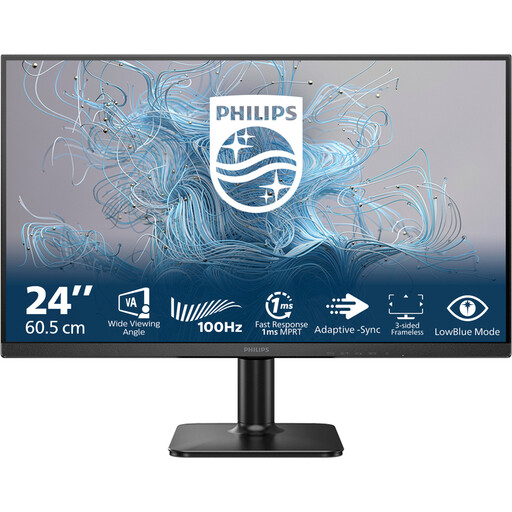
Why it suits this profile: This 24-inch screen combines Full HD, a VA panel and 100Hz for office work, studying and multimedia, without an unnecessarily large footprint.
The specifications list both the resolution and refresh rate, so you don’t have to rely on a marketing feature alone.
24 inches, 1920 × 1080 pixels, VA panel, 100Hz and 4ms response time according to the product information.
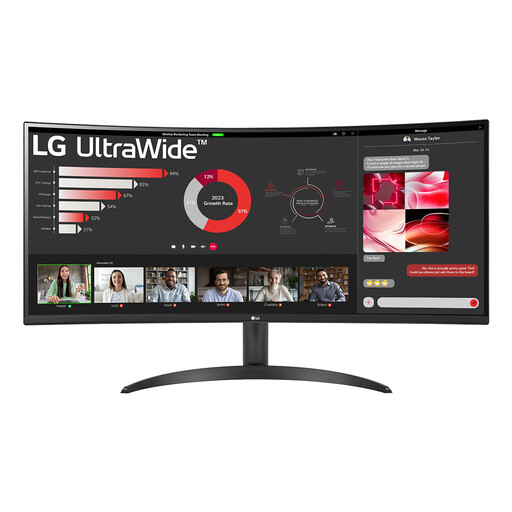
Why it suits this profile: The wide 21:9 format is practical for spreadsheets, having two windows open side by side, creative software and entertainment.
The product information lists the screen size, 3440 × 1440 resolution, connections and fixed 1800R curvature.
34 inches, VA panel, 100Hz, DisplayPort 1.4, two HDMI 2.0 ports and Picture-by-Picture.
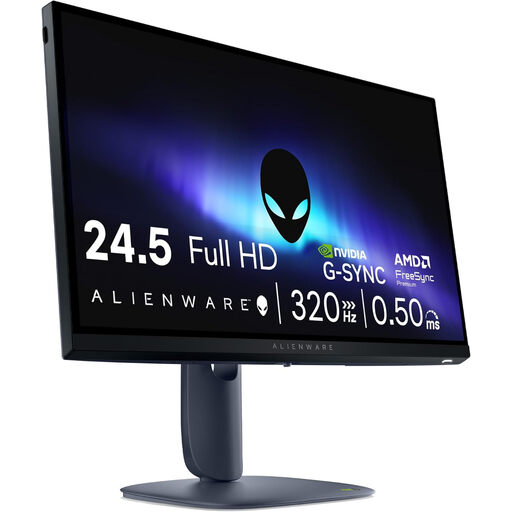
Why it suits this profile: This model is aimed at PC gamers who value a high refresh rate and an adjustable setup more than a higher resolution.
The HDMI 2.1 and DisplayPort 1.4 connections are clearly listed. However, check whether your PC can actually run Full HD at 320Hz.
24.5 inches, Full HD, Fast IPS, 320Hz, height adjustment, pivot and support for G-SYNC Compatible and FreeSync Premium according to the product information.
We’ve put together a complete, up-to-date list of products that meet these strict selection criteria and current European safety regulations.
For working from home, a 24-inch Full HD monitor or a 27-inch QHD monitor is a sensible choice. Focus on text clarity, adjustability, viewing angle and connections. If you often work with several documents at once, you may get more benefit from QHD or an ultrawide monitor than from a higher refresh rate.
A 144Hz monitor can make movement and scrolling look smoother, but when it comes to word processing, the difference compared with 100Hz or 75Hz won’t be significant for everyone. For gaming, the benefit also depends on the frame rate your computer can achieve. So check the combination of graphics card, resolution and connection.
Power consumption varies depending on screen size, brightness, resolution and panel type. Check the stated power consumption and energy label information. A large ultrawide or 4K screen may use more energy than a compact Full HD monitor. Use sleep mode and switch the screen off completely when you won’t be using it for a while.
