
Vandaag of morgen in huis

Kwaliteit gegarandeerd

Welkomstaanbiedingen ontgrendelen: GRATIS bezorging | Tot 80% korting | Gratis 30 dagen JoyPlus-proefperiode
Download de app
A computer monitor may seem simple to choose at first. Yet many buyers focus mainly on screen size and price, even though connections, resolution and ergonomics are just as important. A monitor that looks appealing on paper may not have enough ports in practice, may not fit on your desk or may not be compatible with your computer.
A high refresh rate monitor can display movement more smoothly. You’ll notice the difference most when gaming or watching fast-moving images. However, you’ll only benefit if your computer or games console can deliver enough frames per second. For office work, 75 to 120 Hz is often a practical choice; gamers can look at 144 Hz, 175 Hz or higher.
Pay attention to the connection, too. Check that HDMI or DisplayPort supports your desired resolution and refresh rate. A 320 Hz screen is of little practical use if your system or cable can’t handle that setting.
A 27-inch monitor is popular for office work, studying and everyday use. A 34-inch monitor or ultrawide model gives you more room for windows, but also takes up considerably more depth and width. So measure your desktop, and remember to allow for the stand, viewing distance and space for your keyboard and laptop.
Resolution is important for an ultrawide monitor. A 21:9 screen with 2560 × 1080 pixels gives you more horizontal space, while 3440 × 1440 pixels offers a higher pixel density.
Not every USB-C monitor charges a laptop. Some USB-C ports are only intended for video or data. Check specifically whether USB Power Delivery is listed and how many watts are available. According to the product specifications, the Dell Plus S2725QC delivers up to 65 W via USB-C; the HP Series 5 Pro 524pu lists up to 100 W.
A 4K monitor puts more demands on your graphics card, especially when gaming. For an office PC monitor, the main benefits are sharper text and more workspace.
An IPS monitor is known for its wide viewing angles and generally consistent colour reproduction. This makes IPS a good choice for office work, graphic design and use by several people.
A VA panel often has a higher stated contrast ratio, which can be useful for films and dark scenes. With an ultrawide screen such as the LG 34WR50QK-B, you get a VA panel, 3440 × 1440 pixels, 100 Hz and an 1800R curvature. According to the product specifications, this model also features FreeSync and HDR10.
An ergonomic monitor shouldn’t just tilt. Check whether the stand is height-adjustable, can swivel or supports portrait mode. A VESA mount is handy if you want to use a monitor arm. Check the maximum load and the correct VESA size, too.
Also look for:
The features listed are product specifications. Statements about comfort modes, blue light reduction or flicker-free operation, for example, come from the manufacturer’s product information and should not be taken as medical claims.
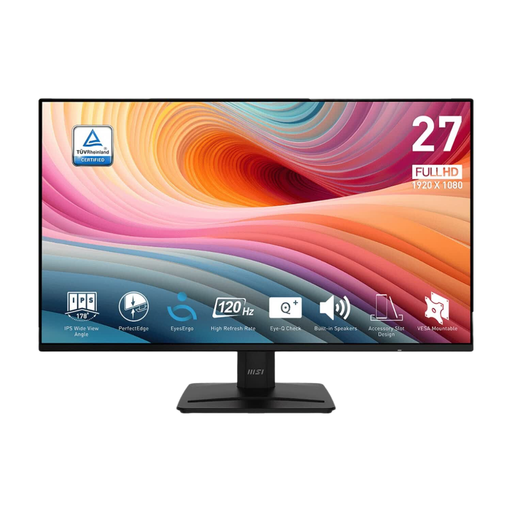
Why it suits this user: This 27-inch Full HD monitor is suitable for studying, working from home and general PC use. Its 120 Hz refresh rate also makes it a good option for casual gaming.
The specifications list HDMI, DisplayPort and VGA, making the screen suitable for a range of older and newer PCs. Be sure to check which cables are included beforehand.
IPS panel, 1920 × 1080 pixels, 120 Hz, built-in speakers and VESA 100 × 100 mm.
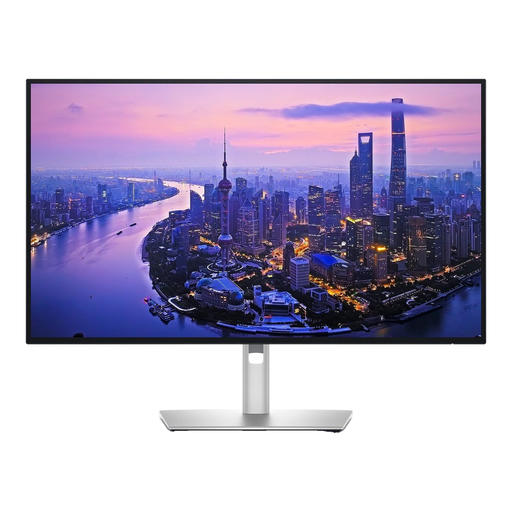
Why it suits this user: Ideal for professionals and creatives who value 4K detail, colour information and a versatile workspace with plenty of connections.
The connections are clearly specified and include Thunderbolt 4, USB-C, USB-A, HDMI and DisplayPort. This makes it easier to plan a permanent workspace.
27-inch 4K, IPS Black panel according to the product information, 120 Hz, 163 ppi and a comprehensive USB hub.
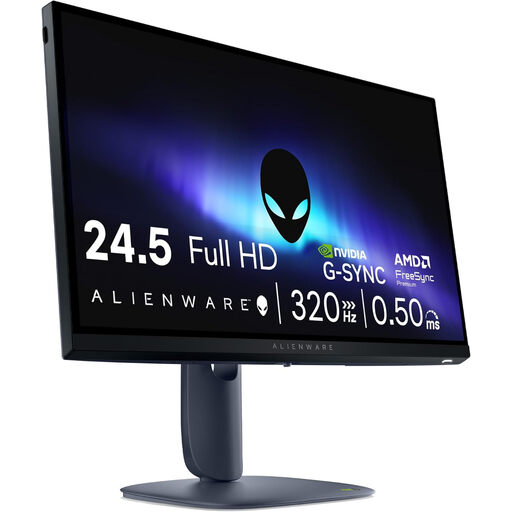
Why it suits this user: Designed for competitive gamers who value a high refresh rate and a low stated response time.
The monitor lists 320 Hz, HDMI 2.1, DisplayPort 1.4 and support for FreeSync Premium. Check that your graphics card can make use of these settings.
24.5-inch Full HD, Fast IPS panel, 320 Hz, stated response time of up to 0.5 ms and height-adjustable stand.
We’ve put together a complete, up-to-date list of products that meet these strict selection criteria and the applicable European safety regulations.
Before ordering, check:
A portable monitor such as the ASUS ZenScreen MB166CR can make a practical second display. According to the product specifications, this model has a 15.6-inch Full HD IPS panel, a USB-C connection and weighs 780 grams. If you’re using a laptop, check that its USB-C port supports video output.
Lifespan depends on use, heat, brightness and damage during transport. A permanent setup with plenty of ventilation and careful cleaning can help prevent unnecessary wear. Keep your proof of purchase and check the statutory guarantee; the product information for the models mentioned generally states a minimum two-year statutory guarantee.
It depends on how you’ll use it. For photo editing, working with lots of text and a 27-inch screen, 4K can give you a noticeably sharper picture. For simple tasks or gaming with a modest graphics card, Full HD or WQHD may be more practical. So compare the resolution with your computer’s performance, not just the purchase price.
Energy use varies by model, brightness and number of hours used. Check the energy label and the stated consumption per 1,000 hours. Multiply this by your annual usage and local electricity tariff. A lower wattage doesn’t automatically mean lower overall costs if the screen stays on for much longer.
