
Vandaag of morgen in huis

Kwaliteit gegarandeerd

Welkomstaanbiedingen ontgrendelen: GRATIS bezorging | Tot 80% korting | Gratis 30 dagen JoyPlus-proefperiode
Download de app
At first glance, choosing a monitor seems simple: pick a size, compare prices and put it on your desk. In practice, resolution, panel type, connections and ergonomics are what determine whether it remains comfortable to use every day. If you focus only on refresh rate or screen size, you could end up paying for features you rarely use.
This buying guide will help you choose the right monitor for working from home, gaming, graphic design, entertainment or multitasking.
A monitor with a 165, 180 or 240 Hz refresh rate can display movement more smoothly, but your computer or games console also needs to produce enough frames per second. For office work, 60 to 75 Hz is often enough. A high-refresh-rate monitor is most useful for fast-paced games.
Check the connection, too. Not every HDMI or DisplayPort version supports every combination of resolution and refresh rate.
A 27-inch Full HD monitor has a lower pixel density than a 27-inch QHD monitor, so text and fine lines may look less sharp. Full HD is usually a practical choice at 24 inches; from 27 inches upwards, QHD is often a better option for text, spreadsheets and creative work.
A 4K monitor displays even more detail, but it places greater demands on your graphics card. Some programmes may also require you to adjust the scaling settings.
A response time of, for example, 1 ms may be measured using a particular method, such as MPRT or GtG. This means the figures aren’t always directly comparable. As well as response time, consider the panel type, Adaptive-Sync and the actual refresh rate.
An ultrawide monitor takes up more space, so check your desk width and available viewing distance.
An IPS monitor is known for its wide viewing angles and generally consistent colours, making it a good choice for office work and graphic design. VA panels often have a higher stated contrast ratio and are common in curved monitors and gaming models. An OLED or QD-OLED panel can offer high contrast and a fast response time, but check the usage guidance on long periods of static images and screen protection.
No panel type is automatically right for everyone. For design work, colour coverage, factory calibration and a suitable colour profile matter more than panel type alone.
Check which ports your computer or laptop has before you buy:
A monitor with an adjustable stand can be raised or lowered and may also swivel, tilt or pivot. This is useful if you work long hours or switch between landscape and portrait orientation. Features such as blue-light filters and flicker-free technology are settings or techniques that, according to the product description, are designed to support viewing comfort. They don’t replace good lighting or regular breaks.
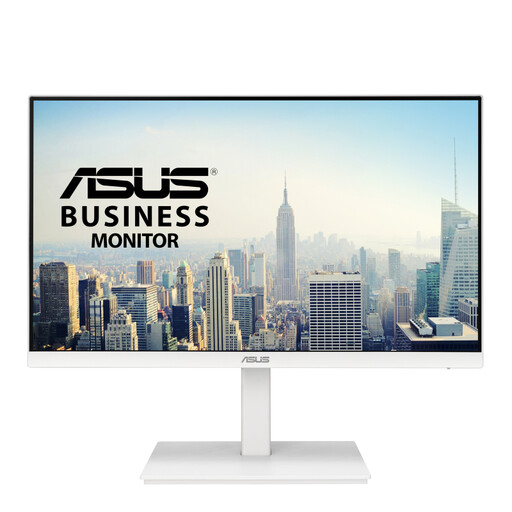
Why it suits this user: This 23.8-inch Full HD IPS screen is designed for everyday work, admin and home use. Its resolution suits its size, and the stand is height-adjustable.
You’re not paying for an extreme gaming refresh rate. The combination of Full HD, IPS and 75 Hz is well suited to general office and home use.
IPS panel, 75 Hz, HDMI, DisplayPort, VGA, two USB ports and a stand with 130 mm of height adjustment.
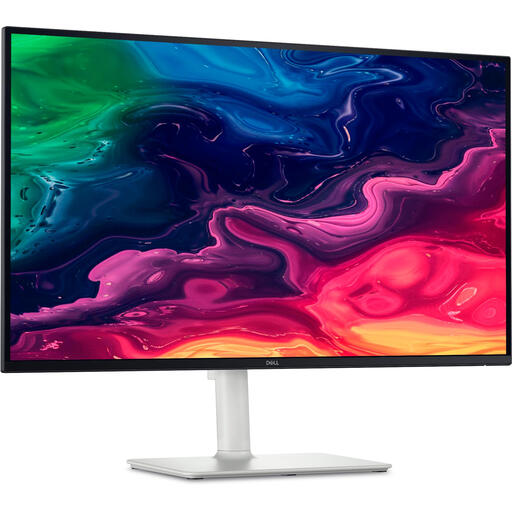
Why it suits this user: This 27-inch 4K IPS screen combines high pixel density with USB-C connectivity. It’s a good fit for office professionals and anyone who combines work with entertainment.
The 4K resolution keeps a large 27-inch screen from looking unnecessarily coarse. Check that your laptop can output 4K via USB-C or HDMI.
3840 × 2160 pixels, IPS panel, up to 120 Hz, USB-C with 65 W Power Delivery, HDMI 2.1 and height adjustment.

Why it suits this user: This 27-inch Full HD gaming monitor is designed for players who prioritise a high refresh rate over a higher resolution.
The specifications list both 200 Hz and Adaptive-Sync. Check beforehand that your PC can actually make use of this refresh rate.
Rapid IPS, 200 Hz, a stated response time of 0.5 ms GtG, Adaptive-Sync and a matt finish.
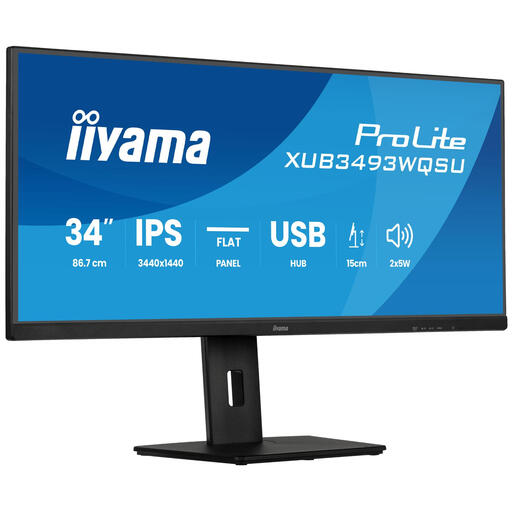
Why it suits this user: The 34-inch UWQHD monitor gives you room for multiple windows, spreadsheets and creative programmes without needing to add a second screen straight away.
The UWQHD resolution suits the wide 21:9 format, so the extra screen width isn’t simply filled with stretched Full HD pixels.
3440 × 1440 pixels, IPS panel, Picture-in-Picture, Picture-by-Picture and a stand with 15 cm of height adjustment.
We’ve put together a complete, up-to-date list of products that meet these strict selection criteria and the applicable European safety regulations.
Yes, especially if you work with text, spreadsheets or multiple windows. A 4K monitor displays more pixels, which can make images look sharper. Check that your computer supports 4K and that your operating system’s scaling settings work well.
Lifespan depends on usage, heat, transport and panel technology. In the Netherlands, a monitor is covered by at least the statutory guarantee under the applicable consumer protection rules; the products mentioned come with a minimum two-year guarantee. Keep your proof of purchase and follow the manufacturer’s installation and maintenance instructions.
It can. A larger panel, higher brightness, higher refresh rate or HDR mode can increase power consumption. Compare the stated energy use and adjust the brightness, sleep mode and screen saver to suit how you use the monitor.
