
Vandaag of morgen in huis

Kwaliteit gegarandeerd

Welkomstaanbiedingen ontgrendelen: GRATIS bezorging | Tot 80% korting | Gratis 30 dagen JoyPlus-proefperiode
Download de app
Building or upgrading a PC often starts with an attractive price tag or an impressive speed printed on the box. But computer components may not be compatible with your motherboard, power supply or case once you get them home. Gamers, content creators and home users often run into the same problems: compatibility issues, exaggerated performance claims and too little attention to heat.
Use these checks to compare PC components practically. You’ll also see which parts suit different needs.
A DDR5 module won’t work in a DDR4 motherboard. An M.2 NVMe SSD also needs a compatible M.2 slot. So check these things first:
A component may be technically faster, but run at a lower speed in an older system. That doesn’t automatically make a more expensive purchase worthwhile.
SSD manufacturers often quote maximum sequential read and write speeds. These figures are useful for large files, but tell you less about everyday use, launching software or transferring small files. Also consider:
According to Lexar’s product description, the NM620 1TB reaches up to 3,500 MB/s read and 3,000 MB/s write; the stated product specifications list 3,300 MB/s and 3,000 MB/s respectively. Always check the specific specifications of the version you’re buying.
A graphics card needs to fit more than just the PCIe slot. Check its length, height, thickness, power requirements and airflow, too. A card can take up two to four slots, blocking other expansion cards.
Pay attention to the power supply as well. For example, the ASUS Dual GeForce RTX 5050 OC Edition specifies an 8-pin PCIe connector and a recommended 550-watt power supply. The GIGABYTE GeForce RTX 5080 Gaming OC specifies a 12+4-pin PCIe Gen 5 connector and a recommended power supply of at least 850 watts. Compare these requirements with your existing power supply before ordering.
A motherboard determines the processor socket, memory type and expansion options. An AM5 motherboard is designed for compatible AMD Ryzen processors and DDR5 memory. According to its product specifications, the MSI PRO B840-P WIFI supports AMD Ryzen 7000, 8000 and 9000 Series processors, four DDR5 slots and up to 256 GB of memory.
Check the form factor, too:
An ATX motherboard won’t fit in every compact case. Check both the motherboard’s dimensions and the case’s supported form factors.
For many everyday tasks, 16 GB is a practical starting point. For modern games, video editing and multitasking, 32 GB can give you more headroom. Depending on the motherboard, two identical modules can enable dual-channel operation.
Check the combination of:
According to the product information, the Kingston FURY Beast 16GB DDR4 runs at 3200 MT/s, has CL16 latency and supports Intel XMP. The G.Skill Aegis 32GB kit consists of two 16 GB DDR4-3200 modules with CL16 latency.
An internal SSD in the M.2 2280 form factor is popular because it’s compact to install. Check whether your motherboard has an M.2 slot with NVMe support and which PCIe generation it uses.
A PCIe 4.0 SSD may fall back to a lower generation in some systems. A PCIe 5.0 SSD or graphics card also needs a compatible connection to make use of the corresponding interface. The Lexar NM790 1TB uses PCIe Gen4x4 and, according to its product description, offers read speeds of up to 7,400 MB/s and write speeds of up to 6,500 MB/s. The Lexar NM990 2TB uses PCIe 5.0, so check your motherboard’s cooling and support particularly carefully.
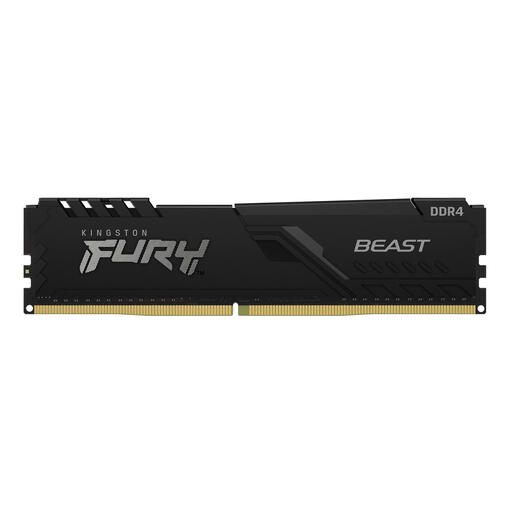
Why it suits this user: A single 16 GB module is a good choice for an affordable upgrade to an existing DDR4 system, provided the motherboard supports this type of memory.
The product specifications list DDR4, 3200 MT/s, CL16 and a 288-pin DIMM form factor. This makes it easier to check compatibility rather than relying on the marketing name alone.
16 GB capacity, CL16 and Intel XMP support, according to the product information.
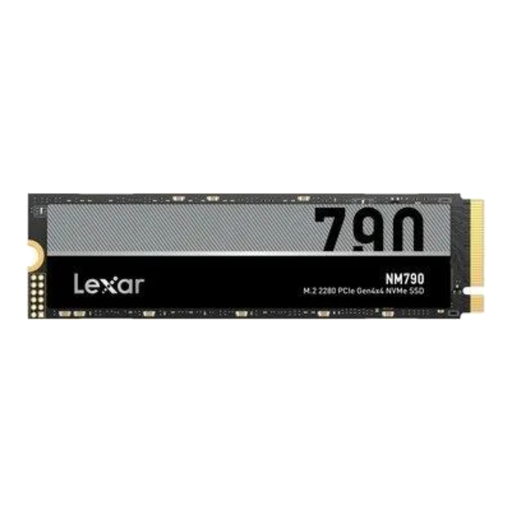
Why it suits this user: This SSD is a good fit if you want to open large games, projects and media files quickly and have a PCIe 4.0 system.
The interface, capacity and stated speeds are clearly listed. Check that your motherboard supports PCIe Gen4x4 and that adequate cooling is available.
1 TB of storage, PCIe Gen4x4, NVMe 2.0 and a stated read speed of up to 7,400 MB/s.
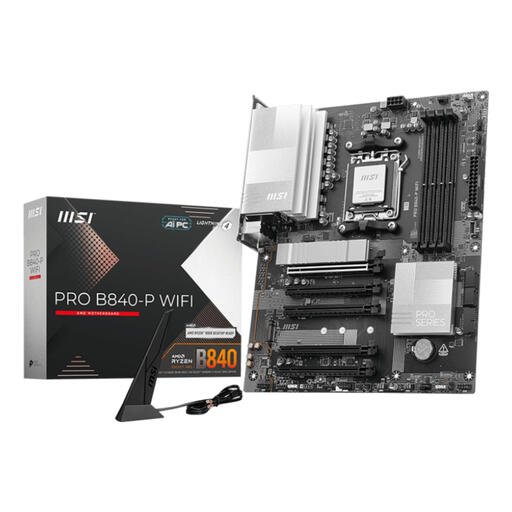
Why it suits this user: This ATX motherboard is designed for a new AMD build with DDR5 memory, multiple storage options and built-in wireless connectivity.
The socket, memory format, storage interfaces and ATX form factor are all specified. This helps you check processor, RAM, case and SSD compatibility before buying.
Supports up to 256 GB DDR5, two M.2 PCIe 4.0 x4 slots, Wi-Fi 7 and 2.5 Gigabit Ethernet, according to the product specifications.
We’ve put together a complete, up-to-date list of products that meet these strict selection criteria and the applicable European safety regulations.
Switch off your PC, unplug it from the mains and touch an earthed metal part before handling internal hardware. Keep these points in mind during installation:
Keep important files in a separate backup. No storage device is immune to failure, even if the manufacturer quotes a high TBW rating or a long lifespan.
It depends on where the bottleneck is. Extra RAM can help with multitasking if your system memory is often full. An internal SSD generally makes start-up and loading faster than a traditional hard drive. For games with high graphics settings, the graphics card is usually more important. Always check that a component is compatible with your current motherboard and power supply before buying.
No. DDR4 and DDR5 use different technical standards and slots. A DDR5 module won’t fit properly in a DDR4 DIMM slot. Check your motherboard model and manual before ordering memory.
Its lifespan depends on write workloads, temperature, firmware and storage management. Check the stated TBW rating, leave enough free space and make backups. Extra cooling may be needed under sustained heavy workloads to limit heat build-up and performance loss.
