
Vandaag of morgen in huis

Kwaliteit gegarandeerd

Welkomstaanbiedingen ontgrendelen: GRATIS bezorging | Tot 80% korting | Gratis 30 dagen JoyPlus-proefperiode
Download de app
Expanding a new PC, monitor or camera setup seems straightforward. Yet computer accessories are often a source of disappointment. A cable does not fit the connection, a monitor arm turns out to be too light or a mounting bracket is unsuitable for the wall or ceiling. Marketing terms such as “universal” do not always tell you enough.
As a Joybuy Product Recommendation Officer, I therefore focus on verifiable details: connections, VESA sizes, load capacity, dimensions and installation requirements. This makes it easier to compare PC accessories, monitor accessories and mounting solutions in a practical way.
A universal monitor bracket may still support only certain VESA patterns. Similarly, a videobar bracket that is suitable for many screens will not automatically fit every screen size or mounting distance.
With cables, the difference between the name and the physical connection is important. A PCIe cable, a Corsair iCUE LINK cable and a USB-C extension cable are not interchangeable, even if they look similar in shape.
A screen, projector or videobar may be heavier than expected when combined with its bracket. Always check:
With a ceiling mount for a projector, the load-bearing capacity of the supporting structure also matters. A bracket with a stated capacity of 35 kg does not automatically make a weak ceiling suitable for mounting.
Loose cables can become trapped when adjusting a monitor arm or put strain on the connections. Inside a PC case, sharp bends can also make it awkward to install a graphics card or power supply.
When considering cable management, pay attention to the length, bend radius, connector angle and included cable clips. A short cable with right-angled connectors can sometimes be more practical than a longer model that has to be coiled inside the case.
Always start with the devices you want to connect. Note the type of connection at both ends and check that the accessory is specifically intended for it.
For example, the Corsair CP-8920368 Graphics Card Bridge has two 12V-2x6-pin PCI-E connections, with a male/female configuration. According to the product information, this bridge is intended for compatible GPU power connections. Switch the computer off completely before installing an adapter of this type and check that both connectors are fully inserted.
Different cables are used for Corsair systems with iCUE LINK connections. The Corsair CL-9011132-WW is a 0.60-metre extension cable with iCUE LINK at both ends. According to the product information, the 0.135-metre CORSAIR iCUE LINK has slim connectors with a 90-degree angle and is supplied as a set of two cables. Before buying, check that your components actually support iCUE LINK.
With a monitor arm, monitor bracket or VESA adapter, the hole spacing and weight are crucial. Many smaller screens use VESA 75 × 75 or 100 × 100 mm. Larger business monitors, televisions and presentation screens may use a different pattern.
The Neomounts FPMA-D750DWHITE2 supports two screens from 10 to 32 inches, weighing 2 to 8 kg per screen, with VESA 75 × 75 or 100 × 100 mm. The arm offers height adjustment from 20 to 51 cm and has integrated cable management.
A VESA adapter can also help when the monitor and arm do not connect directly. The Neomounts FPMA-LIFT100BLACK is suitable for VESA 75 × 75 and 100 × 100 mm, supports up to 8 kg and offers height adjustment of up to 17.7 cm. Always check the exact specifications of the original mount.
For a projector, it is not only the projector’s weight that matters, but also the stability of the mounting point. According to the product specifications, the Neomounts CL25-550BL1 ceiling mount for projectors supports up to 35 kg, is height-adjustable from 74.5 to 114.5 cm and has cable management. The manufacturer states that the ceiling structure must be able to support at least four times the combined weight. If in doubt, installation by a qualified installer is advisable.
For videoconferencing, you should also check the screen size and VESA dimensions. The Neomounts AV2-500BL videobar bracket is intended for screens from 43 to 110 inches, VESA 200 × 200 to 800 × 600 mm and a total weight of up to 10 kg. The bracket can be positioned above or below the screen.
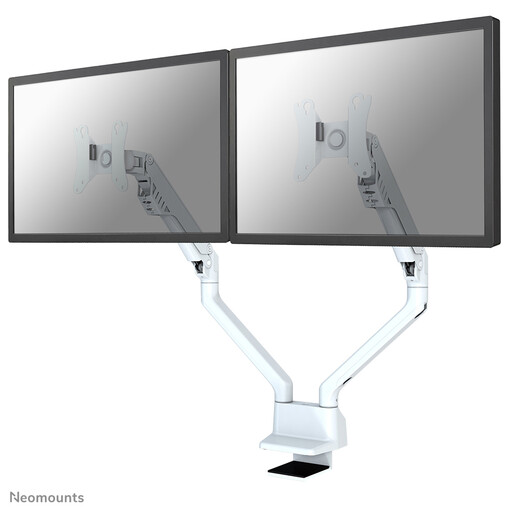
Why it suits this profile: This dual monitor arm offers a tidy way to place two screens from 10 to 32 inches on a desk.
The VESA sizes, screen limits and load capacity of 8 kg per screen are clearly specified. Check these details against your monitors.
Gas spring, three pivot points, height adjustment from 20 to 51 cm and cable management.
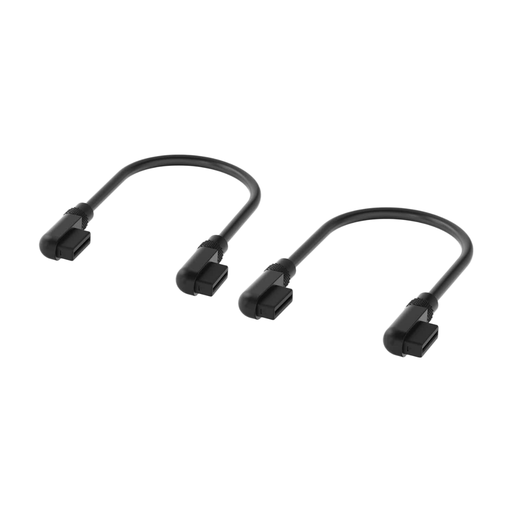
Why it suits this profile: For a carefully built Corsair PC, compact connections and a suitable cable route are important.
The 0.135-metre length and right-angled connectors make the specification easy to verify in advance for compact PC cases.
Two cables per pack and connectors with a slim 90° design.
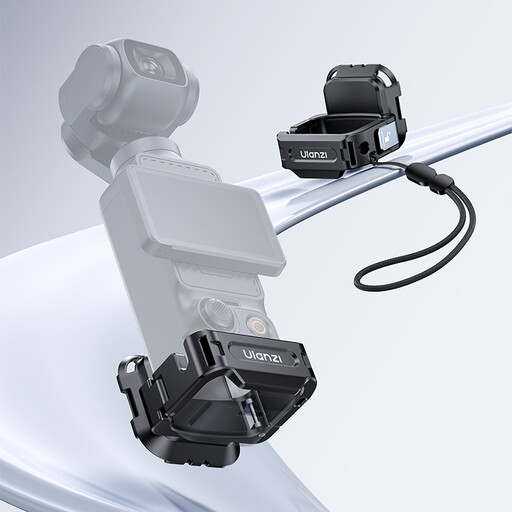
Why it suits this profile: Vloggers and content creators can switch between a tripod, selfie stick and action mounts without carrying several separate holders.
Compatibility with DJI Osmo Pocket 3 and the available 1/4-inch, GoPro and UKA connections are clearly stated.
CNC aluminium, a weight of approximately 38 grams and access to controls, screen and ports.
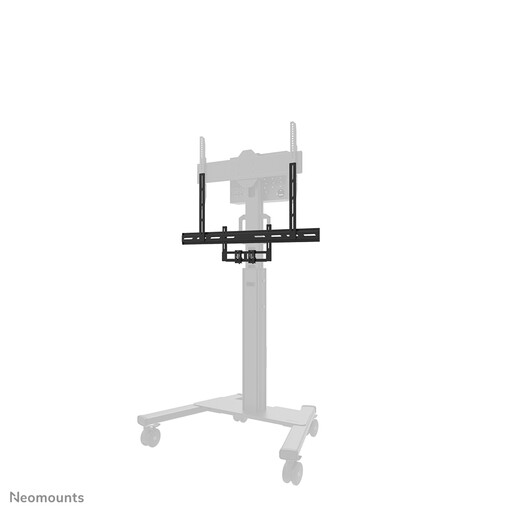
Why it suits this profile: Suitable for meeting rooms and large screens where a videobar, PTZ camera or soundbar needs to be positioned.
The product specifies a range of 43 to 110 inches, VESA 200 × 200 to 800 × 600 mm and a maximum of 10 kg.
Positioning above or below the screen, independent height adjustment and support for a range of VESA sizes.
We have put together a complete, up-to-date list of products that fully meet these strict selection criteria and the applicable European safety regulations.
Use this quick check before completing your purchase:
A product with a longer warranty period is not automatically suitable for your installation. Statutory warranty rights in the European Union also continue to apply; check the specific warranty information for each product.
Common options include a monitor arm, VESA adapter, cable clips and a USB-C extension cable. Start by choosing based on screen weight, VESA size and available connections. A monitor arm with cable management can help guide cables more effectively when adjusting the arm.
Check the VESA pattern, screen size and weight. The distance between the mounting holes is often listed in the monitor’s manual or product specifications. Compare these details with the monitor bracket’s maximum values. Also check how it will attach to the desk or wall.
A VESA adapter is useful when the monitor does not have a mounting pattern that matches the chosen arm, or when the hole spacing is different. Always check that the adapter can support the screen’s weight and that it is approved for use with the existing mount.
