A compact mouse is a good fit for a small desk if you have enough room to move it around. A stationary trackball is an alternative when space is tight and you can give its body a fixed spot. When you’re comparing wide timetable tables, the direction of scrolling matters most: Logitech says the MX Anywhere 3S supports horizontal scrolling with a side button and the wheel, while the scroll ring on an Orbit trackball alone doesn’t demonstrate horizontal scrolling.
Who is this for?
Anyone comparing wide tables
You’re comparing departure and arrival times and want to move easily between rows and columns. Microsoft Support describes ways to navigate worksheets, including using scroll bars or a mouse; the direction you need to scroll depends on the website or application.
Anyone with a small, cluttered desk
You have little room beside your laptop or keyboard and are weighing up a compact mouse against a trackball that stays in one place. Logitech describes the Pebble Mouse 2 M350s as compact, while Kensington describes the Orbit as stationary.
Anyone comparing options for longer periods
You want the controls and hand position to feel right during extended screen work. Arboportaal recommends paying attention to your workstation setup and taking breaks from screen work.
What to consider when choosing
Start by checking how much room you have to move the mouse and which scrolling direction your timetable requires. Then make sure the shape and connection suit your device.
Compact mouse
A good choice if: you want to move the mouse around and prefer familiar pointer controls.
Bear in mind: you’ll need room to move it, and horizontal scrolling varies by model.
Stationary trackball
A good choice if: you have little room to move a mouse back and forth, but can make space for a fixed-position device.
Bear in mind: using a ball and ring is different from using a standard mouse, so it may take some getting used to.
| Feature to consider |
What should you check? |
Who is this important for? |
| Scrolling direction |
Check whether you need to scroll vertically, horizontally or in both directions. Logitech says the MX Anywhere 3S supports horizontal scrolling using a side button and the wheel; Microsoft Support also mentions scroll bars and keys for worksheets. |
When I compare wide tables, I want to navigate both from side to side and from top to bottom; around 33% of consumers prioritise navigation above all else. |
| Room to move |
Measure the free space beside your keyboard. A trackball stays in place, but still needs a spot of its own on your desk. |
At my small desk, I want to move the pointer without pushing the mouse too far; around 27% of consumers prioritise desk space. |
| Fit and controls |
Try the grip, button reach and controls on any trackball you’re considering. Arboportaal also recommends taking breaks and setting up your workstation properly for screen work. |
When comparing repeatedly, I want the grip and button reach to suit my hand; around 20% of consumers prioritise how a mouse feels in the hand. |
| Connection |
Check Bluetooth, available USB ports and whether a receiver is included with the exact version. Logitech says the Logi Bolt receiver is not included with the MX Anywhere 3S. |
If I want to use the mouse with different devices, its connection needs to suit my setup; around 13% of consumers put connectivity first. |
| Power |
Check whether the mouse is rechargeable or battery-powered, and whether the required cable or receiver is included in the box. |
I want to know in advance how the mouse is powered and which accessories I’ll need; around 7% of consumers prioritise maintenance and required accessories. |
Common mistakes
-
Assuming ‘fast scrolling’ means horizontal scrolling
A fast vertical scroll wheel won’t automatically help with wide columns. Logitech describes horizontal scrolling on the MX Anywhere 3S as using the wheel while holding down a side button.
Check which scrolling direction your table or website needs, and try the controls in that application before relying on them.
-
Looking only at the dimensions
A compact mouse still needs room to move. A trackball doesn’t need to slide across the desk, but its body takes up a fixed spot.
Measure the space available beside your keyboard and try the controls you plan to use.
-
Assuming every wireless mouse comes with a receiver
Logitech says the Logi Bolt receiver is not included with the MX Anywhere 3S.
Check what’s in the box and whether your device supports Bluetooth or a compatible USB receiver. If you’re not using a suitable Bluetooth connection, you may need to buy a receiver separately.
Brands to consider
Logitech
Logitech describes the Pebble Mouse 2 M350s as a slim, compact mouse, and the MX Anywhere 3S as a model with more advanced scrolling controls.
- Logitech says the MX Anywhere 3S supports horizontal scrolling using a side button and the wheel.
- Some button assignments can disable this feature; the Logi Bolt receiver is not included.
Kensington
Kensington describes the wired Orbit K72337EU as a stationary trackball with a scroll ring.
- Kensington lists the scroll ring and ambidextrous design among this model’s features.
- The device needs a fixed spot; the scroll ring alone doesn’t demonstrate horizontal scrolling for timetable tables.
Trust
Trust describes the Ozaa Compact as a compact mouse with several connection options.
- Trust lists a USB receiver, two Bluetooth connections and a rechargeable battery.
- These connection options alone don’t indicate whether the mouse has a dedicated horizontal scrolling feature.
CHERRY
CHERRY describes the MW 9100 as a compact, rechargeable mouse with Bluetooth and an included 2.4GHz receiver.
- CHERRY lists three dpi settings and a USB-C charging cable.
- CHERRY lists Windows and Bluetooth 4.0 or higher or USB-A as system requirements; check that your device and version are compatible.
Products at Joybuy
Products from Joybuy to consider for a small workspace. Check whether each model’s scrolling controls suit the timetables you want to compare.
 No image available
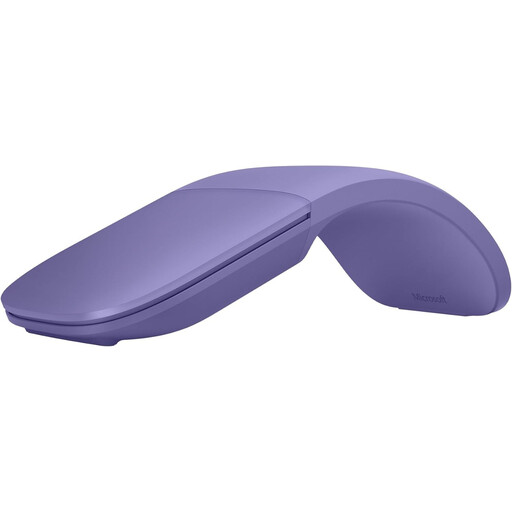
Microsoft Surface Arc Mouse Violet
Worth considering if you’re looking for a mouse that takes up little space when stored; check that its controls suit the scrolling direction your timetable requires.
View at Joybuy
 No image available
AJAZZ AJ159 PRO Wireless Gaming Mouse, White
Could be a good fit if you’re looking for a lightweight mouse with several connection options; check separately whether its scrolling controls work well with wide tables.
56 g; 400 mAh battery; 2.4G, USB-C and Bluetooth.
View at Joybuy
 No image available
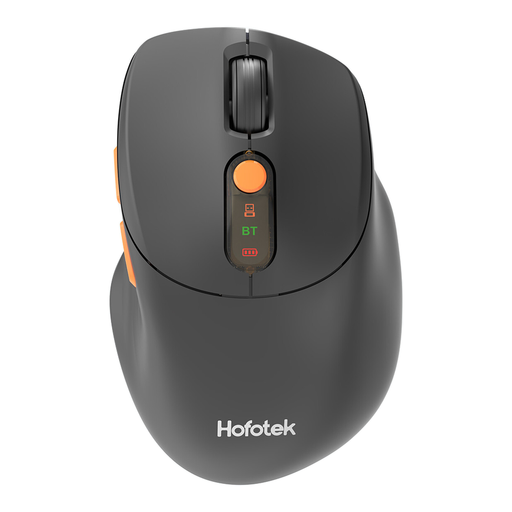
HOFOTEK M311 2.4G+BT Silent Office Mouse, Black-Orange
Worth considering if you want quiet operation and wireless connectivity; check that the connection and scrolling controls suit your computer and how you plan to use the mouse.
The product name lists 2.4G and Bluetooth, adjustable DPI settings and an AA battery.
View at Joybuy
 No image available
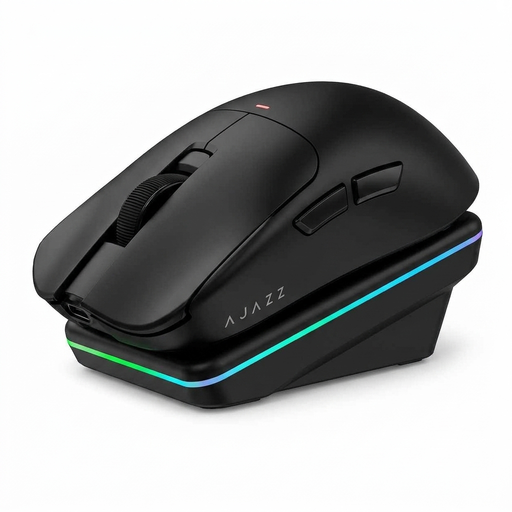
AJAZZ AJ200 AI MC Wireless Gaming Mouse
An option to consider if having several connection options matters to you; check that scrolling works in the application you use to compare timetables.
63 g; Bluetooth, 2.4 GHz and USB-C; charging dock included.
View at Joybuy
 No image available
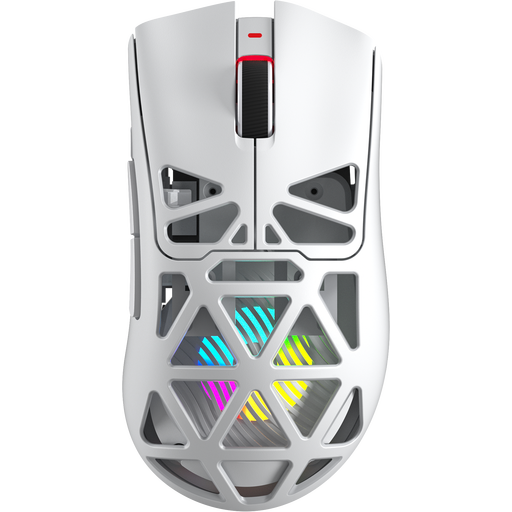
AULA SC620 Wireless Gaming Mouse, White
Could be a good fit if you’re looking for a lightweight wireless mouse; check that its controls support the scrolling direction your tables require.
67 g; Bluetooth, 2.4 GHz and USB-C; 400 mAh battery.
View at Joybuy
Frequently asked questions
Do I need a mouse with horizontal scrolling for a wide timetable?
Not always; it depends on the website or application. For worksheets, Microsoft Support also mentions scroll bars and keys. If you want to scroll horizontally with your mouse, Logitech says the MX Anywhere 3S uses a side button held down while turning the wheel. Check that this works in your application.
How do I connect a compact wireless mouse?
Check the connection options on the exact version and your computer. Logitech says the MX Anywhere 3S connects via Bluetooth or a compatible Logi Bolt receiver, which is not included. For the MW 9100, CHERRY lists Bluetooth or the included 2.4GHz receiver.
Is a small mouse on its own enough for extended screen work?
No; the fit and your workstation setup also matter. For screen work, Arboportaal recommends taking breaks, including short microbreaks. This is workplace advice, not evidence that any one mouse model prevents discomfort.
What consumer rights apply to online purchases in the Netherlands?
In many cases, online purchases come with a 14-day cooling-off period; the Dutch Government says there are exceptions. If a product is faulty, contact the seller. The Dutch Government also says there is no fixed statutory warranty period in the Netherlands.


