
Student creating a portfolio on a small desk
You want to review images and pages on the built-in screen without the laptop taking up too much desk space. The balance between screen specification and size is an important consideration.


Start with the programmes and files used on your course, then choose a screen and configuration that suit your workspace. A 13- or 14-inch laptop can take up less desk space, but make sure you check the screen on the exact model, its memory and ports, and whether a power adapter is included. Adobe recommends 16 GB of RAM for Photoshop 27.x and InDesign 21.3; that isn’t a general requirement for every course.
You want to review images and pages on the built-in screen without the laptop taking up too much desk space. The balance between screen specification and size is an important consideration.
You switch between editing files and layout programmes, and want to check the software requirements, available memory and free storage space.
You’re looking for a laptop you can take with you, while also considering charging, ports and what you need to complete your workspace.
First, compare your course’s software requirements with the exact laptop configuration. Then consider the screen space and ports you need at your desk.
| What to consider | What to look for | Who should pay extra attention? |
|---|---|---|
| Screen for portfolios | Check the screen size, resolution and type on the exact model. Also decide whether you’ll work on the built-in screen or with an external monitor. | If you’re working at a small desk, you may want to review images and pages on your laptop screen; around 33% of consumers give usable screen space their highest priority. |
| Memory and storage | Compare the requirements of your software versions with the RAM and available SSD space. For Photoshop 27.x and InDesign 21.3, Adobe lists 8 GB of RAM as the minimum and 16 GB as the recommended amount. | If you work with large files, you’ll want to run your editing software and still have enough space; around 27% of consumers put memory and storage first. |
| Portability and connections | Check the weight, dimensions and ports on the exact model. Make sure the connections suit your monitor and other equipment. | If you often take your laptop between home and campus, you’ll want its size and connections to work in both places; around 20% of consumers give portability and workspace considerations their highest priority. |
| Everything you need | Check whether a power adapter is included and what software your course provides. For Adobe software, find out whether your course provides a licence or whether you meet the educational eligibility requirements. | You’ll want to know in advance whether you can use the laptop with the charger and software you need; around 20% of consumers give the complete setup the most weight. |
The general series page for the ASUS Zenbook 14 OLED UX3405 also lists a 2880 × 1800-pixel screen option. The Dutch retail configuration reviewed has a glossy WUXGA OLED screen with a resolution of 1920 × 1200 pixels.
Before you buy, check the full configuration and screen resolution, not just the series name.
The ASUS and HP models reviewed are listed as not including an adapter, or as having one available separately.
Check what’s in the box and which charging option comes with the exact model.
For Photoshop and InDesign, Adobe distinguishes between a minimum of 8 GB of RAM and a recommendation of 16 GB.
Check the requirements for the software versions you use, and compare both the minimum and recommended configurations.
The 13-inch MacBook Air M5 is a compact macOS option if the applications required for your course run on macOS.
The Zenbook 14 OLED UX3405 configuration reviewed is a Windows option to consider if you’re comparing 14-inch screens and HDMI.
The XPS 13 DX13260 is a configurable Windows option if a compact 13-inch body is important to you.
The HP OmniBook Ultra 14-kd0674nd is a Windows option to compare if you’re looking for a 14-inch touchscreen and 32 GB of RAM.
The 14-inch Yoga Slim 7 Gen 10 AMD is another compact Windows option, available with an OLED configuration.
These laptops are options to compare for a compact workspace, portfolio layout and editing files. For each model, check that the operating system, screen specification and ports you need are right for your course and workspace.
 No image available
A compact macOS option if the applications required for your course run on macOS.
The product listing specifies a 13.6-inch Liquid Retina display, 16 GB of memory, a 512 GB SSD, two Thunderbolt 4 ports and a weight of 1.23 kg.
 No image available
A 14-inch option to compare if you also want to consider the listed memory and storage configuration.
The product title lists 24 GB of memory and a 1 TB SSD. The product description specifies a 14.2-inch Liquid Retina XDR display, HDMI and an SDXC card slot.
 No image available
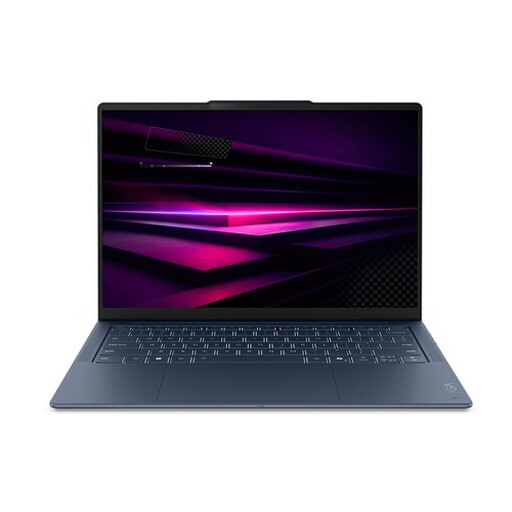
A 14-inch option to consider if you’re looking for a compact laptop for portfolio layout and taking with you.
The product information lists an OLED screen with 100% DCI-P3, 16 GB of memory, a 512 GB SSD, three USB4 ports and a weight of 1.17 kg.
 No image available
A 14-inch touchscreen option to compare for a compact workspace and portfolio layout.
The product information lists a 1920 × 1200-pixel OLED touchscreen, HDMI, USB-C with DisplayPort, 16 GB of memory and a 512 GB SSD. The power adapter is not included; a compatible USB-C charger of at least 45 W is specified.
 No image available
A compact 14-inch option to compare if portability and an OLED screen are part of your decision.
The product information lists a WUXGA OLED screen, 16 GB of memory, a 512 GB SSD, HDMI 2.1 and a weight of around 0.98 kg. The power adapter is not included; a 65 W USB-C PD charger is specified.
The product information warns that compatibility with some Windows apps, drivers and specialist peripherals may vary on Snapdragon.
It depends on your programmes and files. For Photoshop 27.x and InDesign 21.3, Adobe lists 8 GB as the minimum and 16 GB as the recommended amount. Don’t automatically treat that recommendation as a requirement for your course.
First, decide whether you want to use the laptop on its own or with an external screen. Then compare the video output on the exact laptop configuration with your monitor’s connection. The MacBook Air reviewed lists Thunderbolt 4 with DisplayPort support; the ASUS Zenbook model reviewed also lists HDMI.
Check separately whether a power adapter is included and what software you need. The ASUS and HP models reviewed do not include an adapter, or offer one separately. If you use Adobe software, find out whether your course provides a licence or whether you meet the educational eligibility requirements.
According to ACM ConsuWijzer, for a standard online consumer purchase you’ll usually have 14 days from delivery to change your mind, subject to legal exceptions. You’re also covered by the legal guarantee: if a product breaks too soon under normal use, the seller must offer an appropriate free solution, according to ACM. This is separate from any manufacturer’s warranty.