Choose a compact standard laptop if you mainly create windmill silhouettes using vector paths and a mouse or trackpad. Choose a convertible if you want to sketch directly on screen and the pen is compatible with the exact model. Then compare the screen and chassis dimensions with your workspace, and check which pen, charger and ports are included with each model. Vector software such as Inkscape is available for Windows and macOS.
Who is this laptop choice for?
Vector illustrator with a small desk
You mainly create windmill silhouettes using shapes and vector paths, and want to keep desk space free. Drawing directly on screen doesn’t need to be the deciding factor. Inkscape supports vector illustration on Windows and macOS; Apple lists a 13.6-inch screen for the 13-inch MacBook Air. Sources: The Inkscape Project and Apple Netherlands.
Sketch artist who draws directly on screen
You want to start a silhouette with a pen on screen, then edit it on the same laptop. Check that the pen is compatible with the exact model and included in the box. Lenovo lists a Linear Pen with the Yoga 7i configuration reviewed; ASUS lists an included stylus with the ProArt PX13 model reviewed. Sources: Lenovo Netherlands and ASUS eShop Netherlands.
Creator who factors extra essentials into their choice
You compare not only the laptop, but also what you need to draw and charge the device. According to HP, the HP OmniBook X Flip model reviewed has a charger available separately; ASUS lists a stylus in the box with the ProArt PX13 model reviewed. Sources: HP Store Netherlands and ASUS eShop Netherlands.
What should you look for?
First decide whether you’ll mainly work with paths or sketch directly with a pen. Then compare the space available on your desk and what you’ll need for the complete setup.
Compact standard laptop
Best for: building silhouettes with shapes and vector paths while using the keyboard and trackpad.
Keep in mind: direct pen input on the laptop screen isn’t a given with this option; decide whether you’ll need a separate input device.
Convertible with pen input
Best for: sketching on screen first, then carrying on working on the same laptop.
Keep in mind: a touchscreen doesn’t automatically mean a compatible pen is included; check the exact model and what’s in the box.
| What to consider |
What to check before buying |
Who is this important to? |
| Screen and desk |
Compare the screen size and chassis dimensions with the space available and the room you need for software panels. |
I want enough room to work at my small desk without the laptop taking up too much space. Around 30% of consumers prioritise a compact but practical canvas. |
| Drawing and input |
Decide whether you’ll work with vector paths and a trackpad or sketch directly on screen. For the latter, check pen compatibility and what’s included in the box. |
I want to sketch straight on screen, then carry on editing. Around 30% of consumers put direct pen input first. |
| Carrying and charging |
Check the weight of the complete setup and whether the charger is included with your chosen model. |
When I move my workspace, I want to know what I’ll need to take with me besides the laptop. Around 20% of consumers prioritise portability. |
| Essentials and software |
Check whether the box includes a pen and charger, and whether the vector software available suits your files and workflow. |
I want to know in advance what else I’ll need to use my drawing setup. Around 20% of consumers put additional essentials first. |
Common buying mistakes
-
Assuming a touchscreen means a pen is included
A touchscreen, pen support and an included pen are three different things. Models within the same product range can differ too.
Confirm which pen is compatible with the full model number and whether it comes with the laptop.
You may need to buy a compatible pen separately.
-
Comparing just the laptop, not the complete setup
According to HP, the charger for the HP OmniBook X Flip model reviewed is available separately; ASUS lists a stylus in the box with the ASUS ProArt PX13 model reviewed.
For each exact model, check which charger and drawing accessories are included before working out what you’ll need overall.
-
Counting an expired software offer
The ASUS ProArt PZ13 specifications page listed an Adobe Creative Cloud redemption period that ended on 31 August 2026.
Don’t factor that offer into your decision; check the current terms for the exact laptop and software.
If you were counting on a software offer, you may need to arrange the software separately.
-
Assuming the manufacturer’s warranty is the full legal guarantee
ACM ConsuWijzer explains that your legal guarantee depends on what you could reasonably expect from the product with normal use; it doesn’t last exactly two years for every laptop.
Keep your proof of purchase and contact the seller if a fault develops sooner than you could reasonably expect.
Brands to compare
Apple
A compact traditional laptop option for those who mainly edit silhouettes using vector paths and an external input device or trackpad.
- For the 13-inch MacBook Air, Apple lists a 13.6-inch screen, from 16 GB of unified memory and two Thunderbolt 4 ports.
- These specifications don’t confirm pen input on the laptop screen. The stated battery life is for video playback and wireless internet use, not illustration.
Lenovo
The Yoga 7i 2-in-1 model reviewed combines a 14-inch touchscreen with a laptop form factor.
- For configuration 83JQ00A0MH, Lenovo lists 32 GB of memory and a Lenovo Linear Pen.
- Elsewhere on the same product page, Lenovo also mentions an optional Yoga Pen. Don’t assume another model has the same pen or box contents.
ASUS
The Dutch ProArt PX13 configuration reviewed is a compact convertible with direct input on screen.
- ASUS lists a 13.3-inch OLED touchscreen, 64 GB of built-in memory, a weight of 1.39 kg and an included stylus.
- These are ASUS specifications, not the results of an independent performance test. The listed keyboard layout is US International.
HP
The OmniBook X Flip model reviewed is a 14-inch convertible worth comparing if you’re also considering configuration and box contents.
- For model 14-kb0606ndx, HP lists 16 GB RAM, a 512 GB SSD and an OLED touchscreen.
- HP says the charger is available separately; an included pen isn’t confirmed on the product page reviewed.
Joybuy products
This selection includes standard laptops for vector work and 14-inch touchscreen models. For each model, check that the input method and included accessories suit your workflow.
 No image available
Apple MacBook Pro 14-inch M5 Pro, 24 GB, 1 TB – Space Black, QWERTY
A standard laptop option for creating silhouettes with vector paths and a trackpad or mouse.
14-inch model with 24 GB of memory and 1 TB of storage, according to the product title.
Joybuy
 No image available
HP OmniBook 5 Flip 14-fp0075nd C5VM5EA#ABH
A 2-in-1 option to compare with a standard laptop for vector work if you want a 14-inch touchscreen.
The product description lists an OLED touchscreen, 16 GB RAM, a 512 GB SSD, Windows 11 Home and a 360° hinge. The charger isn’t included; check which pen is compatible with the model on offer.
Joybuy
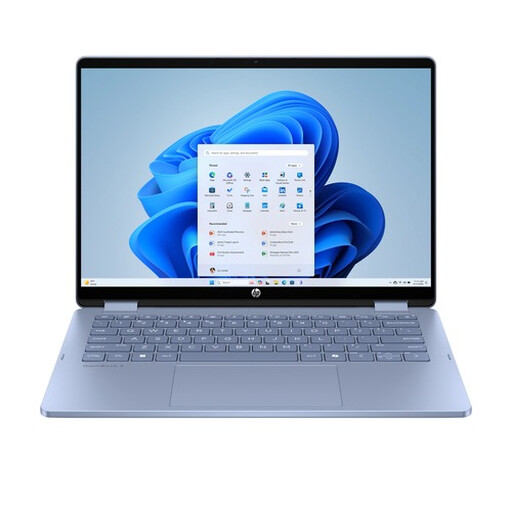 No image available
HP OmniBook 5 Flip 14-fp0251ndx, Intel Core 5 120U, 8 GB RAM, 512 GB SSD, Blue
A convertible to consider if a 14-inch touchscreen fits your workflow; check separately which pen is compatible.
The product description lists a 14-inch IPS touchscreen, Windows 11 Home and a 360° hinge. The stylus and charger aren’t included.
Joybuy
 No image available
ASUS Zenbook A14 UX3407QA-QD479W, Snapdragon X, 16 GB RAM, 512 GB SSD, Iceland Gray
A standard laptop for vector-path work if you want a 14-inch screen to take with you; drawing directly on screen isn’t an option with this non-touchscreen model.
The product title lists WUXGA OLED and a Dutch QWERTY keyboard. The product description gives a weight of approximately 0.98 kg; a compatible 65W USB-C Power Delivery charger isn’t included.
Joybuy
 No image available
Apple MacBook Air 15-inch M5, 16 GB, 512 GB, Starlight, QWERTY
A standard laptop for vector work; the larger screen is a trade-off if your workspace is short on room.
The product description lists a 15.3-inch screen, 16 GB of memory and a 512 GB SSD. The screen isn’t touch-sensitive and the power adapter isn’t included.
Joybuy
Frequently asked questions
Do I need a touchscreen to create a windmill silhouette?
No, not if you prefer to build shapes and vector paths with a mouse or trackpad. The Inkscape Project describes vector images as scalable. If you want to sketch directly on screen, check both that it’s a touchscreen and that a compatible pen is available for the exact model.
How can I set up a small workspace for vector illustration?
Measure the desk space available and compare it with the chassis dimensions, not just the screen diagonal. For the ProArt PX13 model reviewed, ASUS lists a chassis measuring 29,82 × 20,99 cm; also allow space for your input device.
Should I allow for an extra charger or pen?
Yes, box contents vary by model. For the OmniBook X Flip 14-kb0606ndx model reviewed, HP lists a charger available separately; ASUS says the ProArt PX13 model reviewed includes a stylus. Check the box contents and pen compatibility for the full model number before comparing what you’ll need for your setup.
What should I check on a laptop with an OLED screen?
Check the maintenance settings for the exact model. ASUS lists ASUS OLED Care in the ProArt PZ13 specifications reviewed; that doesn’t mean every OLED laptop has the same feature.
What are my rights when buying a laptop online in the Netherlands?
For a standard online consumer purchase, you generally have a statutory cooling-off period of up to 14 days after delivery; ACM ConsuWijzer outlines the exceptions. The legal guarantee is separate from the manufacturer’s warranty: if a laptop develops a fault sooner than you could reasonably expect with normal use, the seller is responsible for providing an appropriate remedy free of charge. The statutory guarantee period isn’t exactly two years for every laptop.


