
Creators with a small desk
If you create music worksheets among other items on a limited work surface, you’ll need to balance the space available with how easy it is to read the notes and text.


Start with the notation software or online workflow you want to use, then check that both the open laptop and the worksheet will fit on your desk. A smaller model takes up less space, but readability, the ports you need and the ability to work comfortably may matter more than choosing the smallest screen size.
If you create music worksheets among other items on a limited work surface, you’ll need to balance the space available with how easy it is to read the notes and text.
If you edit notes, text and page layouts yourself, it’s worth checking first that the laptop you’re considering supports the operating system required by your chosen software.
If you want to print, export or assign worksheets online, choose a laptop that suits the service you use and the way you need to share your work.
A good fit if: you use notation software on Windows or need ports for peripherals. Lenovo lists USB-A, HDMI and Ethernet for the ThinkPad E14 Gen 7 range, although features may vary by configuration.
The trade-off: check the dimensions of the specific configuration. The available ports don’t tell you how much desk space the open laptop will take up.
A good fit if: macOS suits your workflow. MuseScore lists MuseScore Studio for Mac; Apple gives the screen size of the MacBook Air with M5 reviewed here as 13.6 inches.
The trade-off: Apple lists two Thunderbolt 4 ports with USB-C; check that your printer and other equipment can connect to them.
A good fit if: you mainly create worksheets through an online service, assign them digitally or print them. Flat for Education describes online assignment and printing as possible workflows.
The trade-off: don’t assume desktop software is supported on a Chromebook: MuseScore lists Windows, Mac and Linux. Also check the features and account requirements of your chosen service.
| What to consider | What to look for | Who is this important for? |
|---|---|---|
| Desk space and readability | Measure the available space with the laptop open, and check whether notes, text and page previews are easy to read. | At a small desk, I want to leave enough room and be able to see my notation clearly. Around 36% of consumers give desk space and readable notation top priority. |
| Software support | Check the operating system, the exact application and any account requirements. | If I want to keep using my existing notation software, I check first that it works on the laptop. Around 29% of consumers prioritise software support. |
| Output and connections | Check your PDF or printing workflow and compare the ports with your own devices. | When I want to print or share worksheets, I also want to be able to connect my own equipment. Around 21% of consumers give output and connections top priority. |
| Moving between workspaces | Compare the dimensions and weight of the exact configuration, and consider which connections are available in both locations. | If I travel between my teaching and home workspaces, portability matters most to me. Around 14% of consumers prioritise moving between workspaces. |
Small symbols or a hard-to-read screen can make checking notes and text more difficult. The Arboportaal highlights factors such as symbol size, contrast and glare.
Before choosing the smallest model, compare how much space the open laptop takes up with how easy your own worksheets are to read.
Working in a browser isn’t the same as having support for desktop software. MuseScore lists Windows, Mac and Linux for MuseScore Studio.
First check the exact application and the features you need. Then make sure the laptop’s operating system and online services are suitable.
Apple lists two Thunderbolt 4 ports with USB-C for the MacBook Air reviewed here. Lenovo lists USB-A and HDMI, among other ports, for the ThinkPad E14 Gen 7 range; configurations may vary.
Make a note of the connections needed by your printer, input devices and monitor, then check the ports on the exact configuration.
If a device needs a connection that the laptop doesn’t have, you may need a suitable adapter.
A compact macOS option for anyone who already uses macOS in their notation workflow.
The Zenbook 14 OLED UX3405CA range offers a 14-inch Windows option; features vary by configuration.
The ThinkPad E14 Gen 7 (Intel) is a 14-inch Windows range to compare if connections matter as well as notation work.
These picks include compact Windows and Mac laptops for a notation workflow at a small desk. MuseScore lists MuseScore Studio for Windows, Mac and Linux; always check the required version and features for your own software.
 No image available
A Windows laptop for anyone using notation software on Windows; MuseScore lists Windows as a supported operating system for MuseScore Studio.
14-inch IPS screen, 1920 × 1200 pixels, AMD Ryzen 5 7520U, 8 GB RAM, 512 GB SSD and Windows 11 Home.
Supplied without a charger; a compatible charger must be bought separately.
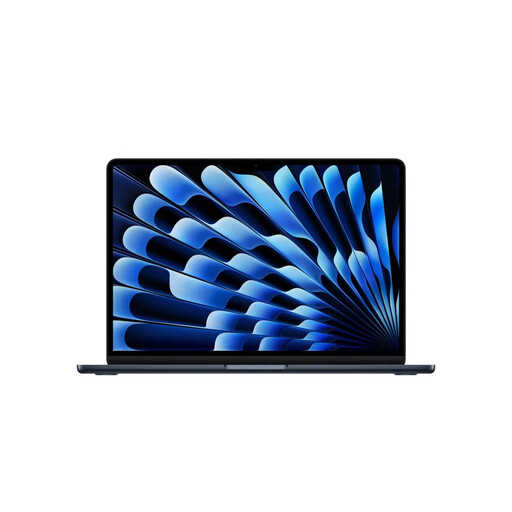 No image available
A macOS option for anyone using that workflow; MuseScore lists Mac as a supported operating system for MuseScore Studio.
13.6-inch screen, 24 GB memory and 1 TB SSD.
 No image available
A macOS option for anyone using that workflow; MuseScore lists Mac as a supported operating system for MuseScore Studio.
13.6-inch screen, 16 GB memory and 512 GB SSD.
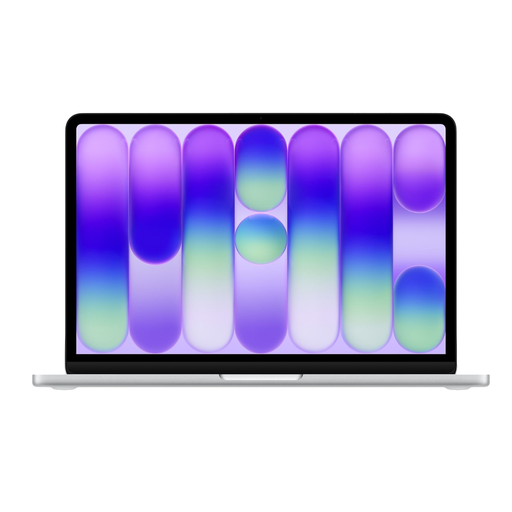 No image available
A compact macOS option for anyone using MuseScore Studio on Mac.
13-inch model, 8 GB memory and 512 GB SSD.
This configuration requires a USB-C power adapter of at least 20 W, sold separately.
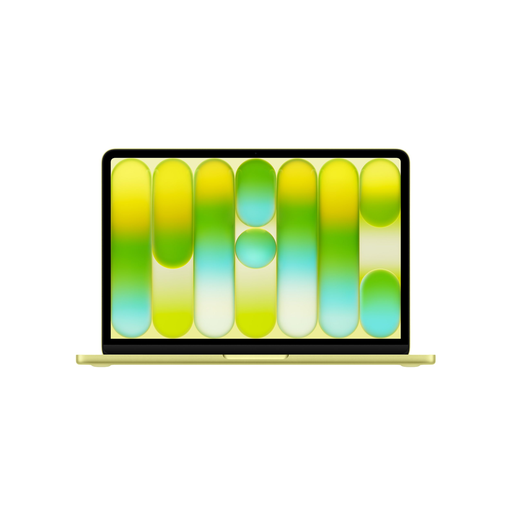 No image available
A compact macOS option for anyone using MuseScore Studio on Mac.
13-inch model, 8 GB memory and 256 GB SSD.
This configuration requires a USB-C power adapter of at least 20 W, sold separately.
Don’t assume so. MuseScore lists Windows, Mac and Linux for MuseScore Studio. If you mainly create worksheets online, you can also check whether the service you use and its account features work on the specific device.
MuseScore Studio describes exporting sheet music as a PDF. Flat for Education describes printing and assigning work online; choose the workflow that suits your assignments and pupils.
Check whether your workspace allows you to set up separate equipment in a suitable arrangement. The Arboportaal advises limiting laptop use without accessories. It also states that for employees who spend more than 2 hours a day working at a screen, the screen and keyboard must not be attached to each other.
Check the usage rights first. The Rijksoverheid says that permission is generally needed to use protected works, and that a private copy may not be distributed. Certain conditions and exceptions apply to some educational uses; these depend on the type of education and the specific use.
According to the Rijksoverheid, the Netherlands has no fixed statutory warranty period. Consumers are entitled to a product that works properly; what is appropriate when a product is faulty, such as repair, replacement or a refund, depends on the circumstances.