
Programmers with limited space for a mouse
You want to keep space free beside your keyboard without accidentally losing keys you use to write and run tests. Logitech, Keychron and CHERRY describe compact keyboards with a range of layouts.


Start by looking at the space available on your desk and the keys you need for your testing workflow. Check the symbols, arrow keys and function keys on the exact layout. A compact 75% keyboard offers different options from a flat mini keyboard; if you mainly want to vary your hand position, measure how much room a split model takes up too. Then check the feel of the keys, connectivity and operating system compatibility you want.
You want to keep space free beside your keyboard without accidentally losing keys you use to write and run tests. Logitech, Keychron and CHERRY describe compact keyboards with a range of layouts.
You regularly use symbols and key combinations, so you want to check the physical layout or customise the keys. Keychron describes key customisation for the K3 Max.
You want to be able to change where your hands sit and need to consider whether two separate keyboard halves will fit on your desk. R-Go Tools describes the Split Break v2 as a keyboard with separately positionable halves.
First measure the space you need for both the keyboard and mouse, then compare the key layout with your own testing workflow.
| What to consider | What should you check? | Who is this important for? |
|---|---|---|
| Desk space and keys | Measure the width and depth, and check that the keys you need are where you want them. | I want to leave room for my mouse without losing keys I use for testing; around 26% of consumers prioritise available desk space. |
| Symbols and shortcuts | Check the exact layout, where the symbols and arrow keys are, and whether any required customisation software works with your operating system. | If I use symbols and key combinations often, I want them to suit my workflow; around 26% of consumers prioritise useful or customisable keys. |
| Hand position | Measure the space with the keyboard halves in the position you want to type in, including room for your mouse. | I want to vary my hand position and know in advance whether both halves will fit on my desk; around 21% of consumers prioritise adjustability. |
| Typing noise and feel | Check the switch type on the exact version; if possible, assess the sound in a similar working environment. | If noise and key feel determine my choice, I want to assess the specific version rather than rely on the model name; around 16% of consumers give this the highest priority. |
| Connectivity and devices | Check Bluetooth support, the USB connections required and the connectivity options on the specific version. | I want to use the same keyboard with several computers and check first that the connections are suitable; around 11% of consumers prioritise switching between devices. |
A compact size doesn’t tell you whether the symbols, arrow keys and shortcuts are where you need them for your unit tests.
Before choosing, compare the layout of the exact version with your day-to-day testing workflow.
You may need time to get used to a different key layout before you can work quickly with it.
Keychron distinguishes between ISO versions; the manufacturer states that hot-swap is available on the specified RGB version.
Check the version, layout and switch options together before ordering.
Logitech offers the MX Mechanical Mini with different switch types, so the model name alone doesn’t tell you how a specific version sounds.
Check the switch type and, if possible, assess the sound in a similar setting.
The R-Go Split Break v2 has two separate halves which, according to the manufacturer, can also be joined magnetically. The space it needs will vary depending on how you position them.
Measure your desk with the halves in the position you actually want to type in, including room for your mouse.
According to Keychron, the K3 Max is a compact 75% range for anyone who wants to customise keys and choose between wired, Bluetooth and 2.4 GHz connectivity.
The MX Mechanical Mini is worth considering if you’re looking for a compact mechanical keyboard and want to choose the feel of the switches.
The KW 7100 MINI BT is a flat, compact scissor-switch alternative for anyone who wants to switch between Bluetooth devices.
The Split Break v2 is a split option if you want to position each hand separately.
This selection features compact keyboards; layouts and connectivity options vary by version.
 No image available
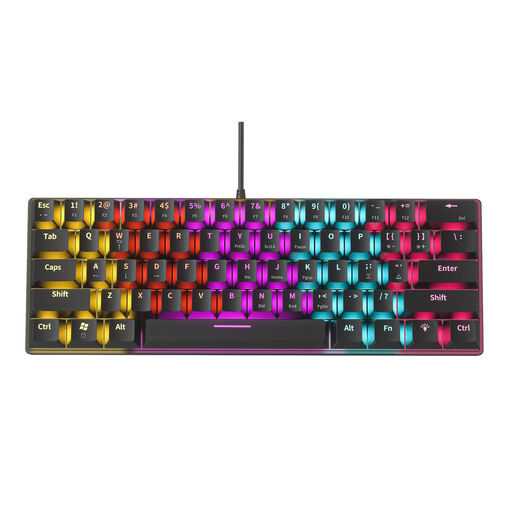
This compact version may suit a desk with limited space; check that the layout includes the keys you use for testing.
61 keys; 12 RGB lighting effects.
 No image available
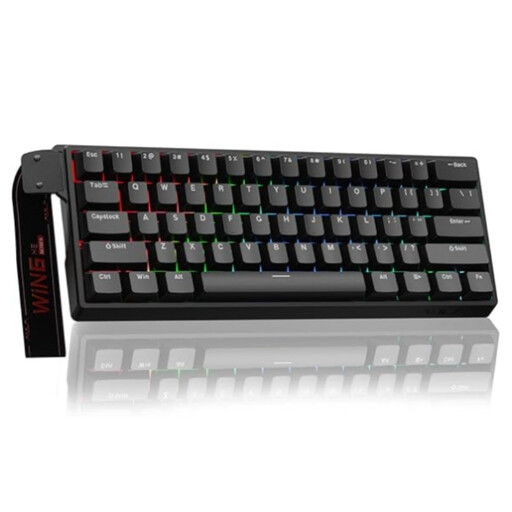
The compact 60% layout is an option if you have limited desk space; check the position of the keys you need for your workflow in advance.
Mechanical keyboard with Hall-effect magnetic switches; wired.
 No image available
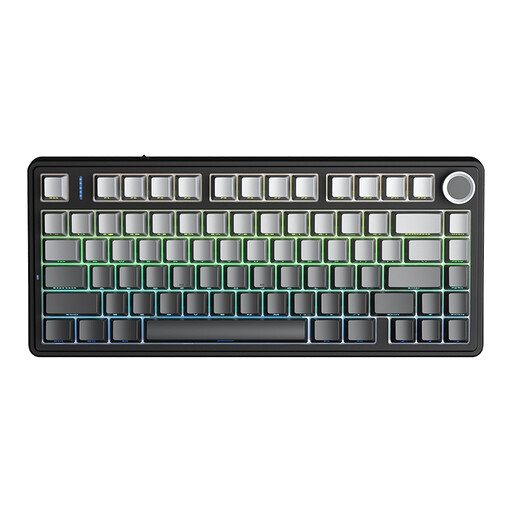
The 75% layout is an option for a small desk if you also want programmable keys and macros; check that the US layout suits the way you use it.
Tri-mode: Bluetooth, 2.4 GHz or wired. Hot-swappable; US layout.
 No image available
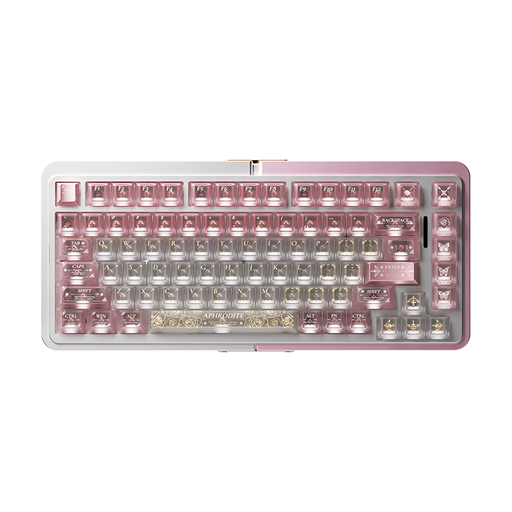
The 75% layout may suit you if you’re looking for a compact keyboard; compare the exact key layout with the symbols and navigation keys you use.
Hall-effect magnetic switches; hot-swappable in wired mode.
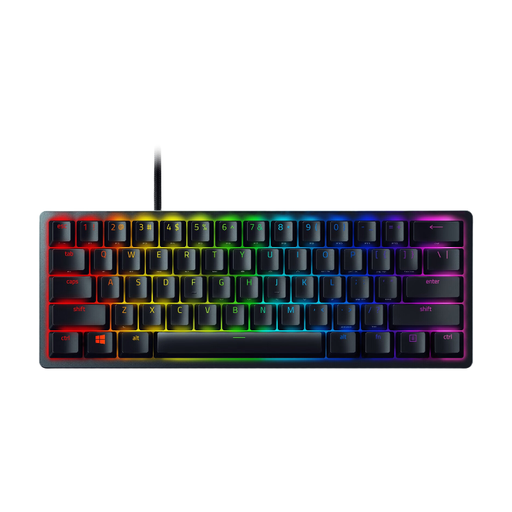 No image available
This compact model is an option if you’re looking for a small keyboard; check that the US QWERTY layout suits the way you use it.
Purple Switch; US QWERTY layout.
No, not just because you write unit tests. If you want to customise keys or macros, Keychron lists this as an option for the K3 Max; also check that the physical layout and software suit the way you work.
It depends on the version. The R-Go manual describes a wired USB connection and a wireless version with Bluetooth channels; before buying, check which version you’ll receive and what connections your computer has.
Think beyond the keyboard itself: Arboportaal also highlights repetitive actions and static strain when working with display screens. Follow the instructions for your chosen version when cleaning it and, if applicable, charging it.
According to the Dutch government, when you buy online from a business in the Netherlands, you have a 14-day cooling-off period. You’re also entitled to a product that works properly; there’s no fixed statutory guarantee period, and the seller is your point of contact if a product is faulty.
The Arboportaal guidance cited doesn’t require a specific brand or mechanical keyboard. For employees who work with display screens for more than 2 hours a day, the screen and keyboard must not be attached to each other, according to Arboportaal. Whether that employment rule applies to you depends on your working situation and how long you use the equipment.