
Documentation writer with limited desk space
You want to leave room for your mouse and screen, while still being able to navigate quickly as you edit. A model without a separate number pad could work well; the exact key layout still matters.


Start with a compact keyboard without a separate number pad, but check that the arrow keys, function keys and symbols are easy to reach on the version you choose. Then decide between a low-profile scissor mechanism, a wired model or a programmable mechanical keyboard. They differ in connectivity, key feel and customisation options. Manufacturers’ comfort claims are not proof that a keyboard prevents physical discomfort.
You want to leave room for your mouse and screen, while still being able to navigate quickly as you edit. A model without a separate number pad could work well; the exact key layout still matters.
You regularly use keyboard shortcuts and symbols, and want to know how easy they are to access with the physical layout and your operating system. A programmable 75% layout may be worth considering if you want to customise functions; Keychron describes these options for the K3 Max.
You pay attention to key feel, noise and the positioning of your keyboard and mouse. Dutch workplace health and safety guidance discusses the strain associated with prolonged screen work; manufacturers’ product descriptions are not proof that a keyboard prevents discomfort.
A good fit if: you mainly write continuously and prefer a low-profile key feel.
Consider: there is no number pad; check whether navigation and frequently used functions are directly accessible or require an Fn combination.
A good fit if: you want to customise key functions for writing and editing tasks.
Consider: check the exact layout, switch type, software requirements and whether the noise is suitable for your workspace. Keychron states that hot-swap is available only on the version specifically labelled as such.
A good fit if: a visible reminder to take breaks from screen work would be useful to you.
Consider: check the version and software compatibility. An indicator is no substitute for a suitable workspace setup or taking actual breaks.
| What to consider | What should you check? | Who is this important for? |
|---|---|---|
| Space and navigation | Measure the available space and check the layout of the exact version, especially the arrow keys, Home/End and function row. | If I want to leave room for my mouse on a small desk, I still want to navigate quickly while editing. Around 36% of consumers prioritise space and navigation when buying. |
| Symbols and keyboard shortcuts | Check the physical language layout, your operating system and whether commonly used characters are directly accessible or can be customised. | When writing technical content, I want to use symbols and editing functions quickly. Around 29% of consumers prioritise symbols and customisable key functions. |
| Key feel and noise | Check the exact key or switch type and consider whether the key feel and noise suit your workspace. | If I type for long periods or share my workspace, I pay attention to key feel, noise and the position of my mouse and keyboard. Around 21% of consumers prioritise this aspect of the typing experience. |
| Connectivity and software | Check how the version connects, which ports or receivers it needs, and whether any software is required. | When I switch between devices or need a fixed connection, I want to know in advance what my work equipment supports. Around 14% of consumers prioritise connectivity and switching between devices. |
A compact design does not tell you where the navigation and symbol keys are. When writing API documentation, the difference between directly accessible functions and key combinations can affect your workflow.
Check the physical layout of the exact version before choosing based on the word ‘compact’ alone.
A smaller layout may take time to get used to, particularly when using key combinations.
Dutch workplace health and safety guidance also discusses varying your activities and setting up your workspace. A product claim does not assess how your keyboard, mouse and posture work together.
Assess the keyboard alongside the position of your mouse and workspace, and treat manufacturers’ health claims as claims.
Models can differ in their use of Bluetooth, 2.4 GHz, a cable and batteries or a rechargeable battery. Additional features may also require software.
Check how the exact version connects, whether your work device supports it and whether any software is required.
The MX Keys Mini and Pebble Keys 2 K380s have compact layouts without a separate number pad.
The wired UltraBoard 950 V2 is a compact option for a fixed workspace with USB-C.
The K3 Max has a compact 75% layout for anyone who wants to customise key functions.
The KW 9200 MINI combines a compact layout without a number pad with several connection options.
The Compact Break pairs a compact keyboard with a software-controlled break indicator.
These product picks focus on compact keyboards for a small desk; check that the layout of each version suits your navigation and symbol-typing needs.
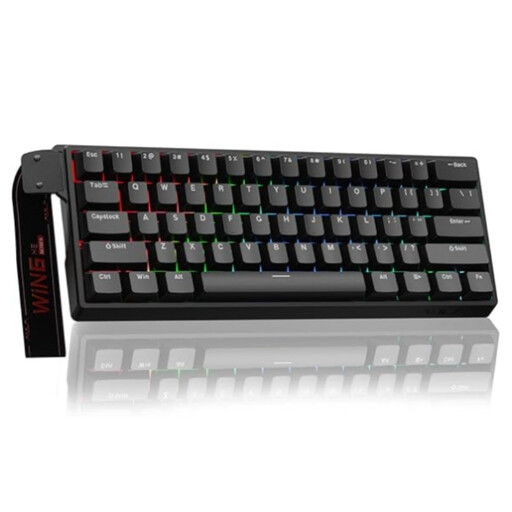 No image available
The 60% size and wired connection could work well if you want a compact setup on a small desk.
The product name describes a mechanical keyboard with Hall Effect Magnetic Switches. Check the layout if you often use navigation or symbol keys while writing.
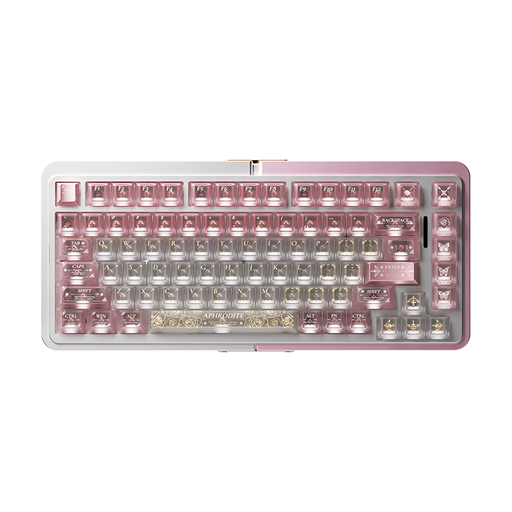 No image available
The wired 75% layout is worth considering if you want a compact mechanical keyboard for a fixed workspace.
The product name lists Hall Effect magnetic switches. Check that the physical layout suits the way you use navigation keys and symbols.
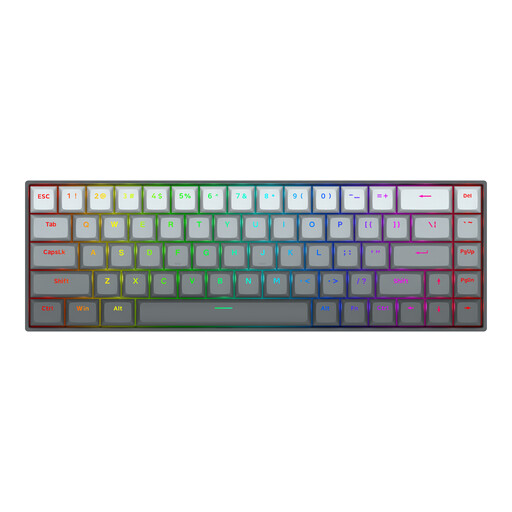 No image available
The 68-key layout is compact; with a US layout, it’s important to check where the characters you use for API documentation are before buying.
The product description lists magnetic switches and a detachable Type-C cable.
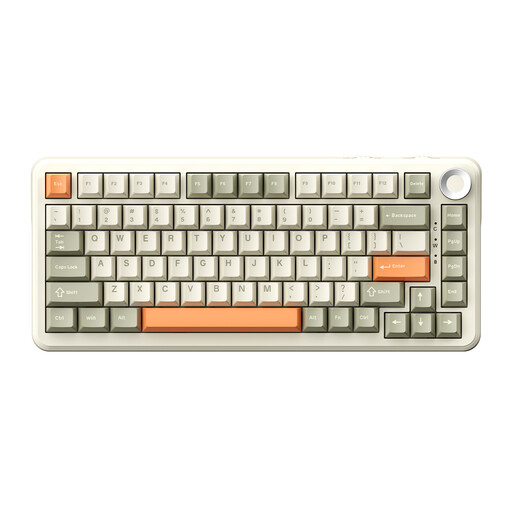 No image available
The product description lists a compact layout with arrow keys and a function row, which is useful if you navigate while writing.
The product name lists Bluetooth, 2.4 GHz and USB-C. Check that the US QWERTY layout suits the way you use symbols.
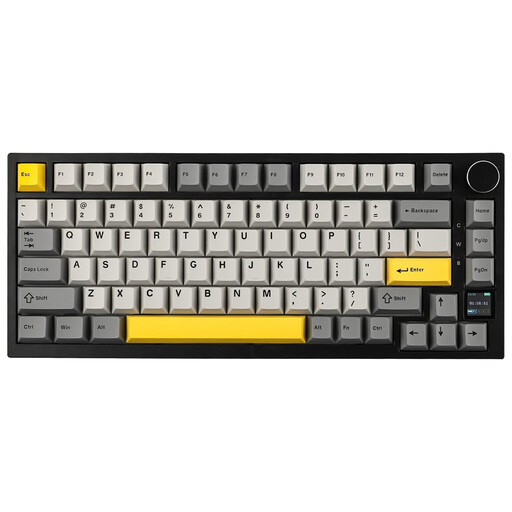 No image available
The product description lists an 82-key layout, arrow keys and function keys, for anyone who wants to keep these features in a compact format.
The product name lists wired mode, Bluetooth and 2.4 GHz. Check that the US QWERTY layout suits your keys and symbols.
Check the key map for the version you’re ordering in advance, especially the arrow keys, Home/End, function keys and frequently used symbols. The compact size alone doesn’t tell you how easily you can access these functions.
Compare the connection options on the version you’ve chosen with your computer and the ports available. CHERRY lists Bluetooth, a 2.4GHz receiver and a cable for the KW 9200 MINI; BakkerElkhuizen describes the wired UltraBoard 950 V2 as having USB-C and a USB-A adapter.
Check whether your chosen model uses a rechargeable battery or replaceable batteries, and keep the cable or receiver you need somewhere safe. Dutch workplace health and safety guidance covers varying your activities during prolonged screen work; a keyboard can’t do that for you.
For an applicable online consumer purchase, the Dutch government generally provides a 14-day cooling-off period. You’re also entitled to a product that works as it should, and can contact the seller if there’s a fault. The Dutch government states that the Netherlands does not have a fixed statutory guarantee period for all products.
For employees who work at a screen for more than 2 hours a day, Arboportaal states that the screen and keyboard must not be attached to each other. A separate screen or keyboard must be available when using a laptop. This is not a general purchasing requirement for every private user, and it does not specify a particular keyboard model.