
Home worker who makes video calls
First, you’ll want to check whether dropouts are linked to Wi-Fi coverage, your internet connection or several people using the network at once. A wired connection may be an alternative if you have a spare LAN port.


If your workspace already has good Wi-Fi coverage, compare standalone routers by their ports, compatibility and the management features you actually need. If your workspace is out of range, first consider where the router is placed and whether you need an additional Wi-Fi access point: a higher theoretical router speed won’t solve a coverage problem by itself. Also check that the router is compatible with your internet connection and the devices in your home.
First, you’ll want to check whether dropouts are linked to Wi-Fi coverage, your internet connection or several people using the network at once. A wired connection may be an alternative if you have a spare LAN port.
You connect work devices alongside phones, older Wi-Fi devices and possibly a printer. Compatibility, ports and secure access matter just as much as the stated speed. The Consumers’ Association (Consumentenbond) points out that older Wi-Fi devices can connect, but won’t automatically benefit from Wi-Fi 6 improvements.
Your workspace is in a room where the signal is too weak. Router placement and the option to extend your network to suit your needs are important things to consider.
Choose this option if: your workspace already has adequate coverage and you want to connect your devices directly.
Bear in mind: a single Wi-Fi access point won’t automatically reach a room in a difficult location.
Choose this option if: you still don’t have enough coverage in your workspace after checking the router’s placement. Check which range extenders are compatible with the system.
Bear in mind: additional equipment needs to be installed and powered; the Consumers’ Association notes that not every mesh system provides good coverage.
Choose this option if: your existing equipment already works well for your workspace and devices, or you’d rather let your provider manage the router.
Bear in mind: you won’t automatically get the settings or expansion options offered by a router you choose yourself.
| What to consider | What should you check? | Who should pay particular attention? |
|---|---|---|
| Connection while working | Test coverage in your workspace and check for spare LAN ports and compatibility with your existing modem. | If I need a stable connection during video calls, I’ll also check whether a wired connection is possible. Around 33% of consumers prioritise their work connection. |
| Mixed devices | Check the Wi-Fi versions supported by your devices, how many Ethernet ports you need and what the guest network can do. | I want to keep using my work devices alongside older and newer household devices. Around 25% of consumers prioritise compatibility with different devices. |
| Coverage in your workspace | Test the connection where you work and check which extension method and Wi-Fi access points are compatible with the system you choose. | If the signal in my home office is too weak, I want to know whether changing the router’s position will be enough or whether I’ll need to extend the network. Around 17% of consumers give coverage top priority. |
| Secure management | Check how updates are installed and whether the router and devices support your preferred WPA2 or WPA3 setting. | I want to be able to manage updates and Wi-Fi settings properly for the devices that connect. Around 25% of consumers give secure management top priority. |
A router’s specifications alone won’t tell you what connection you’ll get in a particular room. Placement, your internet connection and the devices you use all play a part.
Test the connection in your workspace first, then compare router specifications. The Consumers’ Association also highlights placement and the capabilities of connected devices as factors to consider.
If coverage is poor, you may need additional equipment or cabling.
A router can’t be connected directly to the internet connection in every situation. For example, the manufacturer describes the FRITZ!Box 4060 as a router that connects to a modem.
Decide which device you want to replace and, if necessary, ask your provider for the connection details. ACM ConsuWijzer explains that options can vary depending on your connection.
A different connection may require additional equipment or installation work.
Mesh expansion requires compatible Wi-Fi access points. The number of units and the extension method help determine which equipment you’ll actually need.
Before buying, check the exact model, the number of units and compatibility with the system you’ve chosen.
Additional Wi-Fi access points need space and a power supply.
The RT-AX58U is one example you can use to compare standalone routers with different network features.
The Archer AX55 is a dual-band Wi-Fi 6 router worth comparing if you’re looking for a standalone router.
The MR7350 is a standalone Wi-Fi 6 router. You can check whether it can be extended with compatible Intelligent Mesh nodes.
The FRITZ!Box 4060 is a router for anyone looking to use FRITZ! mesh or DECT telephony as well as Wi-Fi.
This selection includes standalone routers and mesh systems for a compact home office with several devices. Compare their ports, Wi-Fi versions and expansion options with what you need at home.
 No image available
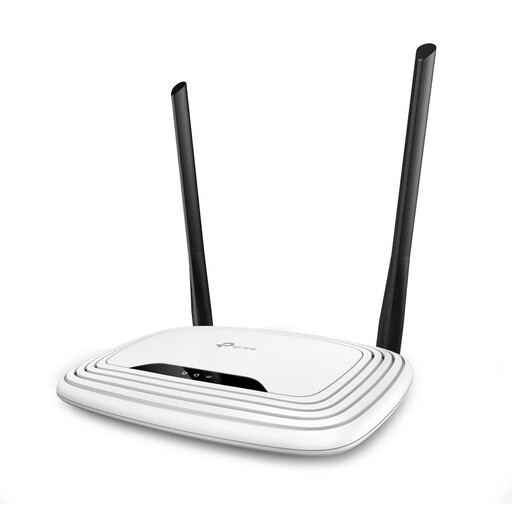
Suitable for a connection where you need the listed Wi-Fi and wired features; check that the port speed suits your devices.
Wi-Fi 4 on 2.4 GHz; four Fast Ethernet LAN ports (10/100 Mbit/s); guest network and QoS.
 No image available
For anyone looking to use several Wi-Fi access points; check the placement and wired connections you need at home.
Dual-band 2.4/5 GHz; two Ethernet ports per unit, with a stated maximum of 100 Mbps per port.
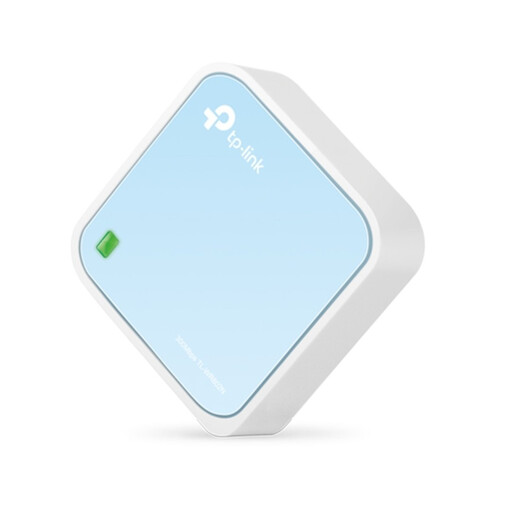 No image available
This model is described as a travel router. Check that its connections and operating mode suit a permanent home office.
 No image available
For anyone looking for a mesh set-up with expansion options; check which ASUS mesh products are compatible with the configuration you want.
Dual-band 2.4/5 GHz; the product description lists MLO, a guest network, parental controls and wired backhaul.
 No image available
A standalone router to compare if you’re looking for dual-band Wi-Fi and possible AiMesh expansion; check how many connections you need.
Dual-band 2.4/5 GHz; three Ethernet ports; the product description lists ASUS AiMesh compatibility.
Yes. In principle, you’re free to choose your own router in the Netherlands. ACM ConsuWijzer explains that a provider may refuse a device, for example, if it doesn’t meet the applicable requirements. Ask your provider which settings you need, and check whether you’ll connect the router to a modem or replace the modem itself.
No. According to the Consumers’ Association, older devices can stay connected, but won’t automatically benefit from Wi-Fi 6 improvements. If you need a specific Wi-Fi feature, check what both the router and the device support.
Check the security settings and install updates. VeiligInternetten recommends installing updates through the manufacturer’s management app or website, and advises enabling automatic updates where possible.
No. The statutory guarantee in the Netherlands isn’t automatically limited to two years. ACM ConsuWijzer distinguishes between your statutory rights and a voluntary manufacturer’s or retailer’s guarantee. What you can expect from a product depends, among other things, on the product, its price and normal use.