Start by working out how many photos you want to keep now and how quickly your collection is likely to grow. Then check that the SSD will fit and can connect to your computer. A compact external SSD takes up little space, but it can be damaged, so don’t keep your photos only on the drive. Make sure you can restore your files, too.
Who is this for?
Photo keeper with limited space
You want a local copy of your photos, but don’t have room for a larger storage set-up. Compare the physical dimensions and make a plan for a second copy, too. VeiligInternetten points out that files on an external drive can be lost if it is damaged.
Photographer with a growing archive
You regularly add photos and don’t want to have to buy more capacity again too soon. Measure your current collection and allow for growth, as well as the backup method you use.
Mac or Windows user who wants automatic backups
You want new photos to be included in your backup. Your Time Machine or File History settings and the availability of the connected drive are important here. Apple Support explains how to set up Time Machine, while Microsoft Support provides guidance on File History.
What should you look for?
First, measure the photo folders you want to keep. Then check the available storage, the connection and whether your backup method includes the right files.
| What to consider |
What should you look for? |
Who is this important for? |
| Restorable copy |
Keep another separate copy and try restoring a file. Check which folders are included automatically. |
If I want to be able to restore photos if the original files are lost, I need to think beyond simply adding storage. Around 33% of consumers put recoverability at the top of their list. |
| Room to grow |
Measure your current photo folders and allow for the files and versions saved by your backup method. For a full Mac backup with Time Machine, Apple Support recommends a drive with at least twice the Mac’s storage capacity. This isn’t a general requirement for backing up just a photo folder. |
If my photo archive keeps growing, I want to leave enough room for new files. Around 27% of consumers prioritise capacity for their current and future archive. |
| Physical size |
Compare the dimensions of the model you’re considering, and allow for the space needed by its cable. |
If I only have a narrow shelf or small drawer, I want to know whether the SSD will really fit. Around 27% of consumers say compact size is their top requirement. |
| Connection and set-up |
Check that the cable fits your computer’s port. Apple Support recommends APFS or APFS Encrypted for Time Machine; formatting can erase existing data. |
If I want the drive to be easy to connect and set up, I need to know in advance whether my computer and backup software are compatible. Around 13% of consumers prioritise ease of connection and set-up. |
Common pitfalls
-
Using the SSD as the only place to store your photos
If the external drive is damaged, the files on it may become inaccessible.
Keep the original photos or another separate copy, and test that you can restore your files.
-
Choosing a drive without measuring the size of your backup
The usable space may be lower than the stated capacity. A full Time Machine backup also requires different capacity planning from a photo folder alone.
First, measure the files you want to include. Follow Apple Support’s advice about using at least twice the Mac’s capacity only if you’re backing up the entire Mac with Time Machine.
-
Choosing based only on the stated maximum speed
Kingston Technology says that actual speeds also depend on the hardware, software and how the drive is used. For a regular photo backup, storage capacity and a reliable backup routine may matter more.
Check that the SSD can connect to your computer’s port. Then consider whether extra speed is relevant to the way you transfer files.
Brands to consider
Kingston
The XS1000 range is worth considering if compact size and USB-A and USB-C connectivity are important to you.
- Kingston Technology lists the XS1000’s dimensions as 69,54 × 32,58 × 13,5 mm and says it is available in 1 TB and 2 TB versions.
- The stated speed is a maximum based on internal testing and isn’t guaranteed on every computer. Also check which cable comes with the specific model.
Samsung
The T7 is a compact option for a regular photo backup. The T7 Shield range may be worth considering if dust and water protection are important.
- For the 2 TB T7, Samsung Nederland lists USB-C-to-C and USB-C-to-A cables. For the 2 TB T7 Shield sold in the Netherlands, Samsung lists an IP65 rating and a protective casing.
- Dust and water protection may not be essential for a drive that stays on a shelf at home. The stated speeds don’t guarantee the same performance on every computer.
SanDisk
The Extreme Portable SSD is a portable option to consider if you also want to take your local copy with you.
- SanDisk lists separate 2TB models with the codes SDSSDE61-2T00-G25 and SDSSDE70-2T00-G25; the latter is called V3.
- Check the full model code: features of one version don’t automatically apply to another.
External SSDs for local photo storage
This selection includes portable external SSDs for local photo storage. Choose a capacity that suits your current collection and expected growth, and check that the connection is compatible with your computer.
 No image available
Portable SSD 1 TB
An option for storing a specific photo collection locally; check how much space you need before buying.
Stated capacity: 1 TB. Check that the connection and supplied cable are compatible with your computer.
View at Joybuy
 No image available
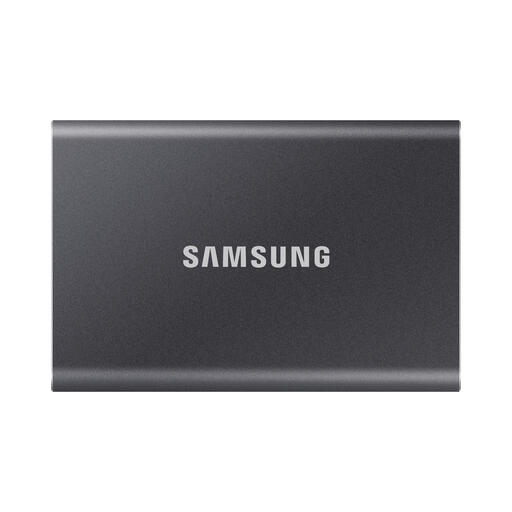
Samsung Portable SSD T7 2 TB, grey
The capacity may suit a photo collection with room to grow; measure your current files to help you decide.
For the 2 TB T7, Samsung Nederland lists USB-C-to-C and USB-C-to-A cables. Check that the connection suits your backup set-up.
View at Joybuy
 No image available
Samsung MU-PG2T0B 2 TB, black
An external SSD to consider for a local photo collection when you want to match the available capacity to your current files and expected growth.
Stated capacity: 2 TB. Before setting it up, check that your backup software and computer connection are compatible.
View at Joybuy
 No image available
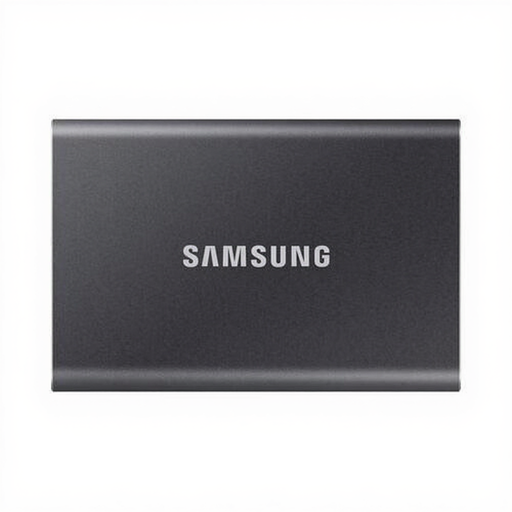
Samsung Portable SSD T7 1 TB, grey
This capacity may suit a smaller photo collection; compare it with your current files before choosing.
Stated capacity: 1 TB. Check that the connection and backup settings are suitable for your computer.
View at Joybuy
 No image available
Samsung MU-PE2T0R 2 TB, blue
An option for local storage if you’re looking for a 2 TB SSD. Check that its size and connection suit the available space and your computer.
Stated capacity: 2 TB. If you plan to take this blue model with you, check which protection rating applies to it.
View at Joybuy
Frequently asked questions
How do I automatically back up photos locally?
On a Mac, Time Machine can automatically back up to a connected external drive. In Windows, File History can copy files from your Pictures library to an external drive, among other things. Check which photo folders are included and whether the drive is available when the backup runs.
Can I use an SSD that already contains photos for Time Machine straight away?
Don’t assume you can: formatting may erase existing data. Apple Support recommends APFS or APFS Encrypted for Time Machine. Keep your photos somewhere else before setting up or reformatting the drive.
How much storage do I need for a photo backup?
First, measure the photo folders you want to keep, and allow for growth and the way your backup software stores files. Apple’s recommendation to use a drive with at least twice the Mac’s capacity applies to a full Mac backup with Time Machine, not automatically to a photo folder alone.
Does a remedy for a faulty SSD also mean my photos will be recovered?
No. A remedy for a faulty product isn’t the same as recovering photo files. The Dutch government explains your rights with the seller if a product is faulty, so keep a separate copy of your photos.


