
4K editors short on space
First, you want to check whether a specific desktop suits your 4K workflow, then find a compact case. Adobe’s recommended memory depends on the footage: for 4K and above in Premiere, Adobe recommends 32 GB of RAM or more.


Start by checking the resolution and codec of your footage, along with the requirements of your editing software. Then choose a compact desktop with suitable memory, storage and connections for your monitor and source files. A mini PC takes up little desk space, but that alone doesn’t tell you whether it’s suitable for 4K or how easy it is to upgrade. For Premiere on Windows, Adobe recommends 32 GB of RAM or more for 4K; this isn’t a general requirement for other editing software.
First, you want to check whether a specific desktop suits your 4K workflow, then find a compact case. Adobe’s recommended memory depends on the footage: for 4K and above in Premiere, Adobe recommends 32 GB of RAM or more.
You want to keep using your existing monitor and set aside as little space as possible for your computer. So check the monitor outputs and connections for your camera or card reader too.
You want a practical way to store footage, projects and cache files. Compare SSD capacities and check which connections are available for external storage.
A good fit if: you want to use macOS and the software you need with a separate monitor.
Bear in mind: memory, SSD and connections vary by configuration; a codec specification doesn’t prove how fast it will edit.
A good fit if: you need Windows software and want to connect a separate monitor.
Bear in mind: some NUC 14 Pro configurations are kits without a pre-installed operating system or memory. Check exactly what’s included.
Start with your editing software and source footage, then compare the complete configuration with the space and connections your setup requires.
| What to consider | What should you check? | Who is this most important for? |
|---|---|---|
| Editing performance | The resolution and codec of your footage, software version, installed RAM and the requirements of your editing software. | If I’m editing my mill video in 4K, I want to match the configuration to my software and effects. Around 33% of consumers consider editing performance their top priority. |
| Desk space | The dimensions of the exact configuration and the connections for your monitor and any peripherals you need. | I want to keep using my monitor without the computer taking over my small workspace. Around 27% of consumers prioritise desk space. |
| Storage and media transfer | SSD capacity in relation to your source files, plus connections for a card reader or external drive. | When I store a lot of footage and project files, I want to know in advance how the storage will fit into my workflow. Around 20% of consumers prioritise storage and media transfer. |
| Configuration and after-sales support | Whether memory, storage and an operating system are included, who the seller is and what warranty terms apply. | I want to know whether the desktop is ready for my editing work and who to contact if something goes wrong. Around 20% of consumers prioritise the complete configuration and after-sales support. |
The Lenovo and HP configurations reviewed list 16 GB of RAM. For 4K and above in Premiere on Windows, Adobe recommends 32 GB or more. The right configuration therefore depends on your software and footage.
First, identify your software, source format and resolution. Then check the exact desktop configuration against the requirements of that workflow.
You may need a different configuration for more memory or additional storage.
Some ASUS NUC 14 Pro kits come without a pre-installed operating system or memory. The product range name alone doesn’t tell you which components you’ll receive.
Check the full model code and the included components before comparing the configuration with a complete PC.
With a kit, you may need to add memory, storage and an operating system yourself.
If a product is faulty, the seller is your point of contact for a remedy under the legal guarantee. The Dutch government states that the Netherlands has no fixed legal guarantee period; what you can expect depends, among other things, on the product.
Check what any extra warranty adds to your rights and who you can contact after your purchase.
Mac mini configurations are worth considering if you’re looking for a compact macOS desktop to use with a separate monitor.
The ThinkCentre M75q Gen 5 Tiny is a compact Windows option; the configuration determines which specifications matter.
The Elite Mini 800 G9 is a compact Windows desktop; always compare the full HP part number.
The NUC 14 Pro is available as a complete mini PC or as a kit, depending on the configuration.
This selection includes compact Mac mini desktops and a Windows mini desktop for a workspace with a separate monitor. Compare the memory and storage configuration with your editing software and source files.
 No image available
A compact desktop option for a small workspace with a separate monitor. Match the memory and storage to your software and files.
M6 chip with 12-core CPU and 12-core GPU; 16 GB memory; 256 GB SSD.
No image available
A compact desktop option for a small workspace with a separate monitor. Compare the storage capacity with the size of your source files and projects.
M6 chip with 12-core CPU and 12-core GPU; 16 GB memory; 512 GB SSD.
No image available
A compact desktop option if you want to weigh up the memory configuration against your editing software’s requirements.
M6 chip; 24 GB memory; 512 GB SSD.
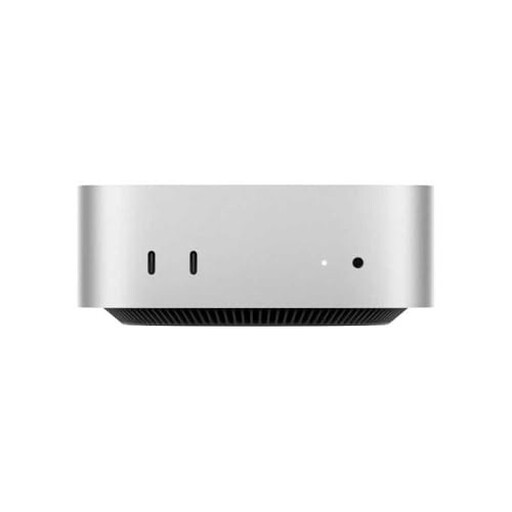 No image available
A compact Mac mini option for a desk with a separate monitor. Check whether the memory configuration suits your editing workflow.
M4 chip; 16 GB RAM; 512 GB SSD; 10-core CPU and 10-core GPU.
 No image available
A Windows mini desktop for a compact workspace. Check that its installed memory meets the requirements of your editing software and source footage.
Intel Core Ultra 5 325; 16 GB LPDDR5X; 512 GB PCIe 4.0 SSD; Windows 11 Home.
For 4K in Premiere on Windows, Adobe recommends 32 GB of RAM or more; this configuration lists 16 GB.
No, it depends on your software and footage. For Premiere on Windows, Adobe recommends 16 GB of RAM for HD and 32 GB or more for 4K and above. Don’t apply these guidelines automatically to other programmes.
Check that the configuration has connections for your monitor and card reader or drive, and that an operating system, memory and storage are included. For example, ASUS distinguishes between complete NUC 14 Pro configurations and kits that are missing certain components.
Compare the built-in SSD with the size of your source files, and allow space for projects and cache files. Adobe recommends a fast internal SSD for installing Premiere and storing its cache, plus an additional fast drive for media.
For a consumer purchase in the Netherlands, you can contact the seller for a remedy under the legal guarantee. The Dutch government states that there’s no fixed legal guarantee period; what you can reasonably expect depends, among other things, on the product. An extra warranty is an additional benefit.
For an online consumer purchase, you generally have up to 14 days after delivery to change your mind, according to ACM ConsuWijzer. There are exceptions, including products made to individual specifications; check the terms that apply to your order.