
Editors working with HD or 4K footage
You edit interviews and archive footage. Choose a computer to suit your editing app and the most demanding footage in your project, rather than focusing only on the size of the case.


Start with your editing app, the resolution of your footage and the configuration you need to work with it. Then choose a compact Mac, Windows desktop or mini PC kit that suits your workspace. Adobe recommends 16 GB RAM for HD and 32 GB or more for 4K in Premiere, but that advice applies to the software specified and isn’t a general requirement for every editor. Also check the storage, ports and included components for the exact configuration.
You edit interviews and archive footage. Choose a computer to suit your editing app and the most demanding footage in your project, rather than focusing only on the size of the case.
You want to leave room for your screen and connected storage. So compare not only the size, but also the ports on the specific configuration.
You collect recordings and digitised material. Decide in advance where your project files and cache will go, and how you’ll connect any additional media storage.
Start with the requirements of your editing app and the resolution of your footage. Then work out how much space and how many ports your workspace needs, and finally check that the chosen configuration includes all the components you need.
| What to consider | What to check before buying | Who should prioritise it |
|---|---|---|
| Editing performance | Compare the software version, resolution and actual configuration. In its technical requirements, updated on 29 September 2026, Adobe recommends 16 GB RAM for HD and 32 GB or more for 4K for Premiere versions 26.0, 26.2, 26.3, 26.3.2, 26.5, 26.5.1 and 26.5.2. | If I want to edit even my most demanding footage smoothly in my chosen software, I’ll prioritise the required configuration. Around 33% of consumers say editing performance is their top priority. |
| Size and ports | Measure the space available and check that the ports work with your screens and storage devices. | If my desk is short on space, I want the computer to fit without overlooking the ports my equipment needs. Around 27% of consumers prioritise size and ports over other purchase considerations. |
| Source files and cache | Check the internal SSD and plan how you’ll connect additional media storage. For the Premiere versions listed, Adobe recommends a fast internal SSD for the app and cache, plus an additional fast drive for media. | If I store lots of recordings and project files, I want to know in advance where my media and cache will fit. Around 20% of consumers say storage space is their main purchase concern. |
| Complete configuration | Check the memory, SSD, graphics configuration and operating system for each model. An option or product family doesn’t automatically tell you what will be included. | If I want to get straight to editing, I want to know in advance which components I’ll still need to buy or choose. Around 20% of consumers prioritise buying a complete setup. |
The ASUS NUC 16 Pro kit NUC16GDK-B is described as coming without memory, storage or a pre-installed operating system. So a kit isn’t necessarily ready for editing straight out of the box.
Before buying, check which components you’ll need to choose and install yourself, and whether you’re able to do the installation.
Allow for sourcing and installing memory, storage and an operating system.
Dell lists an NVIDIA A1000 as an option for the Pro Max Micro. That doesn’t mean it’s included in every configuration.
Check the graphics card against the exact order number or in the final configuration.
For the Premiere versions listed, Adobe distinguishes between storage for the app and cache, and an additional fast drive for media.
Plan where your source material will be stored and check in advance which ports are available for additional storage.
These brands represent different compact computer and configuration options. The specifications and limitations below apply to the product lines or configurations mentioned, not automatically to every model from each brand.
Mac mini configurations for a compact macOS setup.
Pro Max Micro, a compact, configurable Windows desktop.
ThinkStation P3 Tiny Gen 2 for those looking for a small Windows workstation.
NUC 16 Pro kit for those who want to choose their own components.
Z2 Mini G1i, a compact Windows workstation option.
This selection includes Mac mini configurations and compact desktops for anyone looking for a small computer to use at an editing workstation.
 No image available
A compact macOS option; check that your editing app and peripherals are compatible with this setup.
16 GB memory; 256 GB SSD.
No image available
A compact macOS option; compare the storage with the space your project files and editing app need.
16 GB memory; 512 GB SSD.
No image available
A compact macOS option; choose the memory configuration to suit your editing app and the resolution of your footage.
24 GB memory; 512 GB SSD.
 No image available
A compact Windows desktop option; check that your editing app and required peripherals work with this configuration.
Intel Core Ultra 5 325; 16 GB LPDDR5X; 512 GB PCIe 4.0 SSD; Intel Graphics; Wi-Fi 7; Windows 11 Home.
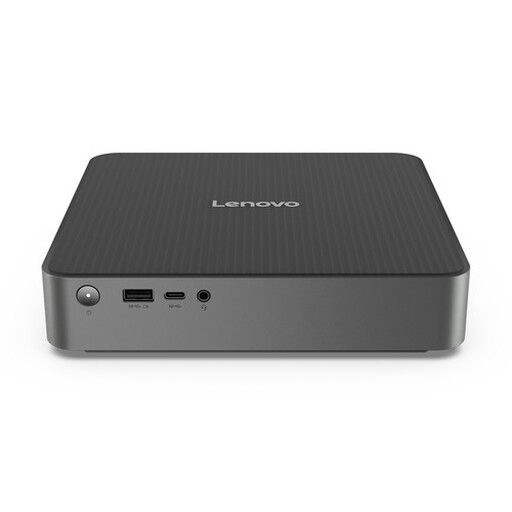 No image available
A compact Lenovo desktop option; check the specifications of the configuration you choose and make sure it suits your editing app and storage needs.
Adobe recommends 16 GB RAM for HD and 32 GB or more for 4K in Premiere, while 8 GB is the minimum for the versions listed. The technical requirements were updated on 29 September 2026 and apply to versions 26.0, 26.2, 26.3, 26.3.2, 26.5, 26.5.1 and 26.5.2. Choose a setup to suit your own version and workflow.
According to ASUS, the NUC 16 Pro kit NUC16GDK-B doesn’t include memory, storage or a pre-installed operating system. Also check that the ports work with your screen and external storage.
For the Premiere versions listed, Adobe recommends a fast internal SSD for the app and cache, plus an additional fast drive for media. So check your storage plan and the ports available. This is software advice for those versions.
No. ACM ConsuWijzer explains statutory guarantees in terms of what you could reasonably expect from the product under normal use. If the product doesn’t meet those expectations, the seller is responsible for providing a solution. A manufacturer’s or seller’s guarantee doesn’t replace your statutory rights.
For an online purchase, consumers generally have a cooling-off period of up to 14 days after delivery, but ACM ConsuWijzer lists some exceptions. Check whether an exception applies to your order before relying on this option.