
Live radio mixer
You mix during broadcasts and want to use audio equipment and a second screen at the same time. Check your software requirements and make sure all the necessary ports are available in your complete setup.


First, choose a laptop that works with your mixing software and audio equipment. Then check whether the exact configuration supports both its built-in screen and your external display at the same time. For live streaming or more demanding projects, the software you use and its workload will determine what you need. Extra ports or a higher-spec configuration may also mean using adapters or paying for capacity you won’t use.
You mix during broadcasts and want to use audio equipment and a second screen at the same time. Check your software requirements and make sure all the necessary ports are available in your complete setup.
You edit recordings, music and transitions after the event, and want to spread your timeline across two screens. Software compatibility, memory and storage become more important as your projects grow.
You take your laptop to different recording or mixing locations, where you connect a screen and audio equipment. Compare its size with the ports and adapters you’ll need on the go.
Start with the mixing software and audio equipment you already use. Then check the screen connection and other ports as part of your complete setup. Finally, choose the memory and storage to suit your projects.
| What to consider | What should you check? | Who should pay particular attention? |
|---|---|---|
| Reliable mixing | Make a note of your mixing and, if applicable, streaming software, operating system, version and audio interface. Compare these with the requirements for your workload. Serato Support and OBS Project make clear that more demanding tasks and the capacity you need depend on how you use the software and your settings. | When I’m mixing live, I want my software and audio equipment to work together. Around 25% of people considering this laptop for community radio prioritise live audio. |
| Second screen | Check the video output on the exact laptop configuration, the screen’s input and the cable or adapter you’ll need. In Windows, choose ‘Extend’ if you want two separate workspaces. A splitter that duplicates the same image won’t give you separate workspaces. | To have a timeline on one screen and programme windows on the other, I need two workspaces I can use at the same time. Around 25% of this group prioritise screen space. |
| Ports | List the ports your screen, audio interface and any controller need. Don’t count a port used by your screen or power supply as available for something else. Also check which video connection a dock passes through. | If I want to connect my interface and other equipment at the same time, I need to know which ports will actually be left free. Around 20% of this group prioritise ports for peripherals. |
| Memory and storage | Compare your editing software’s requirements and the size of your projects with the exact RAM and SSD configuration. Check whether you can expand the storage, too; external storage will use a port. | As my recording files grow, I want enough working space for my projects. Around 15% of this group prioritise memory and storage. |
| Using it on the go | Compare the size and weight of the specific configuration, and factor in the power supply, cables and adapters you’ll need. Don’t assume the quoted battery life reflects a real-world radio mixing session. | When I work in different locations, I want to know what I’ll need to take and connect alongside my laptop. Around 15% of this group prioritise portability and the complete setup. |
The connector shape alone doesn’t confirm that the laptop can drive an external display. The video specification for the exact configuration determines whether the full connection will work.
Check the laptop port specifications and test the planned connection with your screen.
A port used for video or charging won’t also be free for an audio interface or another device.
Before you buy, draw up a connection plan for your screen, interface and any controller, and check what a dock will pass through.
A product listing may differ from the manufacturer’s specifications. HP lists three Thunderbolt 4 USB-C ports and one USB-A port for the EliteBook Ultra range.
Use the manufacturer’s specifications for the exact configuration as your starting point, and check which version you’re buying.
A laptop doesn’t, by itself, make the use of a frequency or broadcasting legal, nor does it arrange the rights to protected music.
First decide whether you’ll be recording, broadcasting online or using radio spectrum. Then check the conditions and rights that apply to that format.
The MacBook Air M4 and M5 ranges are worth comparing if your audio software and interface work with macOS.
The Zenbook 14 UX3405CA is a Windows range worth exploring if the specific configuration suits your software and setup.
The EliteBook Ultra G1i is a business Windows range to compare if you’re looking for a compact laptop with USB-A and USB-C/Thunderbolt.
The ThinkPad E14 Gen 7 AMD is a business Windows range with configurable options to compare against your software and port requirements.
The Dell Pro 14 PC14250 is a business Windows range to compare against the requirements of your software and setup.
This selection includes MacBook Air models for a macOS setup and a more powerful Windows laptop. Check that your software, screen and audio equipment work with each specific configuration.
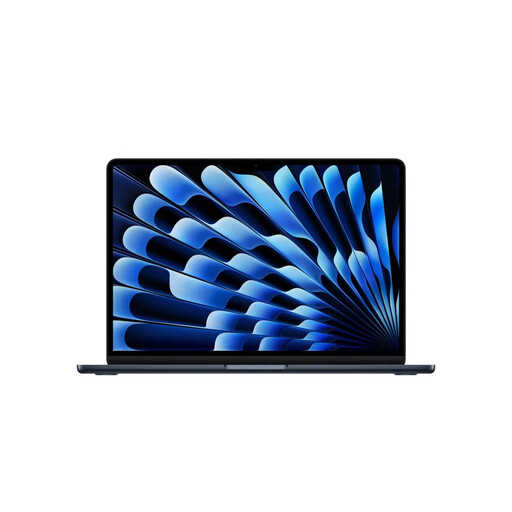 No image available
An option to compare if you want to keep mixing and editing projects on a MacBook Air.
The product title lists an M5 chip, 24 GB of memory and 1 TB of storage. The product description says it supports up to two external displays. Check that the video connection works with your screen and software.
 No image available
An option to compare if you want a compact Air for mixing and editing at different locations.
The product title lists an M5 chip, 16 GB of memory and 512 GB of storage. The product description says it supports up to two external displays. Check that its video output works with your screen.
 No image available
An option to compare if you’re considering a 15-inch MacBook Air for your mixing setup.
The product title lists an M5 chip, 16 GB of memory and 512 GB of storage. The product description says it supports up to two external displays and weighs 1,23 kg. Check the screen and audio connections you’ll need for your configuration.
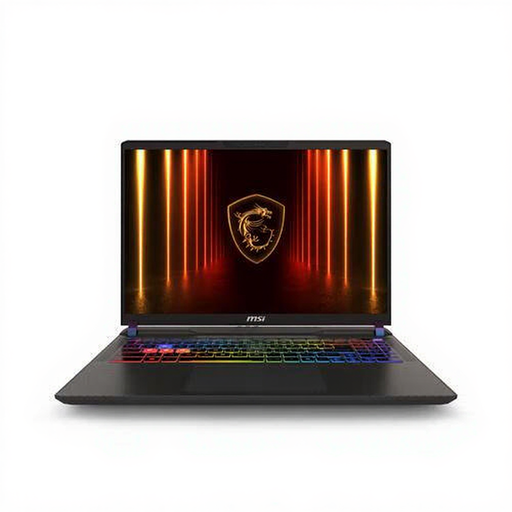 No image available
A Windows laptop to compare if you have a demanding live or video workload alongside audio. Make sure its configuration meets the requirements of that software.
The product title lists an AMD Ryzen 9 8940HX, 16 GB of DDR5 memory, a 1 TB SSD and an NVIDIA GeForce RTX 5080. The product description lists HDMI 2.1 and Thunderbolt video outputs. Check the connections on the exact configuration. The power adapter must be purchased separately.
Connect the screen using a video output supported by the exact laptop configuration. In Windows, you can identify and arrange your screens in the display settings; choose ‘Extend’ to create two workspaces. A splitter that only duplicates the same signal won’t give you two independent workspaces.
Not simply because you’re making a radio programme. Decide which microphones and other audio sources you want to connect, then check the requirements and compatibility of your recording software and equipment.
A manufacturer’s or seller’s warranty is in addition to your statutory guarantee rights. According to ACM ConsuWijzer, under the applicable conditions the seller is responsible for providing a solution if a product doesn’t meet the terms of the agreement. So a stated ‘2 years’ doesn’t necessarily set a firm limit on your statutory rights in the Netherlands.
No. Buying a laptop doesn’t give you permission to broadcast. For event radio, the Human Environment and Transport Inspectorate explains that you first need permission from the Media Authority, followed by a licence to use a frequency. Whether this route is suitable depends on the actual format of your broadcast.
For a linear online radio station playing music, BumaStemra describes a music licence. Sena states that local and public broadcasters also need a licence to use protected music. Check which rights apply to the music and the format of your programme; this isn’t a laptop requirement.