
Community organiser making a one-off poster
You want to arrange text and images clearly and choose a desktop that suits the software you use, without paying for unnecessarily powerful graphics hardware.


For text, shapes and a few images, a desktop that suits your layout software and a comfortable screen matter more than powerful graphics hardware. Choose an all-in-one if you don’t already have a monitor, or a compact desktop if you have one or want to choose one yourself. If you edit large photos, also check your software requirements and ask your printer for its file specifications.
You want to arrange text and images clearly and choose a desktop that suits the software you use, without paying for unnecessarily powerful graphics hardware.
You want to see details clearly on screen and keep text and logos within the safe area. Canva explains how margins and bleed work.
You work with lots of photos, or large ones, and want to match the exact desktop configuration to the requirements of your editing software.
Choose this if: you don’t already have a suitable monitor and design in one fixed place.
The trade-off: compare the screen and ports of the exact configuration with what you need.
Choose this if: you already have a suitable screen or want to choose the monitor yourself.
The trade-off: check which monitor, cables and input devices you need, and whether they’re included with the configuration you choose.
| What to consider | What should you check? | Who should pay particular attention? |
|---|---|---|
| Configuration for simple design work | Check which screen and input devices you already have, and what comes with the desktop. | If I’m making one community poster, I don’t want to choose features my design software doesn’t require. Around 45% of consumers prioritise a suitable configuration for simple poster design. |
| Screen and print preparation | Compare the screen configuration and check the size and file specifications with your printer. Canva recommends keeping text and logos within the safe area. | I want to check details clearly on screen and avoid text being cut off when the poster is trimmed. Around 33% of consumers give screen checks and print preparation top priority. |
| Photo editing | Compare the exact configuration with the requirements for your software version and platform. For Photoshop 27.x on Windows, Adobe lists 8 GB RAM as the minimum and 16 GB or more as the recommendation. | When I edit large photos, I want a desktop that meets my software’s requirements. Around 22% of consumers prioritise suitability for more intensive photo editing. |
An all-in-one has a built-in screen, while you choose a monitor separately for a compact desktop. As a result, the complete workstation may differ from what you see when looking at the computer alone.
Compare the complete configuration with your workspace and check which accessories are included with the model you choose.
Dell offers different processors and configurations under the QCS1250 name. So the model name alone doesn’t tell you which version you’ll get.
Check the full model name and the processor, memory and storage details of the configuration you choose.
Text and logos close to the trim line may be cut off when the poster is trimmed.
Check the margins, bleed and proof against your printer’s file specifications.
An error in the supplied file could mean corrections or a reprint.
HP offers both desktops with a separately selected monitor and all-in-ones with a built-in screen.
The Pro Slim QCS1250 is a compact Windows desktop available in several configurations.
ThinkCentre Neo and M desktops are options if you’re looking for a business Windows desktop with a separately selected screen.
An iMac combines the computer and screen, while a Mac mini is designed to be used with a separately selected screen.
These Joybuy desktops range from all-in-ones to configurations with dedicated graphics hardware. Check which model suits your software and screen requirements.
 No image available
An option if you’re looking for a desktop with a built-in screen for a dedicated poster-design workspace.
23.8-inch Full HD IPS screen, Ryzen 5 7520U, 8 GB RAM and 512 GB SSD. According to the product description, the power adapter must be purchased separately.
 No image available
This desktop has dedicated graphics hardware; check whether your poster or photo-editing software requires this configuration.
The title lists a GeForce RTX 5060 with 8 GB, Ryzen 5, 16 GB RAM and a 480 GB SSD. Windows 11 Home is listed as not activated.
 No image available
Before choosing this desktop for photo editing, check its graphics configuration against your software’s requirements.
Ryzen 7 5700X, GeForce RTX 5060 Ti with 8 GB, 16 GB DDR4 RAM and 480 GB NVMe PCIe SSD. Windows 11 Home is listed as pre-installed but not activated.
 No image available
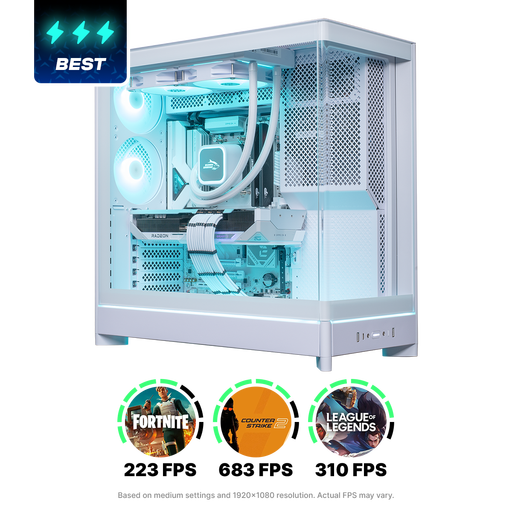
Compare the listed graphics and memory configuration with your software’s requirements; powerful graphics hardware isn’t necessarily needed for simple poster design.
Ryzen 7 9800X3D, Radeon RX 9070 XT with 16 GB, 16 GB DDR5 RAM and 1 TB NVMe SSD. The title also lists 240 mm liquid cooling and Windows 11 Home.
 No image available
A compact option to compare if you want to choose your own monitor; check that the video outputs are compatible with your screen.
16 GB LPDDR4 RAM and 512 GB SSD. The title lists HDMI 2.0, Type-C and DisplayPort 1.4, plus Windows 11 Pro.
Not necessarily. Lenovo describes text and layout work as less demanding than 3D or motion graphics. If you use Photoshop, compare the exact desktop with the requirements for your version and platform, including the GPU requirements.
Keep text and logos within the safe area. Canva explains that, for print with bleed, the background can extend beyond the trim line; ask your printer which margins and file settings apply to your poster.
Check that the desktop’s video output works with your monitor and that you have the necessary cables and input devices. Dell offers several QCS1250 configurations, so check the specifications of the exact model.
No. The Government of the Netherlands states that there is no fixed statutory warranty period in the Netherlands: a product must meet the standard you can reasonably expect. If a product is faulty, contact the seller; a manufacturer’s warranty is an additional benefit.
Electrical and electronic equipment falls into product categories covered by EU rules on CE marking. The marking is a declaration by the manufacturer, not an independent quality mark. If in doubt, check the information for the specific product.