What should you look for when choosing?
Standard monitor with a computer or player
A good fit if: volunteers manage the noticeboard nearby and a separate computer or player runs the software. Dell specifies a 24.07-inch IPS display with HDMI and DisplayPort for the P2425.
Keep in mind: a compact screen may not be easy to read from further away; connections alone also do not prove that the software works using only a keyboard.
Professional digital signage display
A good fit if: you are considering a larger wall-mounted display or a screen for long daily operating hours. Philips specifies that the 43BDL4512D/00 has a 43-inch screen designed for 24/7 use.
Keep in mind: allow for the space and mounting requirements; the screen specifications do not confirm that the chosen player and noticeboard software are keyboard-accessible.
First decide whether the screen will be managed up close or used to display posts from a distance. Then check the operating hours and connections for the complete setup.
| Consideration |
What to check before buying |
Who is this important for? |
| Keyboard operation |
Check that visitors can access all the features in the chosen software, and where the keyboard will be connected. |
If I want visitors to be able to use the noticeboard without a mouse, I test the entire interface with the chosen computer or player. Around 33% of consumers prioritise keyboard operation. |
| Readability from a distance |
Assess the screen size and position posts at the intended viewing distance. |
For consumers who want posts to be easy to read from the visitor area, testing at the actual location is an important step; around 27% prioritise readability from a distance. |
| Operating hours and positioning |
Set out the planned operating hours, available space and mounting method; check the operating-hours specification for the exact model. |
If I want a wall-mounted display to stay on for long periods or around the clock, I check both the operating-hours specification and the mounting requirements. Around 20% of consumers prioritise operating hours and positioning. |
| Connections and management |
Match the video output on the computer or player to the screen input; check any hub connections too. |
For consumers who want to connect and manage their computer or player easily, the right connection is essential to the setup; around 20% prioritise connections and day-to-day management. |
Joybuy products
These Joybuy products are aimed at a computer workstation or a larger professional digital signage display. For your chosen model and equipment, check that the complete noticeboard setup works using only a keyboard.
 No image available
Philips 27E1N1800AE/00 27-inch 4K UHD IPS monitor
May suit a computer workstation where 27 inches and 4K display are right for your setup.
4K UHD, 3840 × 2160, 60 Hz, 4 ms, HDMI and DisplayPort. The title mentions a height-adjustable stand.
View at Joybuy
 No image available
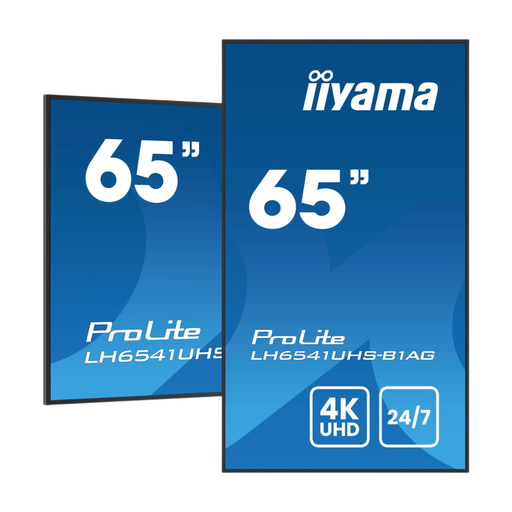
iiyama 65-inch Professional Digital Signage Display
May suit a larger wall-mounted setup; check that the mounting is suitable for your chosen location.
The product title states 4K UHD and 24/7 operation.
The installation instructions call for fitting by qualified professionals, using suitable fixings and keeping the ventilation openings clear.
View at Joybuy
 No image available
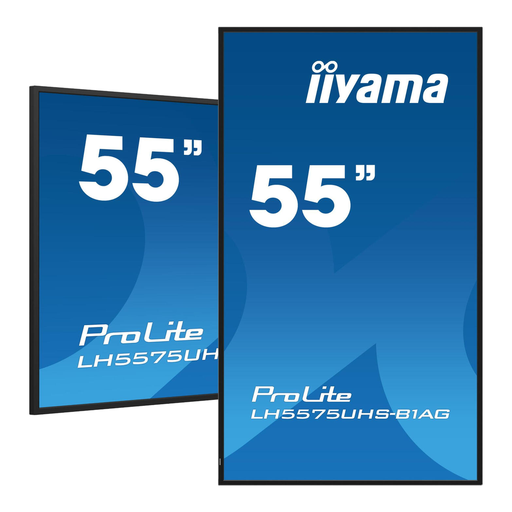
iiyama 55-inch 4K UHD Professional Digital Signage 24/7 Display
May suit a wall-mounted display that stays on for long periods; tailor the installation to the location.
The product title states 4K UHD, 24/7 operation, Android OS, FailOver and an Intel SDM slot.
The installation instructions specify secure wall mounting and at least 10 cm of ventilation clearance.
View at Joybuy
 No image available
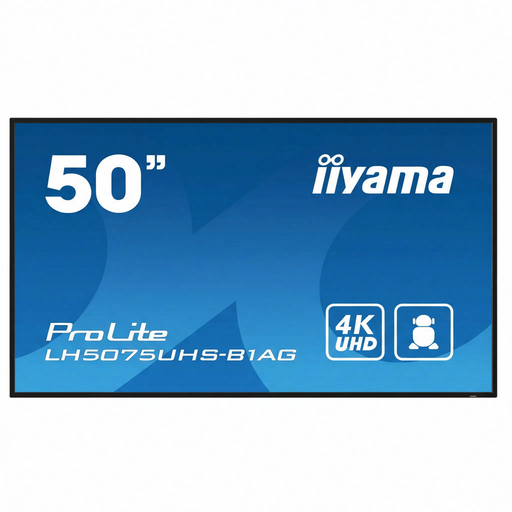
iiyama 50-inch 4K UHD Professional Digital Signage 24/7 Display
May suit a larger professional noticeboard; assess the size and positioning in advance.
The product title states 4K UHD and 24/7 operation.
The installation instructions call for fitting by at least two people, secure mounting and 10 cm of clear space around the ventilation openings.
View at Joybuy
 No image available
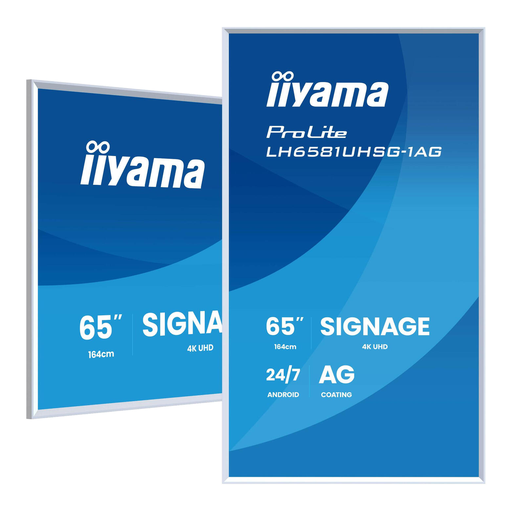
iiyama LH6581UHSG-1AG 64.5-inch 4K UHD digital signage display
May suit a spacious wall-mounted setup; check the mounting and ventilation clearance at the intended location.
The product title states 4K Ultra HD, Wi-Fi, 500 cd/m², a built-in processor, Android and 24/7 operation.
The installation instructions call for secure mounting and at least 10 cm of ventilation clearance around the screen.
View at Joybuy
Frequently asked questions
Does a monitor automatically make the noticeboard operable using only a keyboard?
No. The entire interactive interface needs to be operable using a keyboard. Test your chosen noticeboard software on the computer or player you plan to use, and check where the keyboard will be connected.
What should you test before putting the community noticeboard into use?
Using the actual computer or player and noticeboard software, test every task using only the keyboard, such as navigating, opening a post and entering text. Also check that the video connection works and that posts are readable from the visitor area.
What should you check when connecting a computer to a monitor?
Match the computer’s video output to the input on the exact screen model. For USB-C, check separately whether the port supports video, data or power, and whether any monitor hub has the right connection to the computer.
Is WCAG a legal requirement for every community noticeboard in the Netherlands?
That depends on who provides the noticeboard and whether it is a website or app covered by the Dutch Government Decree on Digital Accessibility. DigiToegankelijk describes the requirements for websites and mobile apps provided by government bodies covered by that decree; this does not mean that every community noticeboard or monitor is subject to a general legal requirement.
What other items should you include in the installation?
Check which computer or player, keyboard, cables and any mounting equipment your chosen setup needs. Before ordering, also review the delivery, warranty and software terms that apply to your setup.


