
Map designers working with lots of small details
If you want to check plot names, paths and a legend alongside your design tools, compare screen size and resolution. BenQ and LG list QHD and 4K respectively for their specified 27-inch models.


A 27-inch QHD monitor gives you room for your map and tool palettes; a 27-inch 4K monitor gives you more pixels on the same screen size for viewing fine details. Also compare the colour specifications of the exact model, its connection to your laptop and its adjustability. A stated colour gamut alone does not guarantee that a print will match what you see on screen.
If you want to check plot names, paths and a legend alongside your design tools, compare screen size and resolution. BenQ and LG list QHD and 4K respectively for their specified 27-inch models.
For a digital map, the stated colour specifications of the exact screen model may be a factor. If you also print your work, you’ll need to consider the printer, paper and relevant colour profiles too; Adobe describes these elements for profile-based printing in Photoshop.
If you present your map from a laptop, it’s worth checking that the display connection, cable and power supply all work together beforehand. BenQ, ASUS, LG and Philips describe different USB-C features for specific models.
First decide whether resolution, colour assessment, laptop connectivity or the layout of your workspace matters most for your mapping task.
Best for: a digital map where you want to have labels, a legend and tool palettes on screen at the same time.
Bear in mind: the QHD models listed have fewer pixels than the 4K option at 27 inches; test small text at your usual scaling.
Best for: anyone who wants more pixels on the same screen size for viewing fine lines and small map details.
Bear in mind: check that text and controls in your design software remain easy to read at your chosen display scaling.
| What to consider | What to look for | Who should pay particular attention? |
|---|---|---|
| Map details and workspace | Compare the resolution at the same screen size and test a sample map at the scale you work with. | If I want to read labels and the legend while my tool palettes are open, I compare both pixel count and workspace. Around 33% of consumers put map details first. |
| Colour for screen and print | Check the colour space and calibration details for the exact model. For printed work, also match the output to the printer and paper. | When I assess colours for a presentation or want to print the map, I look beyond the screen’s colour gamut. Around 27% of consumers prioritise colour assessment for presentation or print. |
| Laptop and USB-C | Check your laptop’s display support, cable and charging requirements against the monitor’s features and stated power output. | If I want to connect and possibly charge my laptop with a single cable, I check that the laptop, monitor and cable all support that setup. Around 20% of consumers start with laptop connectivity. |
| Workspace and adjustability | Measure the available desk space and compare adjustment options; also consider readability, lighting and reflections. | For longer design sessions, I want to position the screen comfortably and view the map without distracting reflections. Around 20% of consumers put workspace setup first. |
What you see on screen and the final print also depend on the output settings, printer and type of paper. A monitor’s colour specification alone therefore cannot confirm how the map will look on paper.
Decide in advance whether the map will only be shown digitally or printed too. For print, match the output settings and any proof to the printer and paper.
A colour proof or a suitable output workflow may require extra preparation.
USB-C features and power outputs vary by model. Your laptop and cable must also support the display and power functions you need.
Before your presentation, check your laptop’s video output, its charging requirements, the specifications of the exact monitor and the cable you’ll need.
A sharper or larger screen won’t automatically make labels easy to read or ensure comfortable positioning. Desk space, screen position, lighting and reflections all play a part too.
Test the map at the scale you use and check that you can position the screen comfortably without distracting reflections.
The BenQ PD2705Q is a 27-inch QHD design monitor for anyone looking to compare a stated sRGB mode with laptop connectivity.
The ProArt PA278CV is a 27-inch QHD option for an sRGB-focused design workspace with USB-C.
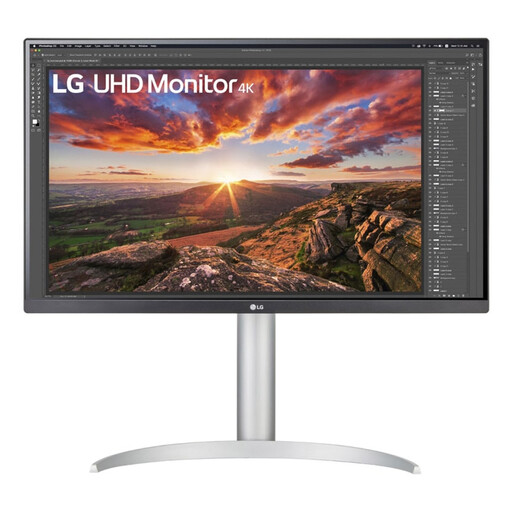
The UltraFine 27UP850K-W is a 27-inch 4K option for anyone who wants more pixels for viewing details on screen.
The UltraSharp U2724D is a QHD work monitor for anyone weighing up adjustability and map work alongside other office windows.
The 27E1N5600AE/00 is a 27-inch QHD option for a laptop workspace where USB-C convenience matters.
This Joybuy selection includes 27-inch QHD and 4K monitors for map details, colour assessment and laptop workspaces. Check the exact connections and colour specifications for each model before choosing.
 No image available
A 27-inch QHD option for checking map labels and a legend at a desktop workstation.
The product name lists 2560 × 1440 pixels. The product description mentions 99% sRGB and a height-adjustable stand.
 No image available
A 27-inch 4K option for anyone who wants to view fine map details on screen.
The product description lists 3840 × 2160 pixels, factory calibration, 97% DCI-P3 and 94% Adobe RGB. It also mentions height, tilt and swivel adjustments, and USB-C power delivery up to 98 W.
 No image available
A 27-inch 4K option for map details and a laptop workspace with USB-C.
The product name lists 3840 × 2160 pixels. The product description mentions IPS, USB-C with 65 W Power Delivery, and height and tilt adjustment.
 No image available
A 27-inch 4K option for viewing small labels and details on screen.
The product name lists 3840 × 2160 pixels. The product description mentions 100% sRGB, 99% DCI-P3, an ambient light sensor and HDMI, DisplayPort and Thunderbolt connections.
 No image available
A 27-inch 4K option for fine map details and an adjustable laptop workspace.
The product name lists 3840 × 2160 pixels. The product description mentions 99% sRGB, USB-C with up to 96 W Power Delivery, and height, tilt and pivot adjustment.
No, not as a general rule. The 27-inch QHD models listed have a resolution of 2560 × 1440, while the 4K models listed have 3840 × 2160 pixels. Choose based on your map, the space you need for palettes and readability at the scale you use.
Only if the monitor offers the features you need and your laptop and cable support them. Compare your laptop’s charging requirements with the specifications of the exact model; LG also lists a USB-C cable condition for the 27UP850K-W.
Match your colour workflow to the software, printer and type of paper you use. For profile-based printing in Photoshop, Adobe recommends a calibrated screen and suitable printer and paper profiles; the monitor’s stated colour gamut alone cannot confirm how the print will look.
Arboportaal recommends, among other things, legible symbols, minimal reflections, suitable lighting and a workspace adjusted to the user. Also check that the screen offers enough adjustment and take regular breaks.
According to the Dutch government, if there’s a problem with a product, the seller must provide a solution; a manufacturer’s warranty is in addition to the statutory guarantee. Your exact rights depend, among other things, on whether the purchase qualifies as a consumer purchase.