
4K video editors
You want to know whether your footage and effects will be easy to edit. The right configuration will depend in part on your editing software and source files.


Choose a desktop based on your source footage and editing software, then check the memory, storage and connections on the exact model. A compact Mac mini suits a macOS workflow and a small desk, while a Windows tower may be a better choice if you want to upgrade components. A gaming PC isn’t automatically the best fit for video editing.
You want to know whether your footage and effects will be easy to edit. The right configuration will depend in part on your editing software and source files.
You want to keep your source footage, working files and finished version organised, so you’re factoring storage and connections into your choice.
You want to check what you already have and what computer, software, storage and peripherals you still need for editing.
A good fit if: you want to use macOS, have limited desk space and can choose a configuration that suits your editing software and footage.
Bear in mind: the Mac mini base model reviewed has 16 GB of memory and a 256 GB SSD. For 4K in the Premiere version reviewed, Adobe recommends 32 GB or more; this isn’t a general requirement for every editing app.
A good fit if: you use Windows software or want the option to upgrade the memory or storage later.
Bear in mind: specifications vary by configuration. Check the full model number and make sure the graphics configuration works with your software and effects.
A good fit if: you have long-running projects or specific configuration requirements and want to choose components to suit them.
Bear in mind: the Dell Precision 5860 base configuration reviewed has 16 GB of RAM and a 512 GB SSD. For 4K in the Premiere version reviewed, its memory falls below Adobe’s recommendation; the workstation name alone doesn’t prove it’s a better fit for your film.
| Consideration | What should you check? | Who is this most relevant to? |
|---|---|---|
| Smooth editing | Note your resolution, codec and software version, then compare them with the requirements for the exact configuration. For 4K in the Premiere version reviewed, Adobe recommends 32 GB of RAM or more; lighter proxy files can help in Premiere when source footage is difficult to play back. | If I mainly want to edit my own footage smoothly, I’ll choose a computer to suit my source files and software. Around 36% of consumers put editing performance first. |
| Storage and files | Check the SSD capacity, available connections and where you’ll keep your source footage, cache and working files. Adobe recommends fast storage for video footage and a local cache for Premiere. | If I want to keep lots of footage and different versions, I’ll look beyond the system drive. Around 29% of consumers prioritise storage and file management. |
| Complete editing workstation | Make a list of the computer, software, storage, screen and input devices you already have, and what else you need for editing. | If I want to set up a practical editing workstation, I need to know which components are required and which I already own. Around 21% of consumers start by looking at the complete workstation setup. |
| Checking and showing your footage | Check that the video outputs on the exact desktop work with your screen, and that the venue supports the connection and file format you plan to use. | If I want to edit on a screen I already own and show the film later, I’ll check the connections in advance. Around 14% of consumers prioritise checking and showing their footage. |
Editing requirements also depend on your software, source footage and effects. For the Premiere version reviewed, Adobe sets out separate recommendations for memory, graphics memory and storage, among other things.
Start by checking your software and source footage, then compare the full configuration with the relevant recommendations.
Depending on your workflow, you may need a different memory configuration or additional fast storage.
Different versions of the same range can have different amounts of memory and storage. For example, the HP OMEN 35L GT16-1686nd reviewed differs in these respects from the GT16-0160nd listed on Joybuy.
Compare the full model number and the specifications of the version you’re considering.
A different version may need a different memory or storage configuration to suit your editing workflow.
The computer itself doesn’t automatically include the software, media storage and peripherals you need for your workflow.
Make a list of what you already own, then check the storage capacity and connections against your footage and screen.
You may need suitable media storage or peripherals as well as the computer.
The Mac mini is a compact macOS desktop. Choose a memory and storage configuration that suits your editing needs.
The HP OMEN 35L GT16-1686nd reviewed is a Windows tower with a specific memory, storage and graphics configuration.
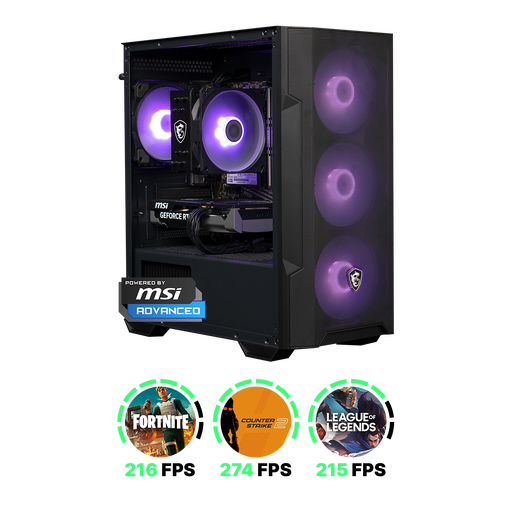
The Legion Tower 5i is a Windows tower for anyone looking to assess the exact configuration and potential upgrade options.
The Precision 5860 is a configurable workstation tower that you can tailor to your editing workflow.
These desktop options are for anyone looking to edit a local community film. Compare the configurations with your footage, software and existing equipment.
 No image available
A desktop option to compare if you’re looking for an editing computer and want to check your own software and memory requirements.
The description lists a Ryzen 5 5500, 16 GB DDR4, an RTX 5060 with 8 GB of video memory and a 500 GB NVMe SSD. The product description says the charger isn’t included as standard.
 No image available
Compare this version with your editing software, and check in advance that the Windows licence meets your needs.
The description lists a Ryzen 5 5500, 16 GB DDR4, an RTX 5060 with 8 GB of video memory and a 480 GB NVMe SSD. Windows 11 is listed as not activated.
 No image available
This desktop is worth considering if the listed configuration suits your editing software and workflow.
The description lists a Ryzen 7 5700X, an RTX 5060 Ti with 8 GB of video memory, 16 GB DDR4 and a 480 GB NVMe SSD. Windows 11 Home is listed as pre-installed but not activated. For 4K in the Premiere version reviewed, Adobe recommends 32 GB of RAM or more.
 No image available
A compact macOS desktop to consider if you want to use that workflow and its memory and storage configuration suits your project.
This version lists 16 GB of memory and a 256 GB SSD. The description mentions HDMI, Thunderbolt 4 and support for up to three external displays. For 4K in the Premiere version reviewed, Adobe recommends 32 GB of RAM or more.
No image available
A compact macOS desktop to consider if you want to use that workflow and its memory and storage configuration suits your project.
This version lists 16 GB of memory and a 512 GB SSD. The description mentions HDMI, Thunderbolt 4 and support for up to three external displays. For 4K in the Premiere version reviewed, Adobe recommends 32 GB of RAM or more.
Not without considering your software and footage. For 4K or higher in the Premiere version reviewed, Adobe recommends 32 GB or more; this isn’t a general minimum for every film or editing app.
If you use Premiere, you can create proxies: lighter working copies for editing, while keeping the original media available for the final export. Adobe also recommends fast storage for media files and a local cache.
Don’t assume you can show or publish recognisable footage or someone else’s music without permission. The Dutch Data Protection Authority notes that recognisable images may contain personal data. For music, check the rights for your intended use and consider the specific way you plan to show the film before sharing it.
According to ACM ConsuWijzer, a standard online consumer purchase generally comes with a 14-day cooling-off period after delivery, with some exceptions. Your statutory rights also depend on what you could reasonably expect from the product under normal use; they aren’t simply the same as any manufacturer’s warranty period on offer.