
Detail inspectors
You examine small components or contact points in simulation or test footage, and want a sharp image on an adjustable workstation.


Choose a monitor based on what you need to assess: fine detail, movement or switching between computers. In a shared workspace, adjustability and connections matter too. Check that your computer can handle the resolution and refresh rate you want, and that the screen will fit your available space. A higher refresh rate or resolution won’t make the underlying collision measurement more accurate.
You examine small components or contact points in simulation or test footage, and want a sharp image on an adjustable workstation.
You switch between computers or laptops with colleagues and want to share peripherals without having to move them each time.
You play back collision footage and want to follow movement visually. A higher screen refresh rate is only useful if the source and computer can make the most of it.
First decide whether detail, switching between computers, motion or adjustability matters most for your workspace. Then check that your source and computer can handle your preferred monitor settings.
| What to consider | What should you check? | Who is this important for? |
|---|---|---|
| Fine detail | Check the resolution of the source footage, your computer’s video output and the space available on your desk. | If you want to assess small components in test footage, what your source actually displays matters most. Around 29% of consumers prioritise detail. |
| Switching between computers | Check for KVM, video and USB connections, and whether the laptop will receive enough power to charge. | If colleagues want to use the same screen and input devices with different computers, having the right connections is essential. Around 29% of consumers give switching between computers top priority. |
| Motion display | Compare the frame rate of your source and computer with the refresh rate the monitor supports at your chosen resolution. | If you want to follow movement in recorded or simulated footage, the whole display chain needs to deliver the refresh rate you want. Around 21% of consumers prioritise motion display. |
| Adjustability | Check the height adjustment, viewing position, glare and the space available on your desk. | If several people use the same workstation, you’ll want to adjust the screen to suit different users. Around 21% of consumers prioritise their workspace set-up. |
The 144 Hz Dell quotes for the S2725DC describes the monitor; it doesn’t tell you how many frames your recording or simulation contains.
First check the source frame rate and what your computer can output at your chosen resolution.
Video, USB peripherals and charging are separate functions. Lenovo lists docking and power delivery of up to 100 W for the ThinkVision P27h-30.
Compare the video connections, USB ports and charging requirements of each laptop with the monitor’s exact specifications.
Depending on the connections you need, you may still require a suitable cable, power supply or separate connection.
An ultrawide screen gives you room for multiple windows, but it also needs to fit on your desk and be adjustable for different users.
Measure the available space and check the height adjustment, viewing position and glare before choosing a model.
You may need to adjust your desk set-up or mounting arrangement.
The models reviewed offer different specification options: the P2725QE has a 27-inch 4K screen, while the S2725DC offers QHD and a stated refresh rate of 144 Hz. Dell lists these model features in its product specifications.
Lenovo positions the ThinkVision P27h-30 for workspaces where two computers may share one screen.
Philips says the Philips Business Monitor 27B2U6903/01 combines 4K with Thunderbolt 4 and Smart KVM.
According to LG’s specifications, the LG 34BQ77QB-B is an ultrawide model with 3440 × 1440 pixels.
According to ASUS, the ASUS ProArt PA279CRV is a 27-inch 4K screen with a matte finish and USB-C.
This Joybuy selection includes monitors for viewing fine detail and following movement. Some models also list KVM features for switching between computers.
 No image available
The stated 4K resolution is an option for displaying detailed images, provided your computer supports it.
32 inches; 4K UHD; 120 Hz; QD-OLED; Thunderbolt 4; HDMI 2.1; DisplayPort 1.4; Auto-KVM; adjustable stand.
 No image available
The stated 4K resolution may suit detailed images. Check that your computer supports your chosen resolution and refresh rate.
31.5 inches; 3840 × 2160; 4K Ultra HD; 165 Hz; HDMI 2.1; DisplayPort 1.4; USB-C.
 No image available
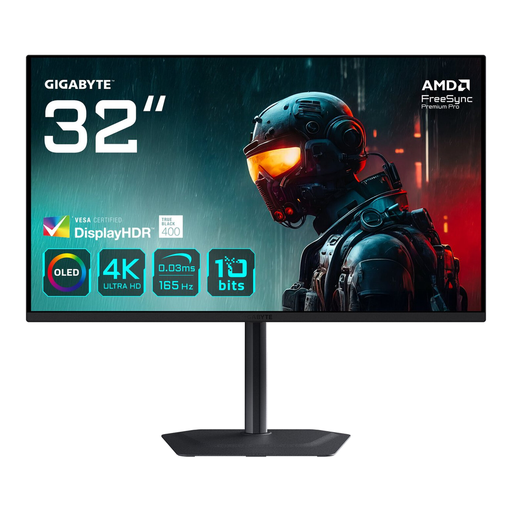
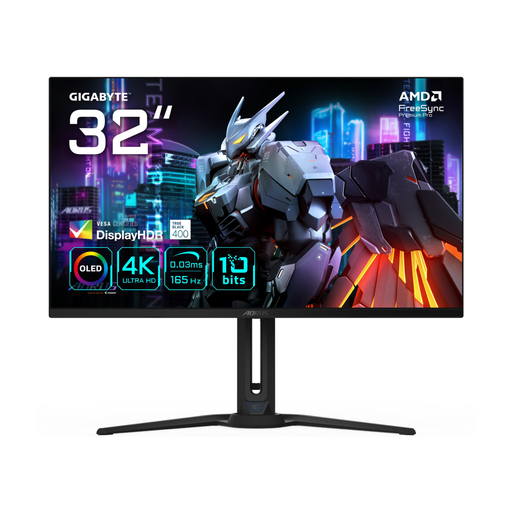
The stated 4K resolution and 165 Hz refresh rate may suit detailed images and motion display, provided your source and computer support these settings.
31.5 inches; 3840 × 2160; 4K Ultra HD; OLED; 165 Hz; multiple video inputs; USB hub; KVM; height-adjustable stand.
 No image available
This model has separate 4K and FHD refresh modes. Choose the one that suits your preferred resolution and source.
27 inches; USB-C 65 W; KVM; Fast IPS; HDR1400; 4K at 160 Hz or FHD at 320 Hz; stand with height adjustment, tilt and swivel.
 No image available
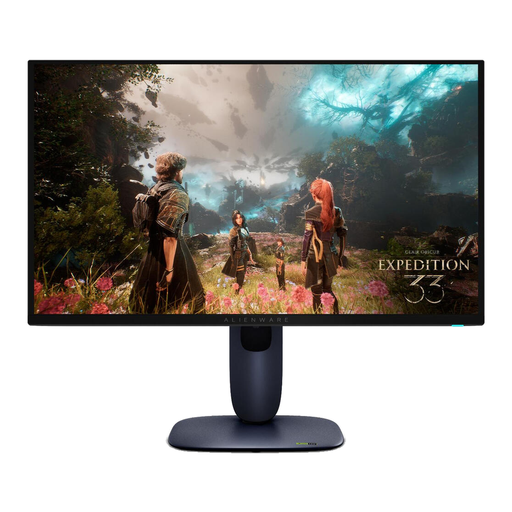
The stated resolution and refresh rate may suit detailed images and motion display when your computer and source support the settings you want.
26.7 inches; 3840 × 2160; 4K Ultra HD; QD-OLED; 240 Hz; HDMI 2.1; DisplayPort 1.4; USB hub; height- and tilt-adjustable.
Choose based on what you want to view: the resolution of your source footage matters for detail, while a higher screen refresh rate only helps if your source and computer deliver extra frames. Dell specifies 4K at 100 Hz for the P2725QE and QHD at 144 Hz for the S2725DC; neither specification validates the test measurement.
Check the screen height, viewing position and glare for each user. For employees who work with screens, Arboportaal sets out requirements for workplace design; for more than 2 hours of screen work a day, it mentions the option of using a separate screen or keyboard.
No. According to the Dutch government, there is no fixed statutory guarantee period for products in the Netherlands. You are entitled to a product that works properly, and the retailer is your point of contact if something goes wrong. If you’re considering additional cover, check what rights or services it actually adds.
Not necessarily if employees are filmed. The Dutch Data Protection Authority says cameras may only be used in the workplace when strictly necessary, and that continuous surveillance at a fixed workstation is generally not permitted. Buying a monitor is not, in itself, camera surveillance.