
Developer working with two editors side by side
You want to see your scoring logic, interface or game rules at the same time, so first consider the usable width for each window. Microsoft Support explains how to snap windows side by side in Windows.


If you want to see two wide editors at the same time, an ultrawide monitor is the best fit for that layout. If you mainly read long stretches of code and test output, a screen with more vertical space may make more sense. An adjustable QHD monitor is another option if you want a separate main or secondary screen. Also consider the space available on your desk and your computer’s video and power connections: USB-C alone doesn’t guarantee that one cable will do everything.
You want to see your scoring logic, interface or game rules at the same time, so first consider the usable width for each window. Microsoft Support explains how to snap windows side by side in Windows.
For long code files and test output, you may prefer more vertical workspace and readable text scaling over maximum screen width. BenQ lists a 3:2 aspect ratio for the RD280U; Microsoft Support explains how to adjust resolution and scaling in Windows.
You want to connect an external monitor and need to consider video support, power and desk space. Check the capabilities of your laptop and monitor together; the hub features of the Dell P2725DE don’t automatically apply to the P2725D.
A good fit if: you want to keep code, game rules or a preview in view side by side, and have room for a wide screen. Philips lists a 34-inch screen with a resolution of 3440 × 1440 pixels for the 346B1C/00.
Trade-off: extra width doesn’t automatically mean more vertical pixels. Philips lists USB-C at 60 Hz with the default USB 3.2 setting, and 100 Hz when switched to USB 2.0.
A good fit if: you spend more time reading long code files, error messages and test results than viewing two wide windows at once. BenQ lists a 3:2 screen with a resolution of 3840 × 2560 pixels for the RD280U.
Trade-off: it’s not as wide as an ultrawide. Try your own window layout and scaling settings to see whether two editors have enough room.
A good fit if: you want a separate screen for documentation, testing or a preview, or an ultrawide won’t fit in your workspace. Dell lists a 27-inch screen with a resolution of 2560 × 1440 pixels for the P2725D and P2725DE.
Trade-off: with two physical screens, you’ll need to check the placement and connections for both. The P2725DE is the USB-C hub version; don’t assume the P2725D has the same features.
| What to consider | What to look for | Who it matters to |
|---|---|---|
| Usable width for editors | Compare your preferred window widths with the aspect ratio, resolution and dimensions of the exact model. | If I want to see two editors and a game preview at the same time, I prioritise usable window width. Around 33% of consumers put this wide window layout first. |
| Vertical space for code | Compare the vertical resolution and try out the text scaling and editor layout on your own computer. | When I’m reading long code files and test output, vertical space matters more to me than maximum width. Around 27% of consumers prioritise this vertical view. |
| Desk setup | Measure the available width and depth, and check the height adjustment and any mounting requirements. | If my desk requires a fixed position and viewing angle, I choose based on the physical setup. Around 20% of consumers prioritise this layout. |
| Video and laptop power | Check whether the laptop outputs video through the port you plan to use, how much power it needs, and which cables or accessories are included. | When I want to connect my laptop at a single workstation, I check video, data and power together first. Around 20% of consumers make the laptop connection their top priority. |
The video mode and charging power must be compatible with both the laptop and the monitor. The presence of a USB-C port alone doesn’t mean these features are available.
Check the specifications for the laptop, monitor and cable separately before relying on a single connection.
Dell distinguishes between the P2725D and the P2725DE; the P2725DE is the USB-C hub version.
Compare the full model number and check the connections on the version you’re considering.
For 3440 × 1440 over USB-C, Philips lists 60 Hz with the default USB 3.2 setting and 100 Hz when switched to USB 2.0.
Check which hub setting you want to use and which display mode goes with it.
The Dutch government states that there is no fixed statutory warranty period in the Netherlands. Any additional warranty doesn’t replace your right to a product that works properly.
Check exactly what an additional warranty covers, and contact the retailer if your product is faulty.
The Pro 27 Plus P2725D and P2725DE are 27-inch QHD models available in the Netherlands, with a resolution of 2560 × 1440 pixels. The P2725DE is the USB-C hub version.
According to Philips, the 346B1C/00 is a 34-inch ultrawide model with a resolution of 3440 × 1440 pixels.
According to BenQ, the RD280U has a 28.2-inch 3:2 screen with a resolution of 3840 × 2560 pixels, for those who value vertical space for code.
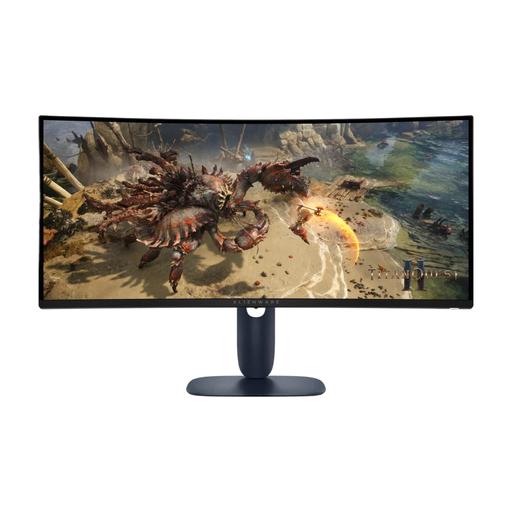
The 34WQ75C-B shows the kinds of features you may find on an ultrawide: LG lists a resolution of 3440 × 1440 pixels, USB-C and a built-in KVM.
This selection at Joybuy includes ultrawide monitors for side-by-side windows and a 27-inch 4K monitor for a more compact workspace.
 No image available
The wide 21:9 workspace suits a layout with several windows side by side.
34 inches; 5120 × 2160 pixels; USB-C with up to 140 W Power Delivery; built-in KVM and adjustable stand.
Check that your computer supports the USB-C video and power standards required.
 No image available
The 21:9 aspect ratio and 34-inch screen suit a wide layout with editors side by side.
3440 × 1440 pixels; adjustable stand with height and tilt adjustment; HDMI and DisplayPort.
 No image available
The Dual QHD resolution is designed to provide a wide workspace for multiple windows.
5120 × 1440 pixels; built-in KVM; USB-C dock with RJ45; height-adjustable stand. The stated visible width is 108.8 cm.
Make sure you have enough desk space for this wide screen.
 No image available
The 21:9 aspect ratio is designed for a wide layout with editors side by side.
3440 × 1440 pixels; 100 Hz; Picture-by-Picture; HDMI and DisplayPort; stand with height and tilt adjustment.
 No image available
This 27-inch screen is an option if you’re looking for a standard-size display for code and text rather than an ultrawide layout.
3840 × 2160 pixels; 60 Hz; 4 ms; height-adjustable stand; HDMI and DisplayPort.
In Windows 10 and 11, you can drag windows to the edges of the screen to snap them into place. Then check that both editors have enough width at your chosen text scaling. Microsoft Support explains the Snap feature.
In Windows, check the selected resolution and scaling under Display settings. Microsoft Support generally recommends using the resolution marked as recommended; a lower resolution can make text look less sharp.
No, check the features of both devices. BenQ specifies DisplayPort Alt Mode, data and 90 W Power Delivery over USB-C for the RD280U. Check that your laptop supports the required video feature and that the power is sufficient.
For many applicable online purchases from a business, you have a 14-day cooling-off period, according to the Dutch government. You’re also entitled to a product that works properly, and you can contact the retailer for a remedy if it’s faulty. There is no fixed statutory two-year warranty period in the Netherlands.
For employees who work at a screen for more than two hours a day, Arboportaal sets out workplace requirements, including that the screen and keyboard must not be attached to each other. These rules apply to a specific work situation and aren’t a general product requirement for every private user.