
Developer who works across multiple windows
You want to keep your editor, puzzle preview and documentation in view at the same time. The amount of horizontal space available is an important consideration.


For viewing code, puzzle output and documentation at the same time, a 34-inch 3440 × 1440 ultrawide monitor gives you plenty of horizontal space, provided your desk is wide enough. A 27-inch 4K monitor is a better fit if compact dimensions and sharp text matter more; a 3:2 screen gives you more vertical space for code, but less width. For each option, compare readability at your preferred scaling, adjustability and connections with your laptop.
You want to keep your editor, puzzle preview and documentation in view at the same time. The amount of horizontal space available is an important consideration.
You spend long periods reading functions and tests, and weigh readable text, vertical space and adjustability against an extra-wide screen.
You regularly connect a laptop and want to know whether the monitor offers the video connection you need and, where necessary, power delivery via USB-C.
Start with the window layout you want to use while building the puzzle generator. Then compare text size, monitor adjustability and laptop connectivity to find what suits your workspace.
| What to consider | What should you check? | Who is this important for? |
|---|---|---|
| Room for split editors | Compare the screen width and resolution of the exact model. Try placing your editor and browser side by side at a readable scale. | If I want to see code, a puzzle preview and documentation at the same time, horizontal space is my top priority. Around 31% of consumers prioritise this window layout. |
| Readable code and vertical space | Compare a 27-inch 4K monitor with a 28.2-inch 3:2 screen, and set a comfortable IDE font size and display scaling on both. | If you want to read longer sections of code or small text comfortably, focus on scaling and vertical space. Around 25% of consumers prioritise readability or vertical code display. |
| An adjustable working position | Check the height adjustment, positioning, reflections and lighting. Also make sure the text size is easy for you to read. | When coding for long periods, I want to position the screen to suit my workspace, without reflections getting in the way. Around 25% of consumers make their working position their top priority. |
| Connecting a laptop | Check whether your laptop port supports video, and whether the connection and stated charging power of the specific monitor are suitable for your laptop. | If I want to use my laptop with as few separate connections as possible, the monitor needs to suit my device and charging requirements. Around 19% of consumers prioritise laptop connectivity. |
A higher pixel count doesn’t automatically mean more code will fit on screen at a comfortable size. Font size and display scaling also make a difference.
Compare the resolution with the IDE font size and scaling settings you actually plan to use.
Connectivity and stated power delivery vary between monitors. Your laptop port also needs to support the connection you want to use.
Compare your laptop port, video connection and charging requirements with the specifications of the exact monitor model.
If the video connection or charging power isn’t suitable, you may need a separate connection or power supply.
A small change in the model code can indicate a different version, so comparing just the brand and screen size isn’t enough.
Check the full model code and the specifications of the version you’re considering.
Dell has several 27-inch monitors to consider; compare the resolution and connectivity features of each model.
The E Line 346E2CUAE/00 is a 34-inch ultrawide monitor to consider if you want to arrange windows side by side.
The 34WR55QC-B is a 34-inch 21:9 monitor with USB-C for anyone looking for a wide workspace.
The RD280U is a 3:2 monitor designed for coding. It’s an alternative to compare with an ultrawide monitor if vertical space for code is important.
This selection focuses on 34-inch ultrawide monitors for viewing code, puzzle output and documentation side by side. Check the exact model name, specifications and desk width required for each version.
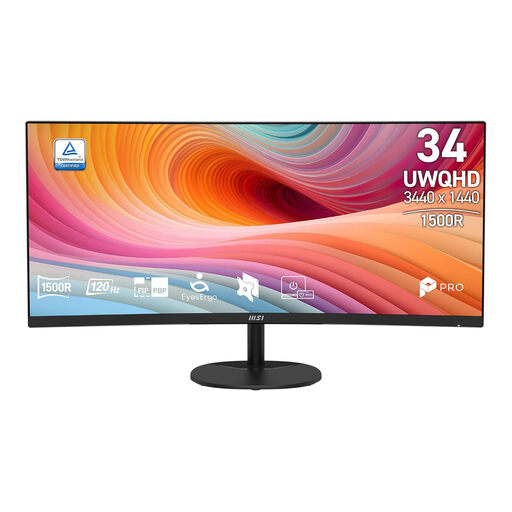 No image available
A 34-inch ultrawide monitor could suit you if you want to place code and other windows side by side; make sure you have enough desk width.
The product name includes UWQHD, 120Hz and a curved VA screen.
 No image available
This 34-inch monitor is worth comparing if you want to use several windows side by side; check whether the wide screen will fit on your desk.
The product name includes USB-C Hub and Conferencing. Check the full model specifications for the features you need when connecting your laptop.
 No image available
A 34-inch curved monitor could work well in a multi-window setup; measure your desk first to make sure you have enough width.
The product name includes Dual-Mode and Business Monitor. Check the specifications of this version for the resolution and connections you need.
 No image available
The 34-inch version could work well for viewing code and documentation side by side, as long as the screen width suits your workspace.
The product name includes 3440 × 1440, Wide Quad HD and LCD. Check the specifications of this version for additional connectivity and adjustment features.
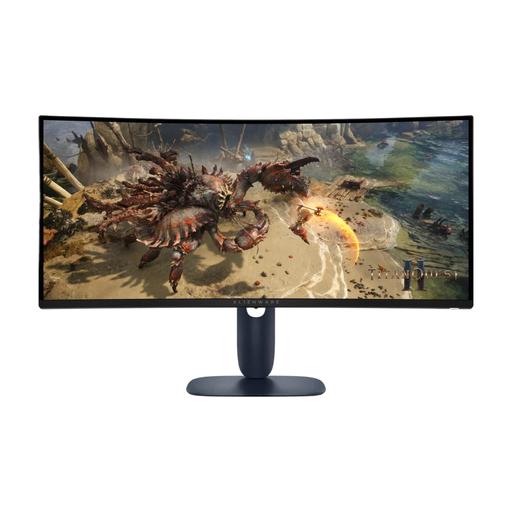 No image available
A 34-inch screen could suit a wide window layout; check that you have enough room on your desk.
The product name includes 3440 × 1440 and WQHD. Check the specifications of this version for the adjustability and connections you need.
No, an ultrawide monitor isn’t your only option. A 34-inch screen with 3440 × 1440 gives you a wide layout; a 27-inch 4K screen may be a better fit if you prefer a more compact display and prioritise text clarity. Compare both at a scaling level that makes code comfortable to read.
Adjust the screen and furniture to suit your body, make sure symbols are easy to read, and watch out for reflections and light sources in your field of vision. Arboportaal also recommends varying your posture and tasks, and taking short breaks from looking at the screen. This is general guidance, not a promise that a particular screen will prevent discomfort.
Only if your laptop supports the required video signal through that port and the monitor’s charging power is suitable for your device. Check the USB-C features of both your laptop and the exact monitor version before relying on a single cable.
For an online consumer purchase, you generally have a statutory cooling-off period of up to 14 days after delivery, subject to applicable exceptions. ACM ConsuWijzer explains these rules. If a product doesn’t meet the legal requirements, the seller is responsible for the statutory guarantee. This is separate from any manufacturer’s warranty.
The government guidance mentioned doesn’t set a universal monitor size. According to the Dutch government, employers must provide people working from home with a good and safe workspace; the right setup depends on the employee and the work.