The right monitor for coding a lesson planner depends largely on how you view code, Git changes and other windows. Choose extra screen height for long files, or extra width to place your editor, preview and documentation side by side. An adjustable 27-inch QHD monitor is a middle ground if you want a main window and a smaller one alongside it. If you use a laptop, also check that its USB-C port supports video and that the monitor’s power delivery suits your laptop; a monitor doesn’t provide version control itself.
Who are these monitors for?
Code reader and version checker
You work with long code files and Git diffs, and want to decide whether extra screen height would be more useful than extra width. Git shows the differences between versions; your screen layout determines how much of that you can read at once.
Developer with a live preview
You keep your editor, a preview of the lesson planner and documentation open at the same time. Compare the available screen width with the space on your desk before choosing an ultrawide monitor.
Laptop user with a permanent workstation
You want to connect your laptop with as few cables as possible, so you’ll need to consider video over USB-C, power delivery and the monitor’s adjustment options. Dell Support explains that the USB-C port must support video via DisplayPort Alt Mode or Thunderbolt to transmit a picture.
What should you look for when choosing?
First decide whether you mainly need to see more lines of code, have several windows side by side or connect your laptop easily. Then check whether the monitor can be adjusted to suit your desk.
Adjustable 27-inch QHD monitor
Choose this if: you usually work in one code editor and occasionally open a Git diff, lesson plan or documentation alongside it.
Bear in mind: it has fewer horizontal pixels than the 34-inch ultrawide models mentioned, and fewer vertical pixels than the 3:2 monitor. Check that two windows remain readable at your usual text size.
3:2 monitor for long files
Choose this if: you mainly want to see more lines of code, long lesson plans or changes at once. BenQ specifies a 28.2-inch screen with a 3:2 aspect ratio and 3840 × 2560 pixels for the RD280U.
Bear in mind: extra height is no substitute for a wide layout when working with several large windows. BenQ lists 60 Hz via DisplayPort or USB-C; also consider whether the display scaling is comfortable for you.
34-inch ultrawide for side-by-side windows
Choose this if: you regularly keep code, a browser preview and documentation open side by side, and have enough desk space. According to their manufacturers, the LG 34BA85QE-B and Philips 346B1C/00 have a resolution of 3440 × 1440 pixels.
Bear in mind: extra width doesn’t mean more vertical screen space than a monitor with 1440 vertical pixels. Philips lists different refresh rates via USB-C for the 346B1C/00, depending on the USB hub setting.
| What to consider |
What to look for |
Who is this most important for? |
| Reading space for code and version differences |
Compare how many lines remain visible with your usual editor, Git diff and text size. A 3:2 monitor prioritises height; a QHD monitor offers a different layout. |
If I mainly read long files and Git diffs vertically, I want to see enough lines at once. Around 33% of consumers prioritise reading space for code and version differences. |
| Multiple windows side by side |
Measure the available desk width and arrange your editor, preview and documentation at your usual text size. |
When I keep code, a preview and documentation open at the same time, I want to see whether they’ll remain readable side by side. Around 25% of consumers prioritise space for working with multiple windows at once. |
| Connecting and charging a laptop |
Check that your laptop supports USB-C video via DisplayPort Alt Mode or Thunderbolt, and compare the monitor’s power delivery with your laptop’s requirements. |
If I want to use my laptop at my workstation with a single connection, I check both video and power. Around 25% of consumers prioritise laptop connectivity and charging when choosing. |
| Adjustment and positioning |
Check the height adjustment, reflections, desk depth and whether you can customise the setup to suit your needs. |
For long working days, I want to be able to position and adjust a monitor on my desk. Around 17% of consumers prioritise comfort and positioning over extra pixels or hub features. |
Pitfalls to avoid when choosing
-
Assuming every USB-C port supports video and provides enough power
A USB-C port on your laptop doesn’t guarantee that it can transmit a video signal or provide enough power to charge your laptop.
Compare your laptop port’s specifications with the connections and power delivery of the exact monitor model. Dell Support lists DisplayPort Alt Mode or Thunderbolt as a requirement for video via the USB-C port.
-
Choosing an ultrawide when you mainly want to see more lines of code
The 34-inch ultrawide models mentioned have 1440 vertical pixels; according to BenQ, the BenQ RD280U has a 3:2 layout with 2560 vertical pixels. So the wider monitor won’t automatically give you more vertical screen space.
Choose based on how you work: with windows side by side, or mainly with code and changes stacked vertically.
-
Looking at the maximum refresh rate without considering the connection
For the 346B1C/00, Philips lists 3440 × 1440 at 60 Hz via USB-C with the USB 3.2 hub setting, and 100 Hz when switched to USB 2.0.
Check the combination of resolution, refresh rate and hub setting available for the exact connection you’ll use.
-
Confusing a commercial warranty with your statutory rights
An additional warranty offer is separate from your statutory protection. The Dutch government explains that if a product doesn’t meet the required standard, you should ask the retailer for a solution; there is no fixed two-year statutory warranty period in the Netherlands.
Check exactly what an additional cover package includes, and contact the retailer if a product is faulty.
Brands to consider
Dell
The Pro Plus P2725DE is a 27-inch QHD option for anyone considering a USB-C hub.
- Dell specifies 2560 × 1440 pixels, 90 W USB-C power delivery and an RJ45 connection for this model.
- Check that your laptop supports video through the connection and that the power delivery is suitable for your laptop. These are Dell’s specifications for this model, not the result of an independent performance test.
BenQ
The RD280U is a specific option for anyone considering a 3:2 layout for coding and long documents.
- BenQ specifies 3840 × 2560 pixels on a 28.2-inch screen and 60 Hz via DisplayPort or USB-C for this model.
- Its positioning for programmers doesn’t prove that you’ll work faster with this monitor; assess the layout and display scaling for your files.
LG
The 34BA85QE-B is a wide-screen option for multiple windows; the 27BA65QB-B is a separate 27-inch QHD model with USB-C.
- LG specifies 3440 × 1440 pixels and 90 W USB-C power delivery for the 34BA85QE-B. For the 27BA65QB-B, LG lists 2560 × 1440 pixels and up to 65 W.
- These features apply to the models listed and shouldn’t be assumed to apply to other LG versions without checking.
Philips
The 27E1N5600AE/00 is a 27-inch QHD option; the 346B1C/00 is a separate 34-inch ultrawide model.
- Philips lists USB-C for a compatible device with the 27E1N5600AE/00.
- For the 346B1C/00, the listed refresh rate via USB-C depends on the USB hub setting. Check this setting if it matters to your choice.
Joybuy monitors for this workstation
This selection of Joybuy products includes 27-inch QHD monitors and ultrawides for a workstation setup with code and windows side by side.
 No image available
AOC Gaming Q27G42XNE 27-inch Quad HD monitor
The 27-inch QHD format is an option for working with code and a second window alongside it.
2560 × 1440 pixels; 180 Hz; 1 ms; FreeSync Premium; HDR10; 2 × HDMI 2.0 and 1 × DisplayPort 1.4.
View at Joybuy
 No image available
AOC G4 Q27G4ZR 27-inch Quad HD monitor
The 27-inch QHD format suits a workstation setup with an editor and a smaller second window.
2560 × 1440 pixels; the product description lists a height-adjustable stand, with tilt, swivel and pivot adjustments.
View at Joybuy
 No image available
AOC GAMING Q27G4ZDR 26.5-inch QHD QD-OLED monitor
This QHD monitor is an option if you want to view code and version differences on one screen.
2560 × 1440 pixels; 240 Hz; 0.03 ms GtG; height-adjustable stand.
View at Joybuy
 No image available
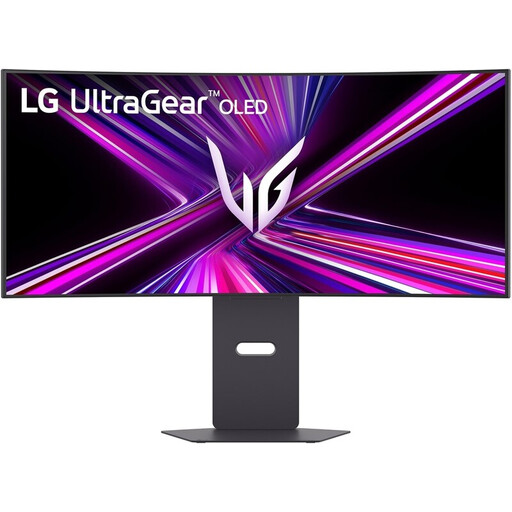
LG UltraGear 34GX900A-B.AEU 34-inch curved WQHD monitor
The ultrawide layout is an option for working with code and other windows side by side; also check that the screen will fit on your desk.
3440 × 1440 pixels; 21:9; USB-C with up to 65 W Power Delivery; height-adjustable.
View at Joybuy
 No image available
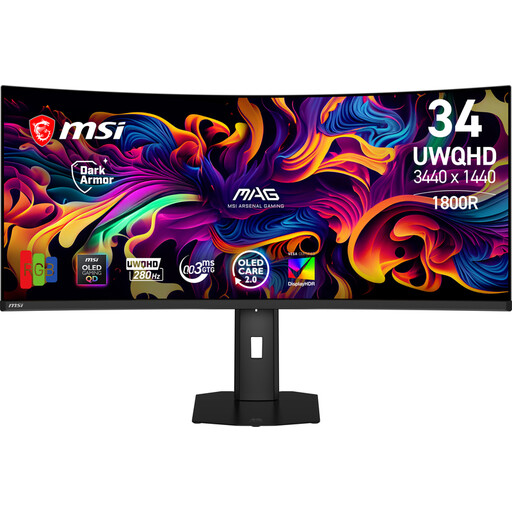
MSI MAG 341CQP QD-OLED X28 34.18-inch UWQHD monitor
The wide layout may suit a setup with several windows side by side.
3440 × 1440 pixels; 21:9; model number 9S6-3DE39T-001; USB-C with DisplayPort Alternate Mode and 15 W Power Delivery; height-adjustable stand.
View at Joybuy
Frequently asked questions
Do I need a special monitor for Git version control?
No, Git version control doesn’t require a special monitor. Git can show differences between versions; choose a screen layout that suits how you want to view those differences alongside code or documentation. A monitor doesn’t add version control itself.
Why is there no picture via my USB-C cable?
Your laptop port must support video via DisplayPort Alt Mode or Thunderbolt to transmit a picture to a USB-C monitor. A USB-C port that supports data or power only won’t transmit video this way; also check that you’re using a suitable port and cable.
How should I set up a monitor for long periods of work?
Adjust the screen height and reduce distracting reflections. Arboportaal points out that prolonged screen work can cause discomfort; an adjustable monitor is just one part of your workstation.
How can I compare monitors’ power consumption?
Compare the energy label and stated power consumption of the exact models. According to the European Commission, computer monitors are covered by the energy labelling rules for electronic displays; power consumption during use also depends on how long you leave the monitor switched on.


