
Reader of research PDFs
You’re working through a long reading list and want to view text, figures and notes in your own documents. Rijkswaterstaat, for example, publishes coastal maps as PDFs; other files may have different requirements.


For interactive map layers and regularly switching between sources, a versatile colour tablet is a sensible option to explore. If your main priority is reading and annotating imported PDFs, an E Ink tablet with a paper-like display is a serious alternative. PDOK describes how map layers are displayed, but manufacturers’ specifications don’t prove that your map viewer will work on every model. Before choosing a version, compare your own files, required apps, stylus and sharing workflow.
You’re working through a long reading list and want to view text, figures and notes in your own documents. Rijkswaterstaat, for example, publishes coastal maps as PDFs; other files may have different requirements.
You switch between map layers, locations and explanations. The PDOK Viewer offers multiple layers and measuring tools; the Rijkswaterstaat coastal map is a different, specific mapping workflow.
You mark up sources and record observations. Apple, Samsung and reMarkable describe different stylus and document features; check how they fit with your files and way of working.
The PDOK Viewer can display map layers on top of one another, while Rijkswaterstaat offers coastal maps as PDFs. A map viewer and a long reading list therefore place different demands on your screen and workflow.
Choose this option: if you want to view interactive map layers as well as articles, or regularly switch between research tasks.
Bear in mind: screen size and stylus support alone don’t tell you whether your map viewer will work well; test it on the exact version you’re considering.
Choose this option: if you want to compare a colour screen for documents and maps and are specifically looking for a matte version, such as the Lenovo Tab P12 with Matte Display.
Bear in mind: this Lenovo version doesn’t have an E Ink screen; don’t treat claims about eye comfort as independently measured evidence of reading comfort.
Choose this option: if your main tasks are reading imported PDFs and making handwritten notes.
Bear in mind: check the document and cloud workflow; Android support doesn’t guarantee that a specific map viewer will work as you’d like.
| Consideration | What to look for when buying | Who is this important for? |
|---|---|---|
| Reading long articles and reports | Try your own PDFs and compare text size, figures, zooming and page navigation on the screen size you’re considering. | When I’m working through a long reading list, I want to view text and figures clearly in my own PDFs. Around 33% of consumers put working through their reading list first. |
| Comparing coastal maps and map layers | Open your map viewer and sample maps on the device you’re considering; a screen specification isn’t a test of that viewer. | When I compare map layers and coastal maps, I want to view the maps and explanations as part of my own workflow. Around 27% of consumers give interactive map work their highest buying priority. |
| Finding and sharing annotations | Test the full process: import a document, mark it up, find your note again and export it. Check the stylus and any cloud terms for the specific version. | When I make notes on sources, I want to find them again later and share them with my documents. Around 20% of consumers put annotating and sharing first. |
| Working in different places | Check which files need to be available locally and compare the storage and screen size of the exact version. | When I work in different places, I want to have the documents I need with me without carrying more screen space than my work requires. Around 20% of consumers give working in different places their highest priority. |
A map viewer and a coastal map PDF are different tasks. Samsung quotes brightness of up to 800 nits for High Brightness Mode; this figure doesn’t apply in all conditions and doesn’t prove how your viewer will work.
Test a representative PDF and the map viewer on the device you’re considering. Only then compare screen size and display quality.
Apple lists Pencil compatibility, but the Pencil isn’t included in the tablet’s listed box contents. reMarkable links certain editing features to Connect.
Check the exact bundle and try the complete import, annotation and export workflow.
You may need to buy a stylus separately; some features may require a subscription.
The E Ink models reviewed and regular tablets differ in operating system and screen size. Their specifications don’t prove that a specific map app will work in the same way on both types of device.
Base your choice on your main task and check that the required apps work on the exact version.
iPad Air versions to compare if you’re looking for a versatile tablet with a compatible Pencil.
Galaxy Tab S10 FE and FE+ models to compare if you’re looking for a colour screen and S Pen use.
The Tab P12 with Matte Display is an option to compare if you’re looking for a large Android colour screen with a stylus.
The Note Air5 C has a colour E Ink screen and Android, making it suited to a document-focused workflow that can also use apps.
Paper Pro is designed for documents and notes on a colour E Ink screen.
These Joybuy tablet picks are relevant for viewing documents and maps and taking study notes; check the required apps and workflow for each model.
 Image unavailable
The 13.4-inch screen may be useful if you want to view documents and maps on a large display.
The product name lists 120 Hz, Android 16, 128 GB of storage, Dual SIM 4G and a folio case.
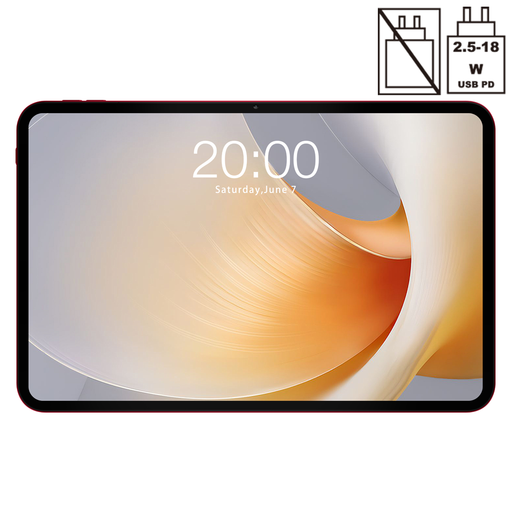 Image unavailable
The 13.4-inch screen may suit you if you need plenty of screen space for documents and maps.
The product name lists 120 Hz, Android 15 and 256 GB of storage. The product description says a Lenovo Tab Pen Pro is included.
 Image unavailable
This version may suit you if you want to combine a large screen for documents with handwritten notes.
The product name lists a 12.7-inch 2K screen, 256 GB of storage and an included stylus.
 Image unavailable
The 11.1-inch screen may suit you if you want to take notes and are looking for something more compact than the 13.4-inch models mentioned.
The product name lists 3.2K, 144 Hz, 8 GB RAM, 256 GB of storage and Android 15. The product description says a Tab Pen Pro is included.
 Image unavailable
An 11-inch screen may suit you if you want to view documents and take notes on a smaller display than the large tablets in this selection.
The product name lists an IPS screen, 90 Hz, Android 15, 8 GB RAM and 128 GB of storage. The product description says a Tab Pen is included.
No, there’s no universal minimum size for these tasks. Rijkswaterstaat offers a coastal map book as a PDF and a separate map viewer; try the files and viewer you actually use on the screen size you’re considering.
Import a representative PDF, try marking it up and finding your notes again, then export a test note. reMarkable describes PDF imports from supported cloud services; check in advance whether your research files can be handled this way.
A manufacturer’s or seller’s warranty doesn’t replace your statutory rights. According to ACM ConsuWijzer, the seller must provide an appropriate solution if a product breaks sooner under normal use than you could reasonably expect; the statutory period isn’t automatically exactly two years for every tablet.
When you buy a product online, you generally have a statutory cooling-off period which, according to ACM ConsuWijzer, ends 14 days after delivery. Check the statutory exceptions and the terms that apply to your purchase.