What should you look for?
Let the content you record and your editing app determine which specifications matter. Then check the storage and connections you’ll need for your presentation.
| What to consider |
What to look for when buying |
Who should prioritise this? |
| Video editing |
Make a note of your app, version, resolution and codec. For Premiere, Adobe recommends 16 GB RAM for HD and 32 GB or more for 4K; these recommendations apply to that software. |
If I edit video with effects, I want to know whether the memory is suitable for my files and software; around 33% of consumers in this situation prioritise video performance. |
| Audio work and app compatibility |
Check that your audio app and plug-ins work with the operating system, and that the laptop has the right ports for your headphones or audio interface. |
If I only work with sound, I want to choose a laptop that suits my audio app and equipment; around 25% of consumers in this group prioritise audio work and software compatibility. |
| Connecting at the venue |
Find out which video and audio inputs are available and compare them with the ports on the exact laptop configuration. Decide in advance whether you’ll need an adapter. |
For a client presentation, I want to know in advance whether my laptop will connect to the screen and audio equipment; around 25% of consumers in this situation prioritise presenting at a venue. |
| Storage and file transfer |
Estimate how much space you’ll need for source files, your project and any proxy files. On 14 August 2026, the Consumers' Association recommended 512 GB or more as a guideline for large photo and video files. |
If I take source material with me and store projects locally, I want enough space and a practical way to transfer files; around 17% of consumers in this group put storage and file transfer first. |
Laptop options at Joybuy
This selection includes laptops to compare for video editing, and for editing or presenting at a venue. Choose a configuration to suit your recording, software, storage needs and required connections.
 No image available
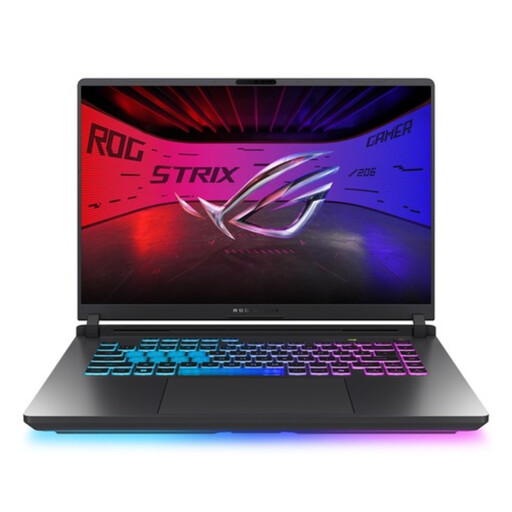
ASUS ROG Strix G16 G615LR-S5396W
A configuration to consider if you’re comparing laptops for video editing on the built-in screen.
16-inch WQXGA screen, 32 GB RAM and 1 TB SSD.
The title lists a Core Ultra 9 processor and RTX 5070 Ti.
View at Joybuy
 No image available
Lenovo Yoga Pro 9 15N1X11 83SR0030MH
The screen and memory specifications are worth comparing if you edit on the built-in screen and work with large project files.
15.3-inch OLED screen with 2560 × 1600 resolution, 64 GB RAM and 2 TB SSD.
View at Joybuy
 No image available
ASUS V16 FX3607VP-RP061W
This configuration is an option to compare for HD editing and presentations where HDMI is required.
16-inch WUXGA screen, 16 GB RAM, RTX 5070 with 8 GB of memory, 1 TB SSD and HDMI 2.1.
The description says the RAM can be upgraded to 32 GB. Adobe recommends 32 GB RAM or more for Premiere at 4K; check which configuration suits your editing needs.
View at Joybuy
 No image available
Apple MacBook Pro 14-inch M5 Pro, 24 GB, 1 TB
A compact configuration to compare if you want to edit and present using the same laptop.
14.2-inch screen, 24 GB memory, 1 TB storage, HDMI and an SDXC card slot.
For Premiere at 4K, Adobe recommends 32 GB RAM or more. Compare this recommendation with your files and workflow.
View at Joybuy
 No image available
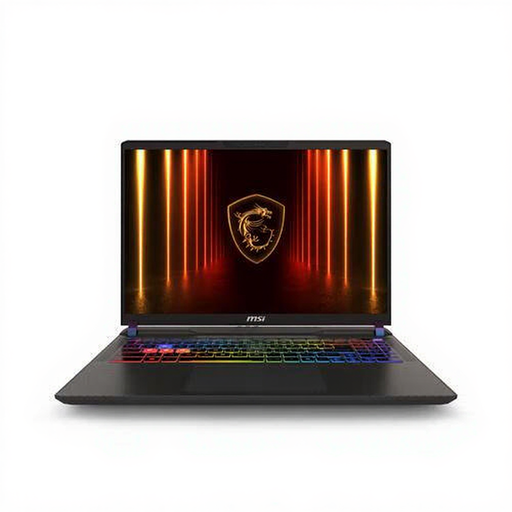
MSI Vector A16 HX A8WIG-025NL
The card reader and HDMI connection are worth comparing if you transfer media and present at a venue.
16-inch Quad HD+ screen, 16 GB RAM, 1 TB SSD, RTX 5080 with 16 GB of memory, SD card reader and HDMI 2.1.
The description says the RAM can be upgraded to 96 GB. The adapter must be purchased separately.
View at Joybuy
Frequently asked questions
Do I need a dedicated graphics card for an audio-only recording?
Not just because of video-editing requirements. Check the requirements for your own audio app and plug-ins; Audacity is available for Windows and macOS. The Premiere recommendation for 4K doesn’t automatically apply to audio editing.
How can I keep editing manageable when my video files are large?
Adobe describes lower-resolution proxy files as a way to make suitable video clips easier to edit. Leave space for these extra files, and before your presentation, check the final result using your original media.
What should I connect and test before a client presentation?
Ask which video and audio inputs are available, bring the right cable or adapter, and test the exported file on the equipment you’ll be using. An HDMI port on your laptop doesn’t tell you which inputs will be available at the client’s venue.
What warranty and cooling-off period apply to purchases in the Netherlands?
For consumers, the Dutch government says there is no fixed statutory warranty period in the Netherlands: you’re entitled to a product that works properly, and if a product is faulty, the retailer is your point of contact. For eligible online distance purchases, a 14-day cooling-off period often applies. Assess business purchases separately; consumer rights don’t necessarily apply in the same way.
Can I use footage of recognisable people in material for a client?
If an organisation films identifiable people and uses the footage professionally or commercially, the Dutch Data Protection Authority says the GDPR applies and a valid legal basis for processing is required. Consent can be a legal basis, but it isn’t automatically the only one. Consider the actual recording and its intended use; organisations processing personal data must determine appropriate security measures.


