
Bird photographer with field notes
Wants to view coastal bird photos alongside photographed or scanned handwritten observations; writing on screen isn’t essential. Microsoft Support explains how to insert images in OneNote.


If you want to write new observations on your laptop screen, choose a 2-in-1 and check that the exact pen you plan to use is compatible. If you only want to view photos of existing notes, you won’t need a pen-enabled screen: focus instead on a suitable display and a practical way to import and back up your photos. For use on the go, weigh screen space against portability. A quoted battery life won’t tell you how long the laptop will last while you’re working on your photos by the coast.
Wants to view coastal bird photos alongside photographed or scanned handwritten observations; writing on screen isn’t essential. Microsoft Support explains how to insert images in OneNote.
Wants to record observations by hand directly on a laptop, so needs a compatible touchscreen and pen. Lenovo Netherlands and HP Netherlands describe different 2-in-1 and pen options; Microsoft Support explains how to take handwritten notes in OneNote.
Regularly takes a laptop out and about, weighing portability against the screen space needed for photos and references. Apple Netherlands and Acer Netherlands describe models and display options you can compare.
Choose this option: if you want to write new observations on screen while you’re out and view photos and notes on one device.
Keep in mind: a touchscreen alone doesn’t confirm that a particular active pen will work. Check compatibility for the exact configuration and whether the pen is included.
Choose this option: if you photograph or scan existing notes and want to refer to them alongside your bird photos, without writing on the laptop screen.
Keep in mind: assess the display and colour management separately. A wide colour gamut doesn’t replace calibration when colour-critical work matters.
| What to consider | What to look for | Who is this important for? |
|---|---|---|
| Reviewing photos | Check the display specifications for the configuration you’re considering, and whether you can calibrate the screen for colour-critical work. | If I want to assess the details and colours in photos, I prioritise the display. Around 31% of consumers make photo review their top priority. |
| Handwritten references | Decide whether you’ll insert existing notes as images or write new ones on screen. If you want to write, check pen compatibility and what’s included. | If I want to add handwritten notes while I’m out, I check that the laptop and pen work together; for photographed notes, pen input isn’t needed. Around 31% of consumers prioritise handwriting. |
| Taking it to locations | Compare the weight, screen size, ports and charging requirements of the exact configuration; separately check whether it’s suitable for the conditions you’ll be working in. | If I take my laptop out often, I weigh portability against the space I need to view photos and references. Around 23% of consumers prioritise mobile use. |
| Importing and backing up | Check that the ports work with your camera or memory card, and make separate backups of your catalogue, photos and exports. | If I want to import and store my photo files conveniently, I check the connection and my backup routine. Around 15% of consumers give file management top priority. |
Touchscreen functionality doesn’t confirm that a laptop is compatible with every active pen. Lenovo says the Yoga Pen is optional for the specified Yoga 7 configuration and sold separately; HP limits the MPP 2.0 pen it describes to specific Spectre and Envy x360 laptops.
Check the pen and laptop compatibility information for the exact configuration, and see whether the pen is included in the box.
You may need to buy a separate, model-specific pen to write by hand.
Adobe says the built-in catalogue backup contains only the catalogue file, not your photos or exports.
Back up your original photos and exported files separately as well as the catalogue.
Your backup routine should include your photo files and exports too.
Adobe explains that calibration helps display colours consistently across different screens and in print.
If colour-critical work matters, look at colour management and calibration options as well as the display specifications.
Colour-critical work may require calibration equipment or a suitable external workspace.
The Yoga 7 2-in-1 Gen 10 (14-inch AMD) is worth considering if you want to write directly on the device.
The OmniBook Flip range includes 2-in-1 touchscreen configurations for combining photos and notes.
The 13-inch MacBook Air with M5 is a traditional laptop option if you don’t need to write on the laptop screen.
The Swift Go 14 range offers traditional laptop configurations for those weighing portability against display choice.
This selection includes traditional laptops for viewing photos and 2-in-1 models for anyone who also wants to add handwritten notes on their device.
 No image available
A 16-inch screen could suit anyone who wants to view photos and references on a traditional laptop.
AMD Ryzen 5 7520U; 8 GB RAM; 512 GB SSD; 2K IPS display.
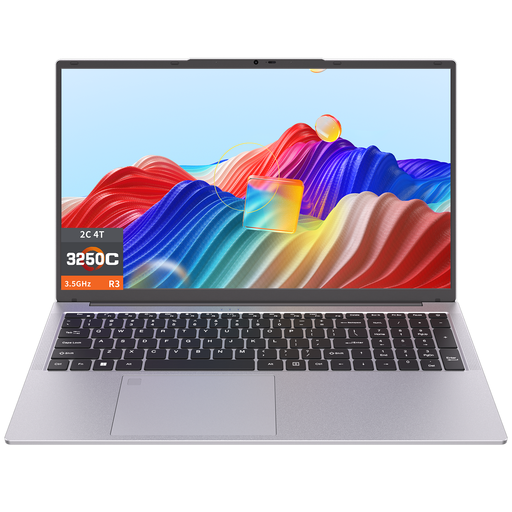 No image available
The screen size could suit anyone who wants to view photos and notes on a large display.
3250C processor; 8 GB DDR4 RAM; 512 GB SSD.
 No image available
A 2-in-1 design could suit anyone looking for a laptop that can also be used as a tablet; check which pen is compatible with this configuration.
32 GB RAM; 1 TB SSD; NVIDIA RTX Spark N1X; NVIDIA Blackwell RTX GPU.
The product information recommends keeping the device away from liquids.
No image available
A 2-in-1 design could suit anyone looking for a laptop that can also be used as a tablet; check which pen is compatible with this configuration.
32 GB RAM; 512 GB SSD; NVIDIA RTX Spark N1X; NVIDIA Blackwell RTX GPU.
The product information recommends keeping the device away from liquids.
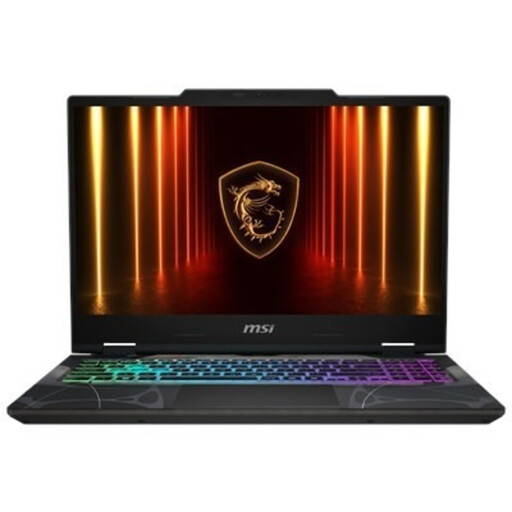 No image available
The 15.6-inch screen is a size you can take with you while still giving you room to view photos; weigh this against the space you need for notes.
Full HD display; AMD Ryzen 9 270; RTX 5070 8 GB GDDR7; 16 GB DDR5; 512 GB SSD.
The product information warns that the device should be kept away from moisture, liquids and high-humidity environments.
No, not if you only want to view a photo of your notes: you can insert images in OneNote. If you want to write new notes on screen, check that both the laptop and the pen you choose are compatible.
According to Adobe, the built-in catalogue backup in Lightroom Classic contains only the catalogue file. Make separate backups of your photos and exports too.
No. According to the Dutch government, there’s no fixed statutory guarantee period in the Netherlands; you’re entitled to a product that’s fit for purpose, depending on what you can reasonably expect. If a product is faulty, contact the seller; a manufacturer’s warranty is in addition to this.
For an eligible online consumer purchase from a business, the Dutch government says you generally have a 14-day cooling-off period. Check the returns information before you order; this rule doesn’t necessarily apply, for example, to a purchase from a private individual.