First, choose a backup method that keeps earlier versions of the right club folders: simply copying files to an external drive does not create a version history. An HDD may suit an archive that stays in one place, while an SSD is worth considering if you often carry the drive around or move large files. Also check the capacity, connection and recovery steps, and keep a separate copy in another location.
Who is this choice relevant to?
Club administrator who wants to restore older versions
You update minutes, records or project files and want to be able to restore an earlier version if needed. Microsoft Support and Apple Support explain version recovery features; check which folders your backup actually includes.
Administrator of a growing club archive
You keep files from several projects or computers and want to leave room for future backups. Apple Support notes that when a drive is full, Time Machine may delete older backups to make space.
Volunteer who transports the backup
You take the drive between locations and want it to connect to the computers you use. If the files contain personal data, access to and protection of that data are also important considerations.
What should you consider when choosing?
First decide how you’ll keep and restore earlier versions. Then choose a drive based on the storage you need, where you’ll use it and the connections available on the club’s computers.
| What to consider |
What should you check? |
Who is this important for? |
| Restoring older versions |
Check whether File History on Windows or Time Machine on Mac saves the right folders. Test whether you can restore an older version. |
If you want to be able to restore a changed or deleted project file, the backup feature must be set up for those specific files. Around 33% of consumers put version recovery first. |
| Space for your archive |
Add up the club and project folders, allowing for growth and successive versions. Compare the total with the capacity of the exact drive variant. |
An archive containing several projects needs enough space for future backups, not just today’s files. Around 27% of consumers prioritise archive space. |
| Access to data |
Consider whether the backup contains personal data, which users need access and how passwords will be managed. |
If club files contain identifiable information, you’ll want to manage access carefully and protect the data. Around 20% of consumers give data security top priority. |
| Transport and connections |
Check whether the computer has USB-A or USB-C and which cable type is included with the exact variant. Also consider whether the drive will usually stay in one place. |
If you transport the drive between locations or workspaces, a suitable connection and a practical way to carry it can help. Around 20% of consumers prioritise portability and connection. |
Common pitfalls
-
Confusing storage space with version history
A drive can store files, but that doesn’t mean you’ll be able to retrieve an older project version. Microsoft Support and Apple Support explain backup features for version recovery.
Set up the feature for the right folders and try restoring an older version. Also allow time to set up and test the backup.
Keeping successive versions may require extra storage space.
-
Using the external drive as your only backup
If your only backup is on a drive that gets lost, damaged or stops working, you could lose that copy too. The National Cyber Security Centre advises keeping backups on different types of media.
Include a separate copy in another location in your backup plan.
An additional copy requires a second medium or a separate storage location.
-
Formatting a drive without first securing existing files
Apple warns that erasing and reformatting a drive can permanently delete existing files.
Check the file system and copy any existing data elsewhere before setting up the drive for Time Machine.
-
Relying only on the stated USB speed or connection
A USB-A cable included with the drive won’t connect directly to a computer with USB-C ports only. What’s more, stated SSD speeds don’t measure the speed you’ll get on your computer.
Check the ports, cable and exact drive variant before you choose.
Some combinations may require a suitable cable.
Brands to consider
Western Digital
My Passport HDDs are worth considering if you’re looking for portable storage with security features or backup software.
- Western Digital lists hardware encryption, software and a three-year limited manufacturer’s warranty for My Passport.
- Check the exact variant and setup: these features alone don’t prove that you can restore earlier versions of club projects.
Toshiba
Canvio Basics is a straightforward, USB-powered HDD worth considering for a Windows setup.
- For the 2 TB variant reviewed, Toshiba lists USB 3.2 Gen 1, NTFS formatting and a USB-A-to-Micro-B cable.
- According to Toshiba, reformatting is required for use with a Mac. Dragging and dropping files won’t set up an automatic version history.
Seagate
Expansion Portable is a portable HDD for anyone looking for a straightforward storage destination and planning to set up their backup routine separately.
- For the range reviewed, Seagate lists a 2 TB model with a USB-A cable.
- According to Seagate, Time Machine requires reformatting; dragging and dropping files won’t create a version history by itself.
Samsung
The T7 Shield SSD is worth considering if the club will transport the drive frequently or move large files.
- For the 2 TB variant reviewed, Samsung lists USB 3.2 Gen 2, IP65 and sequential speeds of up to 1.050 MB/s read and 1.000 MB/s write.
- These are manufacturer-stated figures; achievable speeds depend on factors including the connection used. The drive won’t set up project versions by itself.
Joybuy products for club backups
This selection includes portable SSDs and HDDs for club files and archives, as well as desktop HDDs for storage in a fixed location. To restore older project versions, you’ll need a suitable backup feature for any storage device.
 No image available
SanDisk Portable SSD 1TB
A portable SSD for taking club files with you; the product name lists 1 TB of storage.
You’ll also need a suitable backup feature to restore older project versions.
Joybuy
 No image available
WD My Passport for Mac 2TB Blue
A portable HDD in a Mac-focused product variant; the name lists 2 TB and preparation for Time Machine.
Check that the backup settings cover the right folders: the drive alone doesn’t guarantee that you can restore older versions.
Joybuy
 No image available
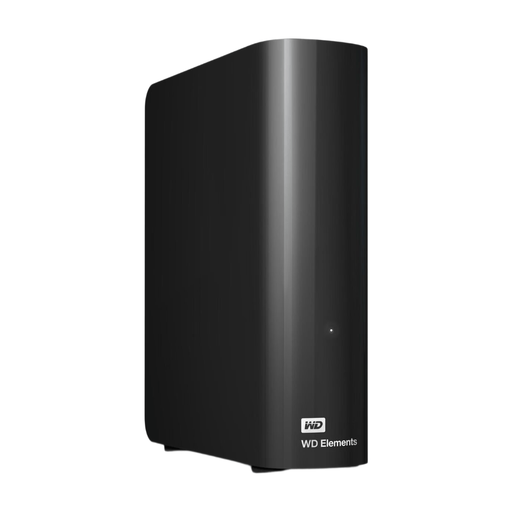
WD Elements Desktop 6TB
A desktop HDD for a club archive that stays mainly in one place; the product name lists 6 TB.
You’ll also need a suitable backup feature to restore versions.
Joybuy
 No image available
WD My Passport 6TB White
A portable HDD for a larger archive; the product name lists 6 TB, password protection and backup software.
Check whether the software covers the project folders and older versions you need; these product features alone don’t guarantee it.
Joybuy
 No image available
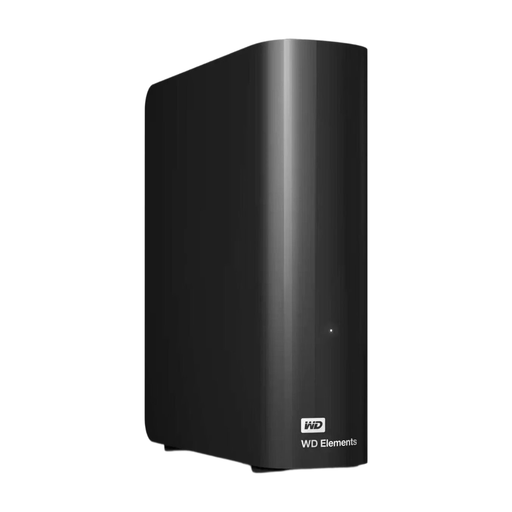
WD Elements Desktop 16TB
A desktop HDD for a large archive kept in a fixed location; the product name lists 16 TB.
You’ll need to set up a suitable backup feature to restore earlier project versions.
Joybuy
Frequently asked questions
Does an external drive automatically keep earlier versions of project files?
No, you’ll need to set up a suitable backup feature. Microsoft Support explains version recovery using File History on Windows, while Apple Support explains how it works with Time Machine on Mac. Check which project folders are included and test restoring a file.
Can I use a Windows-formatted drive with Time Machine straight away?
First check whether the drive needs to be reformatted. Apple says formatting can permanently delete existing files, so save them elsewhere before setting up the drive.
How can I check that my backup is usable?
Check that backups are being made and try restoring an important file, including an older project version. The National Cyber Security Centre advises opening files from a backup to check that they’re usable.
Is one external drive enough for a backup?
Keeping a separate copy in another location reduces your reliance on a single drive or storage location. The National Cyber Security Centre advises keeping backups on at least two different types of media.
What should a club consider when backing up members’ data?
If the files contain personal data, the club should assess appropriate security measures and manage access carefully. The Dutch Data Protection Authority says organisations must protect personal data properly. Whether losing a drive must be reported as a data breach depends on the potential impact on the people concerned.


