
Reader with one room where Wi-Fi is weak
You can open the club archive elsewhere, but the connection drops in one room. The Consumentenbond recommends placing a Wi-Fi extender somewhere it can still receive a usable signal.


Before buying a Wi-Fi extender, test the club archive on a device with a good Wi-Fi connection near the router: a repeater only helps if poor coverage is the problem. A wireless repeater may suit one weak spot, an access point is a good option if you have an available network cable, and a mesh setup with compatible equipment may work for several weak spots. Also check that your devices can access the network or service where the archive is stored.
You can open the club archive elsewhere, but the connection drops in one room. The Consumentenbond recommends placing a Wi-Fi extender somewhere it can still receive a usable signal.
For example, you use a laptop and a mobile phone and want to find out whether the problem is poor coverage, your devices or access to a local archive. ASUS and TP-Link explain how guest network settings can affect access to devices on the network.
You want to avoid a weak wireless connection to the router and can run a network cable to the place where you access the archive. TP-Link and FRITZ! describe wired connection options for their network products.
Best for: tackling one weak spot when you can’t run a cable and the repeater can still receive a usable signal from the router.
Bear in mind: the repeater still connects to the router wirelessly, so where you place it matters.
Best for: running a network cable to the area with poor coverage and providing Wi-Fi there for several devices.
Bear in mind: you’ll need to run a cable and check that your chosen model has an access point mode.
Best for: poor coverage in several rooms when you want to manage multiple Wi-Fi points as one connected setup.
Bear in mind: check which router and mesh features you’ll need before buying; OneMesh, FRITZ! Mesh and AiMesh are not automatically interchangeable.
Best for: situations where the archive remains inaccessible despite a good Wi-Fi connection near the router, or where only devices on a guest network have problems.
Bear in mind: a Wi-Fi extender won’t change access rights or network separation. Speak to the archive administrator before changing access settings.
| Concern | What to look for when buying | Who is this important for? |
|---|---|---|
| Usable coverage where you access the archive | Check the placement guide or signal indicator, and whether the repeater can still reach the router from that spot. | I want to open the archive in one room without running a cable. Around 36% of consumers prioritise usable coverage where they need it. |
| Access to the club archive | Find out whether the archive is stored locally or online; test access with a good Wi-Fi connection and check existing permissions. | If Wi-Fi works well but the archive won’t open, I want to know whether settings or permissions are the cause. Around 29% of consumers prioritise access to the archive. |
| Older and newer devices | Check the Wi-Fi capabilities of your devices and router; look separately at standard repeater operation and specific mesh compatibility. | I use different devices and want to know whether they’ll work with the extender and network. Around 21% of consumers give device compatibility top priority. |
| Wired connection for files | Check that the Ethernet port works in the mode you need and that you can run a cable to the place where you use it. | If I’m running a cable to where I open or transfer files, I want to know which connections and modes the model supports. Around 14% of consumers prioritise a wired connection. |
A guest network can restrict access to other devices on the local network. ASUS and TP-Link describe these kinds of access settings; extending Wi-Fi coverage won’t change them.
First, test the archive with a good Wi-Fi connection and ask the administrator what access is intended.
The repeater itself needs a usable connection to the router. The Consumentenbond recommends placing an extender somewhere the signal is still strong enough.
Use the placement guide if available, then test it where you access the archive.
Manufacturers link mesh features to specific compatible routers or devices. Standard repeater operation is not the same as working as part of a mesh system.
Make a note of your router model and check the requirements for the specific mesh feature.
Mesh features may require additional compatible network equipment.
A stated Wi-Fi speed doesn’t tell you on its own how quickly files will open where you use the network. Placement, devices and the connection to the router all play a part too.
Compare the connection options and test with the devices and files you actually use.
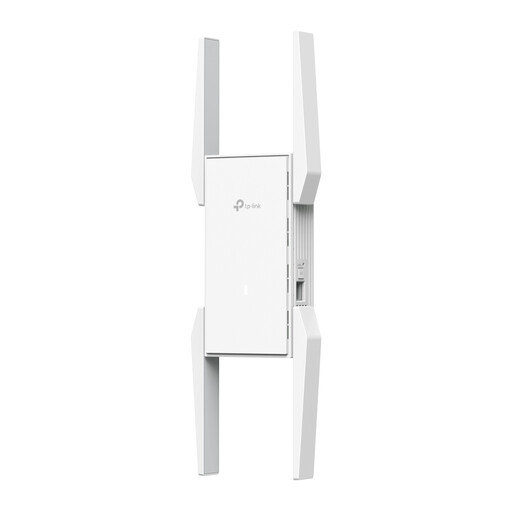
The RE705X is worth comparing if you want to extend an existing router’s coverage and may later be able to run a cable to an access point.
The FRITZ!Repeater 1200 AX is worth comparing if you use a FRITZ!Box or want a compact repeater with a LAN connection.
The RP-AX58 is worth comparing if you have an ASUS AiMesh router or want a repeater with access point mode.
The WiFi 6 Repeater 3000 is worth comparing if you’re looking at a plug-in repeater or access point options.
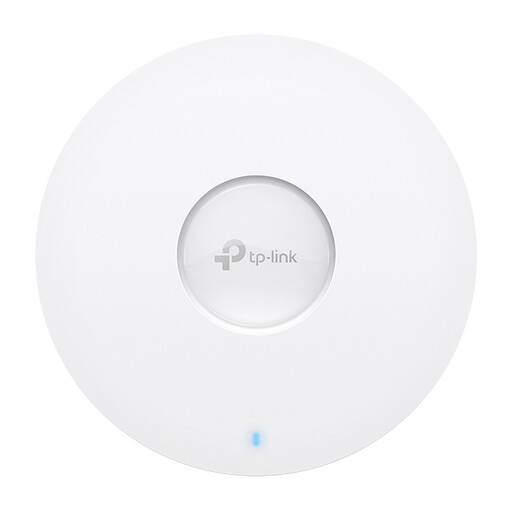
The EAX12 is worth comparing if you want to extend the coverage of an existing router.
This selection includes multiple mesh points, wireless repeaters and wired access points. Choose based on how many areas have weak Wi-Fi, whether you can run a cable and what access your archive devices need.
 No image available
This mesh kit may suit a setup with several areas where you want to extend Wi-Fi; it isn’t a standalone repeater.
The product information lists three units, dual-band Wi-Fi 6 (2.4 GHz/5 GHz) and three gigabit Ethernet ports per unit.
 No image available
This wireless repeater is designed to extend an existing Wi-Fi network; place it somewhere it can still connect to the router.
The product information lists two external antennas, 2.4 GHz, speeds of up to 300 Mbps and support for up to 24 devices. The stated speed doesn’t guarantee how quickly archive files will open.
 No image available
This network repeater may suit you if you want to extend your existing network and the location is within its range.
The product information lists dual-band 2.4/5 GHz, one Ethernet port and configuration through a web interface. It needs to be placed within range of the existing network.
 No image available
This model may suit you if you want to use access point mode and can arrange the necessary wired connection.
The product information lists access point and range extender modes, 2.4 GHz up to 300 Mbit/s, 10/100 Ethernet and passive PoE. According to the product information, the maximum wireless speed is 300 Mbit/s.
 No image available
This wired access point may suit you if you can run an Ethernet connection to the area with weak Wi-Fi.
The product information lists dual-band Wi-Fi 6, one gigabit Ethernet port and PoE support.
Not necessarily. First, test the same archive with a good Wi-Fi connection near the router. If it’s stored locally, check whether a guest network or device isolation is blocking access; for an online archive, the accounts you use need to have access.
Don’t automatically put a repeater in the room with the weakest coverage: it still needs a usable connection to the router. Use the signal indicator or setup guide if available, then test it where you access the archive.
Keep your router and Wi-Fi devices up to date, and use a strong password. Check how your chosen model provides firmware updates; an additional Wi-Fi point uses power while it’s switched on.
According to the Dutch government, the seller must provide a solution if a product is faulty. There is no fixed statutory warranty period in the Netherlands; a manufacturer’s warranty is in addition to your statutory rights.
Not without first assessing the necessary security and access rights. According to the Dutch Data Protection Authority, the organisation processing personal data must determine appropriate security measures. Discuss the required access with the archive administrator before changing network separation.