
Presenter with digital slides
You present from one spot and want to appear on camera while sharing your slides directly. Microsoft Support explains screen sharing in Teams, while Logitech specifies a fixed field of view for the C920s.


Share digital slides directly in Teams and choose a webcam for the additional view: one presenter, a group, movement or materials on a table. Microsoft Support explains how to share a screen, window or presentation file in Teams. Then test the framing and audio from the planned position, and keep pupils out of shot if filming them isn’t necessary.
You present from one spot and want to appear on camera while sharing your slides directly. Microsoft Support explains screen sharing in Teams, while Logitech specifies a fixed field of view for the C920s.
Several group members speak from the same setup. In this case, framing and clear audio from different speaking positions are important considerations.
You want to show a sketch, prototype or document, or move around the classroom as you explain. First decide whether a view of the table or tracking movement matters more.
First decide what viewers need to see and hear alongside the digital slides. Then choose a fixed, wide-angle, tilting or tracking camera setup to suit your presentation.
| What to consider | What should you look for? | Who is this important for? |
|---|---|---|
| Presenter alongside slides | Share digital slides through the teaching app and check that the presenter stays clearly in frame from the fixed camera position. | I stay in one place and want my face to appear alongside the shared slides, rather than filming the slides themselves. Around 25% of consumers prioritise a fixed view of the presenter. |
| Clear speech | Test the audio through the teaching app from the actual speaking position and check which microphone input is being used. | If I want to be clearly heard from my usual position, the microphone setup is a key consideration. Around 25% of consumers put clear speech from the speaking position first. |
| The whole group in frame | Check the full frame from the planned camera position and see who else might appear in shot. | I want to show several group members at once and see in advance what else in the classroom the camera will capture. Around 19% of consumers prioritise framing the group. |
| Materials on the table | Check the viewing angle, available workspace and how clearly your materials appear in the teaching app. | If I want to show a sketch or prototype, the table view needs to work alongside or instead of a view of someone’s face. Around 19% of consumers give showing physical project materials top priority. |
| Presenter on the move | Test the movement path and tracking zone, and check the audio from the furthest speaking position too. | I move around the classroom as I explain and don’t want to leave the camera’s frame. Around 12% of consumers prioritise tracking a moving presenter. |
You don’t need the camera to film slides if you can share them directly through the teaching app. Use the webcam for the additional view of the presenter or physical materials.
Before buying, decide what you’ll show using screen sharing and what actually needs to appear on camera.
A wider frame can bring other pupils into shot too. The Dutch Data Protection Authority advises schools to agree rules for filming and recording pupils.
Check the full frame from the final camera position and follow the school’s policy before filming or recording anyone else.
A manufacturer’s claim about range doesn’t show how clearly participants will hear speech in your classroom.
Ask someone to listen through the teaching app while each presenter speaks from their own position.
Models with similar names may be different versions, so their features and specifications aren’t necessarily interchangeable.
Check the full model name and the features of the version you’re considering.
Logitech describes the C920s as a webcam for a presenter who stays in one place, the C930e as a model with a wider frame, and the Brio 500 as tiltable for desk-based work.
Trust describes the TW-200 as a Full HD webcam with fixed focus, a privacy filter and a mount for a screen or desk.
The Link 2 is designed for a presenter who moves around the classroom during a presentation.
According to OBSBOT, the Tiny 2 Lite offers tracking and adjustable tracking zones for demonstrations where the presenter moves around.
The V4K is a document camera for situations where paper, drawings or an object take centre stage. It isn’t a substitute for every view of a presenter.
These Joybuy webcams are options for the additional camera view during a classroom project update. Compare the listed features of each model with the framing and setup you need.
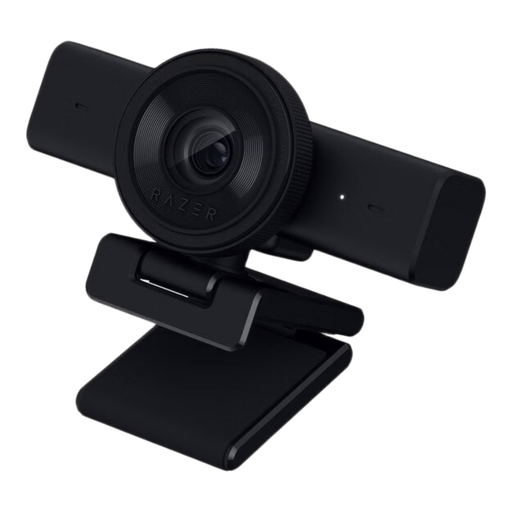 Image unavailable
A webcam option for an additional view of the presenter. Test the framing and microphone in your classroom setup.
The product name lists 1440p / 1080p at 60 FPS and USB.
 Image unavailable
Compare the stated field of view with the space you want to include around the presenter.
The product name lists a Sony IMX363 sensor, PDAF autofocus, dual microphones, a lens cover and a 75° field of view.
 Image unavailable
This version is presented as an option for wider group framing. Check the full image for anyone else in shot.
The product name lists 4K, 99° FOV, a privacy shutter, noise reduction and use with a laptop or desktop computer.
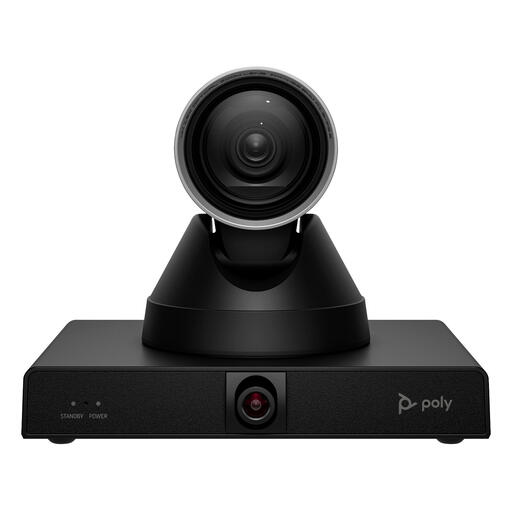 Image unavailable
Check that this camera is compatible with your classroom computer and the way you want to show the presenter.
The product name lists 4K MPTZ and 12x Optical Zoom.
 Image unavailable
An option for an additional camera view. Test the microphone and mounting at the position where you’ll be presenting.
The product name lists 2K QHD, a noise-cancelling microphone and a clip mount for a desktop or laptop computer.
No, not to share the slides themselves. Microsoft Support explains how to share a screen, window or presentation file directly in Teams. Choose a webcam for the additional camera view and test how it looks in the teaching app.
If you’re using Teams, turn on ‘Include sound’ when sharing. Microsoft Support warns that this can also make other computer sounds, such as notifications, audible, so test it in advance.
For a consumer purchase in the Netherlands, the retailer may be responsible if the product doesn’t meet what you could reasonably expect under normal use. According to ACM ConsuWijzer, statutory guarantee is separate from any manufacturer’s warranty and isn’t automatically limited to two years.
Not without checking first. Ask the school about its policy before filming or recording anyone else. The Dutch Data Protection Authority says schools should agree rules on filming, recording and storing footage of pupils, and on informing them. For identifiable images, the Authority says permission should come from the pupil themselves from the age of 16, or from their parents if the pupil is younger. Whether a specific live stream or recording is allowed depends on its purpose and how it is carried out.