What should you look for when choosing?
First, map out the seating and any route the speaker might take around the room. Then check the sound, connections and privacy settings that suit the way you’ll use the camera.
Video bar at the front
A good fit when: the group sits mainly in front of one screen and a laptop or dedicated room computer is available.
Bear in mind: check that people at the back and sides of the room are visible and can be heard; a wide viewing angle alone doesn’t guarantee this.
360° camera among the participants
A good fit when: participants sit around a table and take turns addressing one another. Owl Labs describes Meeting Owl 3 as a central camera with built-in microphones and speaker.
Bear in mind: the camera needs a suitable central position; check the view and sound from the actual seats.
Wide-angle panoramic video bar
A good fit when: participants sit mainly in front of the camera but are spread across a wide room. Jabra specifies a 180° field of view for the PanaCast 50.
Bear in mind: a wide group shot won’t necessarily give you a close-up of a speaker at the back of the room.
Separate PTZ or tracking camera
A good fit when: a speaker moves around a medium-sized or large room, or you need a separate speaker view alongside an overview of the room. AVer describes CAM570 as a dual-lens camera with speaker tracking.
Bear in mind: the camera isn’t automatically a complete meeting setup. Assess the microphone, speaker and meeting computer separately.
| What to consider |
What to look for when buying |
Who is this important for? |
| View of the seating |
Mark out the seats and check the outermost seats and presentation area from the intended camera position. |
I want participants at the sides or back to be visible too; around 28% of consumers prioritise full coverage of the seating area. |
| Speech clarity |
Test a conversation from the furthest seats and decide whether separate room audio is needed. |
When several people speak from different parts of the room, I want remote participants to be able to follow them clearly; around 22% of consumers give speech clarity their top priority. |
| Laptop connection |
Check the USB ports, power supply, cable length and how the meeting software will be used. |
I want to be able to start a meeting easily with different laptops; around 22% of consumers put a reliable, straightforward connection first. |
| Speaker or presentation tracking |
Decide whether the speaker will stay seated or move around the room, and how presentation materials will be shared digitally. |
When a speaker moves or presents something, I want them to stay clearly in shot; around 17% of consumers prioritise speaker tracking. |
| Privacy and management |
Set the framing and recording settings in line with the institution’s policy, and separately assess whether pupils will appear on camera. |
I want to avoid the camera unnecessarily capturing people or information, and be able to manage its use within the institution; around 11% of consumers give privacy and management their top priority. |
Joybuy product picks
This Joybuy selection includes webcams for computer-based meetings and a Logitech MeetUp for small meeting rooms. Check that your chosen camera and any required audio suit the seating arrangement in your classroom.
 No image available
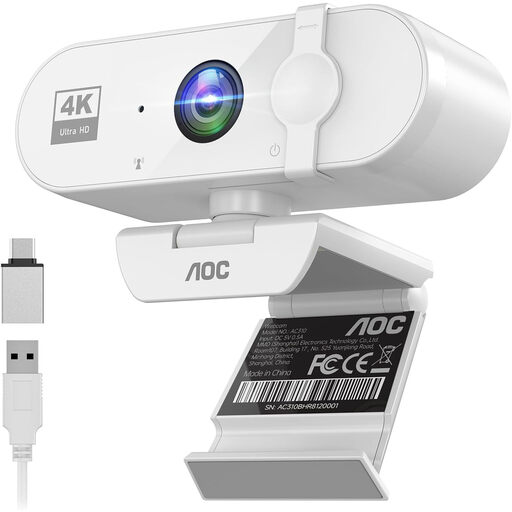
AOC PC webcam, 4K, white
A webcam option for meetings on a laptop or desktop; check that the viewing angle and built-in microphone suit your seating arrangement.
The product title lists 4K, a privacy cover and a 99° viewing angle. The description mentions USB and a built-in noise-cancelling microphone.
Joybuy
 No image available
Philips 4000 Series 4K UHD webcam, SPL6408BT/00, black
A desktop webcam for computer-based meetings; check that the built-in microphones are suitable for the distance between participants.
The product title lists 4K, an 8MP camera, autofocus, two built-in microphones and a privacy cover. The version is listed as EU Version, Black.
Joybuy
 No image available
Philips 2K QHD PC webcam, SPL6308S/00, silver
A computer webcam for online meetings; check that the clip fits the screen you want to mount it on.
The title lists 2K QHD and a noise-cancelling microphone. The description mentions a clip for a laptop or desktop screen and a tripod mount.
Joybuy
 No image available
Logitech MeetUp, black, 3840 x 2160 pixels, 30 fps
The description calls this an all-in-one conference camera for small meeting rooms, which connects to a computer via USB.
The product details list 4K video, a 120° viewing angle and built-in microphones. This is Logitech MeetUp, not MeetUp 2.
Joybuy
 No image available
Insta360 Link 2C Standard Bundle, Graphite Black
A webcam for PC or Mac whose description mentions automatic framing for individuals and groups; check the camera position you need and software compatibility.
The product description lists a 1/2-inch sensor, 4K, HDR and autofocus. It also mentions a microphone with AI noise cancellation and a physical privacy switch.
Joybuy
Frequently asked questions
Is a 360° camera always better suited to a classroom?
No. The best setup depends on where participants are sitting. Owl Labs describes Meeting Owl 3 as a central 360° solution; if everyone sits in front of one screen, a video bar may be more practical to position. Compare the actual seating arrangement with the stated specifications, and test the sound.
Will you need a computer or other equipment as well as the camera?
That depends on the model and setup. Logitech describes MeetUp 2 as being for use with a laptop or room system; according to Logitech, the optional Active USB cable is needed for a one-cable BYOD setup. HP describes Poly Studio R30 as connecting to a PC via USB and mains power. Separate audio is needed for certain standalone HP Poly Studio E60 and E70 camera setups.
What additional equipment might you need?
Depending on the setup, you may need an optional connection cable, separate room audio, a meeting computer or mounting equipment. Check what’s required to use your chosen camera, audio equipment and meeting software together.
Can a school record pupils or students during a meeting like this?
Not without good reason. According to the Dutch Data Protection Authority, recordings showing pupils or students may only be made in exceptional circumstances, when the need can be properly justified and clearly explained in advance. Whether pupils appear on camera during this planning meeting depends on the situation; this rule can’t automatically be applied to meetings where only staff appear.
Is a DPIA always required for a school’s video calls?
According to the Dutch Data Protection Authority, a DPIA is required when the processing poses a high risk to privacy. The school must assess that risk based on the purpose and how the call is run; the Authority advises schools to carry out a DPIA in advance. This doesn’t automatically mean that the same assessment applies to every planning meeting.


