Start by asking whose voice needs to be heard, and by whom. A wired USB headset suits a meeting leader speaking to remote participants from a fixed laptop position. If you need to move around and be heard in the classroom, you’ll need a headset microphone that works with a suitable amplification system. If several people in the room need to join in online, a personal headset alone won’t necessarily do the job. Check the connections and your meeting app’s audio settings too, and, for wireless microphones, make sure the frequency is permitted.
Who is this for?
Leader of a hybrid meeting
You speak to remote participants and want your microphone, speaker and meeting app to work well together. Also consider whether colleagues in the classroom need to be heard online. Logitech and Microsoft Support explain the headset and audio settings for this situation.
Leader who moves around
You move around the classroom and need to remain easy to hear. A wireless headset for online conversations and a microphone system for local amplification are two different solutions. HP Poly and Shure describe these separate use cases.
Team that wants to join in together
Several people in the room will be contributing. Decide in advance whether their voices need to be heard only in the room or online as well. Microsoft Support and Sonus Raadgevende Ingenieurs outline points to consider around shared audio and classroom acoustics.
What should you look for?
Wired USB headset for one speaker
Choose this if: you mainly speak from a fixed position at your laptop and listen to remote participants through it.
Consider: the cable limits how far you can move; this headset won’t automatically make other people in the room audible online.
Wireless headset for one mobile speaker
Choose this if: you move away from your laptop during a hybrid meeting but mainly speak to the online participants yourself.
Consider: check the connection in the room, the adapter and the battery level. HP’s stated range for the Voyager 4300 UC with BT700 adapter is not a guarantee for your space.
Headset microphone with local amplification
Choose this if: you move around and people in the room need to hear your voice through an amplification system.
Consider: a headset microphone or wireless receiver isn’t a complete speaker system on its own. Check what components you need and the Dutch frequency requirements.
Shared audio for the whole room
Choose this if: remote participants need to hear people speaking from different parts of the room directly.
Consider: positioning and acoustics still matter. For joining a Teams meeting alongside a room device, Microsoft recommends selecting ‘Turn off audio’ to prevent echo.
| What to consider |
What should you check? |
Who is this important for? |
| Making every speaker audible online |
Check microphone coverage from all speaking positions and decide whether you need room audio. |
If colleagues need to join in online from different parts of the room, I want to know whether their voices will be picked up. Around 36% of consumers prioritise clear audio for the whole group. |
| The meeting leader’s voice online |
Check the microphone position, mute control and input setting in your meeting app; test it in advance. |
If I mainly speak to remote participants from a laptop, I want to make sure the app is using my headset microphone. Around 29% of consumers prioritise making their own voice clear online. |
| Moving around with local amplification |
Check the microphone connection, transmitter, receiver and speaker; also check the frequency requirements. |
If I move around the room and people there need to hear me, I want the microphone to connect to the amplification system. Around 21% of consumers prioritise freedom of movement with local amplification. |
| Connecting and using the headset |
Check that the USB connection or included adapter works with your laptop, and test the mute control. |
If I want to have a one-to-one conversation without complicated set-up, I want the headset to connect straight away and be easy to mute. Around 14% of consumers care most about simple connection and controls. |
Common buying mistakes
-
Choosing a personal headset when the whole group needs to join in online
A microphone worn by the meeting leader doesn’t mean voices from other parts of the room will be picked up online.
Before choosing, decide who needs to be heard directly by remote participants. Microsoft Support also explains the audio settings for joining a Teams meeting.
If several people in the room need to speak online, you may also need a microphone set-up for the room.
-
Mistaking a headset microphone for a complete classroom system
The Shure PGA31 is a microphone with a specific connection, not a stand-alone amplifier or speaker.
Map out the full connection chain and check which components you already have. Shure describes the PGA31 as suitable for use with a compatible bodypack transmitter.
You may also need a compatible transmitter, receiver, amplifier or speaker to complete the audio chain.
-
Choosing a wireless model based only on range or appearance
HP’s stated range applies when using the BT700 adapter and doesn’t guarantee a connection in your classroom. Dutch frequency requirements vary between bands for wireless microphones.
Check the exact model, the adapter included and, where applicable, the transmission frequency and power. The Dutch Authority for Digital Infrastructure publishes the frequency requirements for the Netherlands.
Brands to compare
Logitech
The H390 is a personal wired computer headset for a meeting leader speaking through a laptop.
- Logitech lists an adjustable microphone boom and in-line controls.
- For the USB-A version described, Logitech specifies a 1.9 m cable; check which connection variant you’re buying. The headset isn’t a solution for local sound reinforcement or picking up everyone in the room.
Trust
The Ayda USB-ENC is a personal on-ear USB headset for online meetings.
- Trust lists a microphone that mutes when flipped up and connection via USB or USB-C.
- Trust’s claim about reducing background noise isn’t an independent measurement in a classroom. Check the exact model too.
HP Poly
The Voyager 4300 UC series is designed for a meeting leader who wants to talk through a computer and move around wirelessly.
- HP lists use with a BT700 USB adapter and a wireless range of up to 50 m.
- That maximum is a manufacturer specification, not a proven range in your classroom. The separately available Office base is a different configuration.
Jabra
The Evolve2 40 SE is a personal office headset for calls through a UC platform; a separate Teams version is also available.
- Jabra describes three microphones and passive noise isolation.
- The stated sound and performance benefits are Jabra’s claims for this model, not the result of an independent classroom test. The headset isn’t designed to pick up everyone in the room.
Shure
The PGA31 is a headset microphone that you can pair with a compatible bodypack transmitter when a speaker needs to move around and be amplified in the room.
- Shure lists a cardioid microphone and a TA4F/TQG connector for compatible Shure bodypacks.
- A PGA31 on its own doesn’t include a receiver or speaker. For a wireless system, check the frequency of the model you choose against the Dutch requirements.
Joybuy products
The products below are personal wired or wireless headsets for a meeting leader speaking online through a laptop. They won’t automatically make other people in the room audible online; check whether your meeting set-up also needs room audio.
 No image available
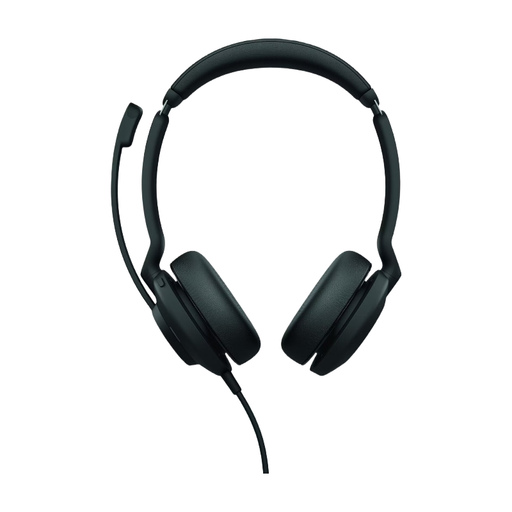
Jabra Evolve2 30 SE headset
Suitable for a meeting leader speaking online from a laptop and selecting the correct headset microphone in the meeting app.
The product information lists two integrated microphones, Microsoft Teams support and a USB-A connection.
This is a personal headset; the product information doesn’t show that it can pick up other people’s voices online.
View at Joybuy
 No image available
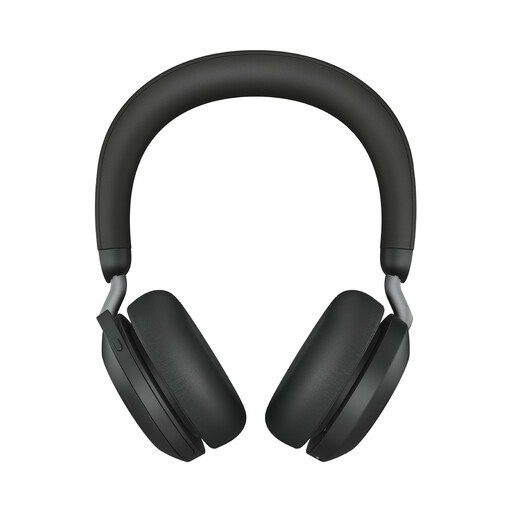
Jabra Evolve2 75 USB-A MS Teams, black
Suitable for a meeting leader who wants to move around wirelessly during calls and use the headset for online meetings.
The product information lists Bluetooth, connection to two devices and a stated range of up to 30 m; that range hasn’t been measured in your classroom. It also lists eight microphones with beamforming and Teams certification.
A personal headset won’t automatically pick up other people’s voices online.
View at Joybuy
 No image available
Logitech PC 960 USB headset
Suitable for a meeting leader speaking from a computer who wants to be able to mute the microphone during a call.
The product information lists a USB connection, adjustable microphone boom, volume and mute controls, and a 240 cm cable.
The cable limits how far you can move from the computer. This is a personal headset, not a microphone set-up for everyone in the room.
View at Joybuy
 No image available
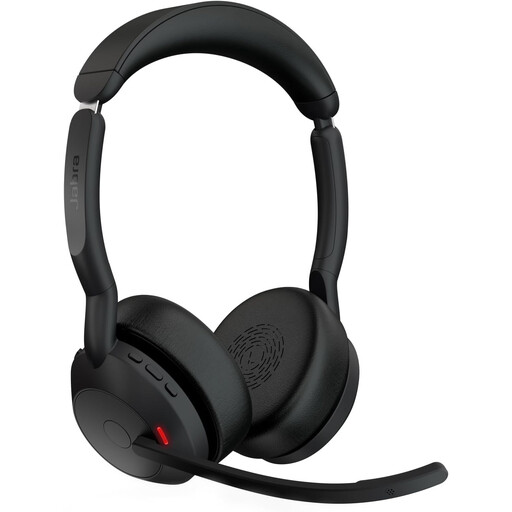
Jabra Evolve2 55 Wireless Stereo headset
Suitable for a meeting leader who wants to move away from their laptop during calls and is looking for a wireless headset.
The product information lists a Link 380 USB-C adapter, connection to two devices, two microphones and a stated range of up to 30 m. That range hasn’t been measured in your classroom.
Check that the adapter matches your connection; a personal headset won’t automatically make other people in the room audible online.
View at Joybuy
 No image available
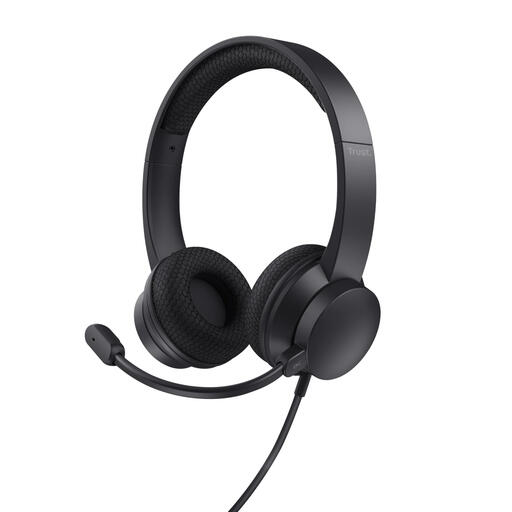
Trust Ayda wired USB headset, black
Suitable for a meeting leader who joins online meetings and wants to mute the microphone easily.
The product information lists USB-A with a USB-C adapter cable, a 180 cm cable, on-ear volume controls and a microphone that flips up to mute.
Check the connection on your laptop. This wired headset is designed for the wearer, not for picking up everyone in the room.
View at Joybuy
Frequently asked questions
How do you set up a headset for a hybrid meeting?
Select the microphone and speaker you want to use in the meeting app, then make a test call in advance. Microsoft Support explains these settings for Teams; for another app, use its equivalent audio settings.
Can a separate headset microphone make your voice audible throughout the classroom?
Not without a suitable audio system to go with it. Shure specifies the PGA31 as a microphone for use with a compatible bodypack transmitter; with a BLX system, the receiver connects to a mixing desk or amplifier. Check which components the school already has.
Can I use a wireless microphone in the Netherlands without a licence?
That depends on the frequency band and the requirements that apply to it. The Dutch Authority for Digital Infrastructure publishes a list of licence-exempt frequency bands and notes that a licence is required for some other bands. Check the transmission frequency and power of the model you choose; licence-exempt use doesn’t guarantee interference-free operation.
What should you check about CE marking and consumer rights?
Check the CE mark on the device and the accompanying product information. The Dutch Authority for Digital Infrastructure states that electrical and electronic equipment should carry this mark. If you buy online as a consumer, the Netherlands Authority for Consumers and Markets says you generally have 14 days after delivery to change your mind, and the seller is responsible for the statutory guarantee. If your school buys as an organisation, don’t assume the same consumer rules apply.
How can you prevent echo when several laptops join the same Teams meeting?
Don’t have several microphones and speakers active for the meeting in the same room at the same time. Microsoft Support recommends selecting ‘Turn off audio’ when joining from a personal device alongside a Teams room device to prevent echo.


