Who is this for?

Presenting to the whole class

If you move around or point things out during a design review, you may need a microphone that connects to the room’s sound system. A computer headset isn’t automatically suitable for amplifying your voice through the speakers.

Taking part in a hybrid meeting

If you’re speaking to remote participants from the classroom, consider the microphone, how it connects to your computer and how you control mute. You’ll also want to hear the online meeting clearly.

Listening between group discussions

If you switch between online meetings and conversations in the room, fit and the ability to hear the class may also matter. A mono version leaves one ear free; check which wearing style you’re choosing.

What should you consider when choosing?

USB computer headset

Choose this option: if you’re speaking to remote participants via a computer and want to hear their audio yourself.

Bear in mind: a USB headset won’t automatically amplify your voice through the room’s speakers. Also check that your computer has the right USB port for the version you choose.

Wired head-worn microphone

Choose this option: if people in the room need to hear you through the sound system and it has a compatible microphone input.

Bear in mind: the microphone needs to connect to the right input and speaker system; a cable will limit how freely you can move.

Wireless head-worn microphone

Choose this option: if you want to move around the room and have a compatible receiver and sound system available.

Bear in mind: available frequencies vary by location. The Dutch Authority for Digital Infrastructure states that a licence is required for some frequency bands.

What to consider What should you check? Who is this important for?
Who needs to hear you? Decide whether your listeners are in the room, online or in both places. For room amplification, check the microphone input and the connection to the speakers. If I move around the room while pointing out designs, I want people there to hear me through the sound system. Around 36% of consumers want to reach the whole class.
Being heard clearly online Check the microphone type, boom position and mute control. Test the microphone in the room where you’ll hold the review. When remote participants join in, I want my voice to remain clear while people are talking in the room. Around 29% of consumers prioritise being heard clearly online.
Connections Compare the complete product version and included accessories with the ports on your computer or mixer. A wireless microphone also needs a compatible receiver. I want my microphone setup to connect to the equipment available, so I don’t end up with an incompatible plug. Around 21% of consumers give connection compatibility top priority.
Listening and staying connected Compare mono and stereo versions, fit and volume controls. Start at a low volume and check that you can still hear responses around the room. If I need to switch between online audio and responses from the class, I want to be able to adjust my listening comfort accordingly. Around 14% of consumers prioritise listening comfort and staying connected with the class.

Common mistakes when choosing

  • Choosing a computer headset to amplify your voice around the room

    A USB headset and a microphone for a sound system use different signal paths. A computer headset doesn’t automatically connect to the classroom speakers.

    First work out who needs to hear you, then check which microphone input and equipment are available.

    Amplification may require a compatible microphone input, receiver or other parts of the existing sound setup.

  • Assuming all versions with the same series name are identical

    A product range may include different connections, microphone features or wearing styles. The series name alone won’t tell you which version you need for your computer or room.

    Compare the full model name, connection, microphone features and box contents before choosing.

    An incompatible plug or missing adapter may mean you need a different version or a suitable accessory.

  • Choosing a wireless microphone without checking its frequency version

    Usable frequencies can vary by location. A licence is required for some frequency bands.

    Before using the set, check the exact frequency version and the requirements for your school location with the Dutch Authority for Digital Infrastructure.

    An unsuitable version may require you to adjust the set or, for some bands, obtain a licence.

Relevant brands

Logitech

The H390 is a wired USB computer headset for calls via a laptop.

  • Logitech lists a rotatable microphone, volume control and an in-line mute switch for the H390.
  • Logitech offers USB-A and USB-C versions; check which plug comes with the version you choose. This headset isn’t a microphone system for room amplification.

Trust

The Ayda USB-ENC 25089 is an on-ear computer headset for online meetings.

  • Trust says this version has a noise-cancelling microphone that can be muted by flipping the boom up.
  • These features don’t automatically apply to every Ayda version. Check the full model number and connection.

EPOS

The IMPACT 100 series includes wired computer headsets in mono and stereo versions.

  • For the MS Stereo USB-C+A 1001421, EPOS lists an adapter, mute control and a stated weight of 76 g.
  • Check the exact version: mono and stereo are different, and features listed for one version don’t automatically apply to the whole series.

HP Poly

The Blackwire 3200 series comprises wired headsets for computer and UC calls, with different wearing styles and connection options.

  • HP describes mono and stereo versions and an adjustable headband.
  • Connections vary by version; don’t assume that one headset has every option in the series.

Shure

The WH20XLR is a wired head-worn microphone; the BLX14/PGA31 is a wireless microphone system. Both are designed for use with a compatible sound system.

  • Shure says the WH20XLR has a three-pin XLR plug. The BLX set includes a wearable microphone, transmitter and receiver.
  • These aren’t computer headsets. For a wireless version, check the frequency requirements for your location.

Computer headsets on Joybuy

These Joybuy products are computer-focused headsets for calls via a PC. Check the connection for each version and make sure it suits the way you want to run your review.
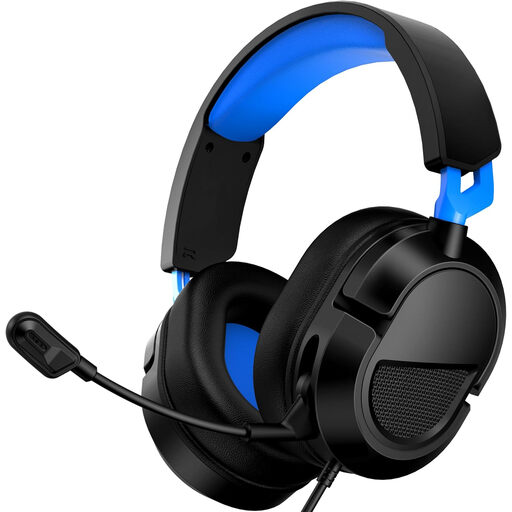
AOC gaming headset for PS5, Xbox Series X|S, Xbox One and PC, with microphone

AOC gaming headset for PS5, Xbox Series X|S, Xbox One and PC

The product description mentions PC compatibility and a flexible microphone for communication.

It lists a 3.5 mm connection and a noise-cancelling microphone.

View on Joybuy
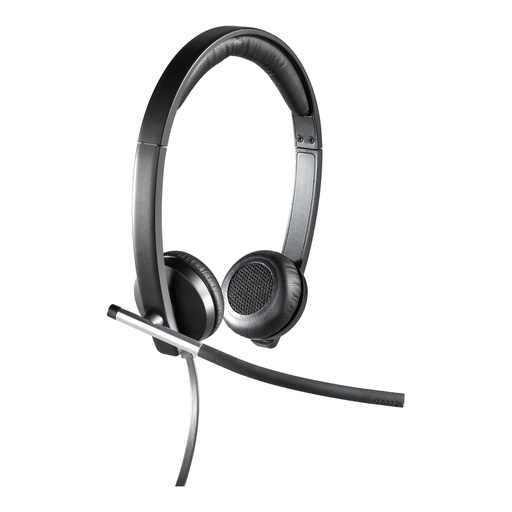
Logitech H650e Stereo wired headset

Logitech H650e Stereo Wired

The product description mentions a microphone and USB connection for calls via a computer.

It lists in-line volume control.

View on Joybuy
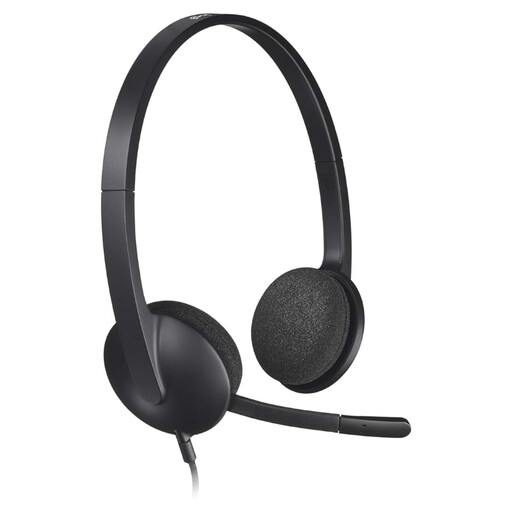
Logitech H340 USB headset, black and wired

Logitech H340 USB headset, black, wired

The product description mentions USB and use for internet calls.

The microphone is adjustable; the description lists noise cancellation.

View on Joybuy
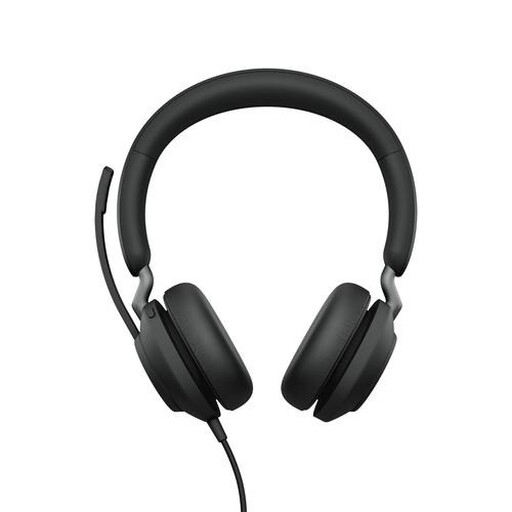
Jabra Evolve2 65 USB-A Black MS Mono headset

Jabra Evolve2 65 USB-A Black MS Mono

The product description mentions a mono headset for calls via a computer.

It connects via a USB-A Bluetooth adapter; the description also mentions a microphone system for calls.

View on Joybuy
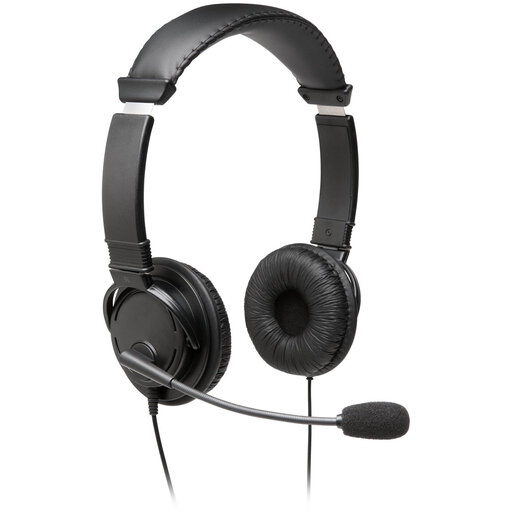
Kingston USB Hi-Fi headphones with microphone

Kingston USB Hi-Fi headphones with microphone

The product description mentions use for calls and in the classroom, with compatibility for Windows, Mac and Chromebooks.

The microphone boom is flexible and can rotate 270 degrees, according to the description.

View on Joybuy

Frequently asked questions

Can I plug a USB headset straight in and have my voice come through the room’s speakers?

Not with the headset alone: USB models such as the Logitech H390 are designed for audio via a computer. For amplification in the room, the entire route from microphone, through the available equipment, to the speakers needs to be compatible.

What should I look for in a wired head-worn microphone?

Check that the microphone plug fits the system’s input, then test the sound through the speakers you’ll use during the review. For the WH20, Shure recommends positioning the microphone within 25 mm of the right corner of your mouth, rather than directly in front of it.

Can I use any wireless microphone frequency in a Dutch classroom?

You can’t assume that every frequency is suitable. The Dutch Authority for Digital Infrastructure sets out licence-exempt frequencies and their conditions, notes regional differences and states that some bands require a licence. Check the exact frequency version for your school location.

What should I consider if pupils will be listening through a headset for a long time?

Start at a low volume and don’t turn it up higher than necessary. VeiligheidNL notes that well-fitting headphones can block out background noise, so there’s no need to increase the volume. Also consider whether pupils need to keep hearing responses from the class.

How can I tell if remote participants can hear me clearly?

Check the microphone features of the version you choose and test it in the room where you’ll hold the review. A manufacturer’s claims about microphone noise cancellation aren’t an independent measure of how clearly you’ll be heard in your classroom.
