
Teacher using a physical design board
Discusses sketches or notes on a board with remote participants. Check that they can actually read the content on their screens.


Start by deciding what remote participants need to follow: share a digital design brief directly, but if you use a physical board, test a suitable content camera or board feature. Then adjust the camera angle and audio to suit the seating and speakers. A wide group shot doesn’t prove that small sketch text is legible or that the person at the back can be heard clearly.
Discusses sketches or notes on a board with remote participants. Check that they can actually read the content on their screens.
Invites participants seated around a table to take turns contributing, so needs a clear view and good audio for speakers as they change.
Sets up a room for repeated use and needs to make sure connections, controls and privacy arrangements meet the educational institution’s requirements. The Dutch Data Protection Authority stresses the importance of agreeing rules for online video calls in education.
First decide whether the design brief will be shared digitally or shown on a physical board. Then assess speech clarity, camera angle, connections and control over who appears on screen in your own room layout.
| What to consider | What to look for when buying | Who should prioritise this? |
|---|---|---|
| Sharing a legible design brief | Decide whether the content is digital or physical; if using a board, test how it appears on a remote participant’s screen. | When discussing sketches, I want participants to be able to follow the lines and notes; I’d rather share a digital document directly. Around 31% of consumers put legible design content first. |
| Hearing different speakers clearly | Ask the person furthest away to speak, and also check for echo when remote participants’ audio is played in the room. | When several people take turns contributing, I want to hear the speaker at the back of the room clearly too. Around 25% of consumers prioritise clear speech above all else. |
| Showing the teacher and group | Consider the camera position and seating; check the framing from a remote participant’s screen. | When participants are seated in different places, I want the relevant speakers to remain visible. Around 19% of consumers prioritise suitable group framing. |
| Connecting and managing the system | Check the computer, USB, power, mounting, meeting software and who will manage the setup. | For a room that’s used regularly, I want a setup that suits the available equipment and is easy to manage. Around 13% of consumers put connections and management first. |
| Controlling who appears on screen | Discuss the camera position, participation and any recordings with the institution’s privacy lead. | If pupils, students or staff can be identified on camera, I want to know in advance who will be visible and what arrangements apply. Around 12% of consumers put control over the camera view first. |
A camera may show the discussion while small text on the board remains unreadable to remote participants.
Check how the board appears on the receiving screen. If possible, share a digital design brief directly.
The classroom acoustics and distances also affect how easy it is to follow contributions. SURF highlights audibility and avoiding audio feedback as considerations for hybrid classrooms.
Test with the speaker furthest away, and check the audio when remote participants are also heard through speakers in the room.
A USB model may need a computer and power connection; a different way of using it may require additional software.
Check the connections and the complete operating setup before choosing a model.
The CAM130 Content Camera is worth considering when the design review centres on a physical whiteboard. The CAM520 Pro3 is a separate PTZ camera for larger rooms.
The PanaCast 50 is a panoramic video bar designed for a front-of-room setup, with an integrated whiteboard feature.
The Meeting Owl 3 is designed for meetings with participants seated around one table.
The Studio R30 is a USB video bar for a small room with a PC available.
The Rally Bar Huddle combines a camera, microphones and speaker for small collaborative spaces.
The selection below includes webcams for computer-based video calls and the Logitech MeetUp. Check that the position, connection and audio pickup suit the room; if you’re using a physical board, test separately whether small sketch text is legible.
 No image available
For video calls from a Windows PC; the description specifies a USB connection.
1440p/1080p at 60 FPS, an 80° field of view and a privacy shutter.
The description lists autofocus, a built-in microphone and support for meeting software.
 No image available
For PC meetings; the description lists autofocus and two microphones.
4K video, PDAF autofocus and a 75° field of view.
USB-A and USB-C connections; the description says a desktop stand is included.
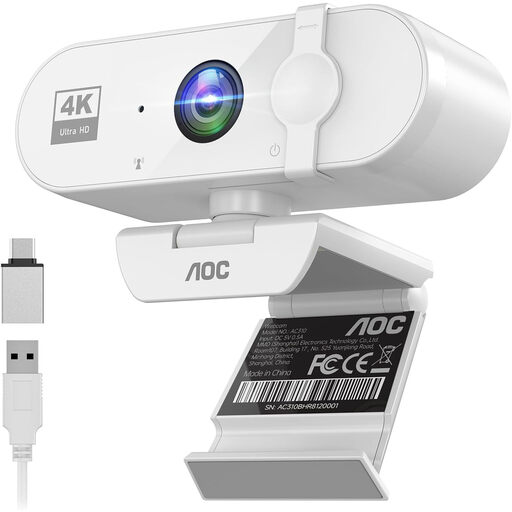 No image available
For video calls with a laptop, desktop or PC; the product name says it’s suitable for meetings.
4K video, a 99° field of view and a noise-cancelling microphone.
The title lists plug-and-play setup and a privacy slider.
 No image available
For online lessons and video calls with a computer.
2K QHD video and a noise-cancelling microphone.
The description lists a clip mount for a monitor or laptop and plug-and-play setup.
 No image available
A meeting camera for small meeting rooms; the description specifies a USB connection to a computer.
3840 × 2160 video at up to 30 fps and a 120° field of view.
The description lists built-in microphones and Bluetooth connectivity.
No, the camera specification alone won’t determine that. Share a digital brief directly and, if you’re using a physical board, test how it appears on a remote participant’s screen.
It depends on the model and how you plan to use it. HP specifies a USB connection to a PC and a mains connection for the Poly Studio R30. Logitech describes both USB and appliance use for the Rally Bar Huddle; check which setup you want to use.
Check who enters into the contract and what service has been agreed. The Netherlands Authority for Consumers and Markets explains that statutory guarantees apply to sales to consumers; ACM ConsuWijzer says consumer protection does not apply to a contract used mainly or exclusively for business. So don’t assume a fixed warranty period for a school purchase on that basis.
Don’t assume that’s allowed. The Dutch Data Protection Authority recommends agreeing who will appear on camera, whether recordings will be made, what information participants will receive and how long recordings will be kept. According to the Authority, whether a DPIA is required depends on the privacy risk of the specific processing activity.