
Frequent scrolling through documents
You switch between details and long pages while organising your notes. Logitech describes scrolling features for precise and faster browsing on various models.


If you mainly browse long documents, look for a mouse that offers both precise and fast scrolling. If you use a mouse for long periods, prioritise fit and posture; a trackball could be an alternative for a small desk. Always check that the version suits your dominant hand and connects to your computer.
You switch between details and long pages while organising your notes. Logitech describes scrolling features for precise and faster browsing on various models.
You use a mouse for extended periods and are looking for a shape that suits your hand. Arboportaal recommends varying your activities and taking micro-breaks, as well as paying attention to your workstation.
You have limited desk space, want to keep clicking noise down or use several devices. Trust and Kensington describe options including compact mice, quiet buttons and a trackball with a scroll ring.
| What to consider | What should you check? | Who is it important for? |
|---|---|---|
| Scrolling through long notes | Check whether the mouse has both precise and fast scrolling modes, and whether the controls work well with your documents. | If you often switch between individual lines and long pages, you’ll want both ways of browsing close at hand. Around 31% of consumers prioritise navigating documents. |
| Hand position during extended use | Compare the shape with your hand size and dominant hand. Keep the mouse close to your keyboard and vary your activities. | For long study sessions, the shape may influence how you set up your workstation. Around 25% of consumers prioritise hand position and fit. |
| Quiet operation and desk space | Decide whether quiet buttons, a compact size or using the mouse from a fixed position matters most to you. | In a shared or small workspace, clicking noise can be disruptive, or there may be little room to move the mouse. Around 19% of consumers prioritise quiet operation or the space available. |
| Connectivity with your computer | Check Bluetooth support, the USB port available and whether the required receiver is included with the exact version. | If your computer only has certain connection options, you’ll want to know in advance whether the mouse will work with it. Around 13% of consumers prioritise device connectivity. |
| Dominant hand and hand size | Check the full version name, especially if you’re left-handed or have larger hands. | If a mouse is designed for a particular hand or hand size, that version may be less suitable for sharing with others. Around 12% of consumers choose based on their dominant hand or hand size. |
Logitech distinguishes between the M650, M650 L and M650 L Left for different hand sizes and dominant hands. So the model range name alone doesn’t tell you which version is right for you.
Before buying, check the full version name and compare it with your hand size and dominant hand.
A vertical shape doesn’t prove that it will prevent discomfort. Arboportaal also highlights the importance of varying your activities and taking micro-breaks during screen work.
Consider whether the shape suits your hand, and also pay attention to your workstation set-up and varying your activities while studying.
According to Kensington, dirt in the trackball can hinder its movement.
Weigh up the convenience of using it from a fixed position against the maintenance involved, and follow the cleaning instructions for the model.
Allow time to clean the ball and housing.
Logitech describes, among other options, conventional mice with different scrolling modes, vertical shapes and compact models for use with multiple devices.
Trust offers options including the wired vertical Verto and the compact Yvi+ with quiet buttons.
CHERRY describes the MW 4500 and a separate MW 4500 LEFT as angled wireless mice with a nano receiver.
Kensington describes the Orbit Wireless Trackball with scroll ring for pointing and scrolling from a fixed position.
This selection includes mice for navigating documents and vertical models, with a range of scrolling features and connection options.
 No image available
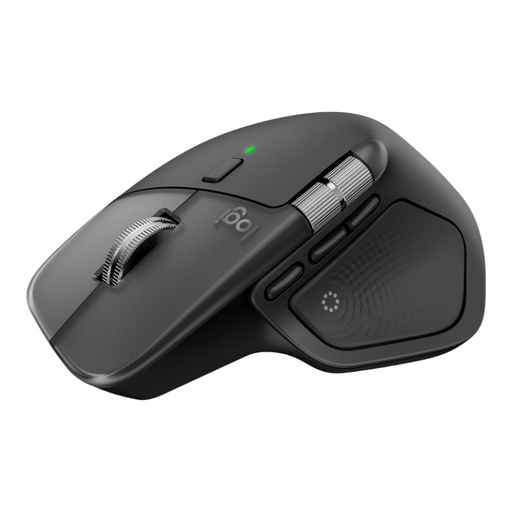
For working with documents when you switch between free-spinning and more precise scrolling.
The description mentions a MagSpeed scroll wheel, a ratchet mode and a horizontal scroll wheel.
Connects via Bluetooth or a Logi Bolt USB-C receiver; according to the description, you can pair up to three devices.
 No image available
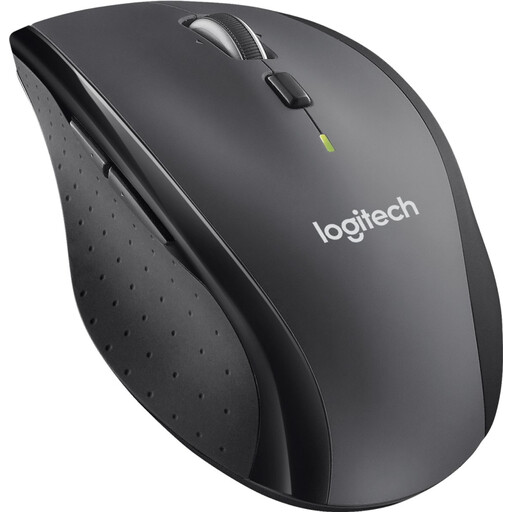
An option for anyone who wants to browse long documents using the fast scrolling feature mentioned.
The description mentions a Unifying receiver for USB connectivity.
According to the product description, this version doesn’t connect via Bluetooth.
 No image available
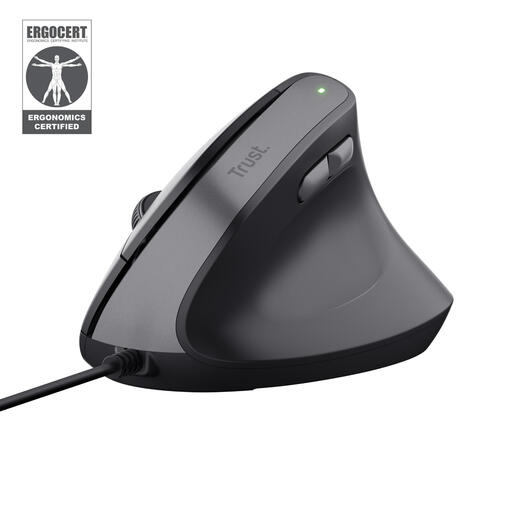
For anyone looking for a vertical mouse with thumb buttons for browser navigation at a fixed workstation.
The description mentions a 57-degree angle, adjustable DPI and two thumb buttons for forward and back navigation.
This version is wired via USB and, according to the product description, is designed for right-handed use.
 No image available
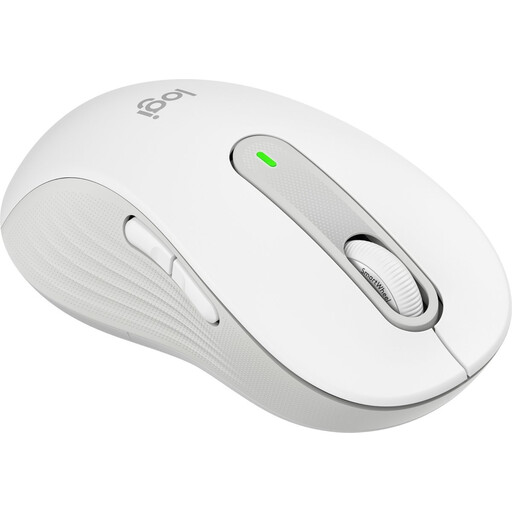
This version is designed for left-handed users with larger hands and combines different scrolling modes.
The description mentions SmartScroll for line-by-line and fast scrolling, quiet clicks, and Bluetooth LE or a Logi Bolt receiver.
Check whether the receiver is included with this version if you want to use that connection method.
 No image available
A vertical mouse with a scrolling feature for anyone who wants to compare this shape with a conventional model.
The description mentions a SmartWheel, quiet clicks and connectivity via Bluetooth or a USB receiver.
This version is described as right-handed and designed for small to medium-sized hands.
Not necessarily: start by choosing a shape that suits your hand and the work you do. Arboportaal also recommends varying your activities and taking micro-breaks during screen work; this doesn’t prove that a particular mouse model prevents discomfort.
Check which connection the exact version uses and whether your computer supports it. Trust specifies a USB cable for the Verto; the MX Anywhere 3S product description mentions Bluetooth. If the version comes with a receiver, also check whether it’s included.
Switch off the device before cleaning it and don’t apply liquid directly to it, as Logitech Support advises. Kensington notes that dirt in a trackball can hinder its movement; follow the instructions for your exact model when removing and cleaning the ball.
For a standard online consumer purchase, ACM ConsuWijzer says you generally have a cooling-off period of up to 14 days after delivery, subject to applicable exceptions. Your statutory guarantee is separate from any manufacturer’s guarantee: if a product doesn’t do what you could reasonably expect during normal use, the seller is responsible for offering an appropriate solution. This doesn’t mean that every mouse has the same fixed guarantee period.
The duty of care for home workstations described by Arboportaal applies to employers in relation to their employees. Studying independently at home doesn’t make you an employee, so use the workstation tips as advice, not as a requirement to buy a particular mouse model.