First, choose a physical keyboard layout that suits the characters and shortcuts you use, then check your operating system’s input layout. Next, weigh up the space you need for your mouse and hand positioning against direct access to navigation or number keys. Programmable keys and device switching are most useful when your workflow genuinely calls for them.
Who is this relevant to?
A developer who writes code and translations
You regularly write code and portal content in several languages. It’s important that the key legends on your physical keyboard match your selected input layout. Microsoft Support explains how to add and change input layouts in Windows.
A developer who spends a long time typing
You want to position your keyboard, mouse and hands to suit your workspace. A split keyboard is one option to consider, but it doesn’t in itself prove that it will prevent or relieve discomfort.
A developer who repeats the same tasks
You often perform the same actions in your editor or switch between computers. Customisable keys or device switching may be useful, provided the necessary software and connection work for your setup.
What should you look for?
Start with the physical layout and the characters you type every day. Then consider workspace, the key customisation you want and how you’ll connect the keyboard.
| What to consider |
What should you check? |
Who is this important for? |
| Layout for coding and languages |
Compare the physical layout of the model with your computer’s input layout. Microsoft Support explains that you can add or change input layouts separately in Windows. Also try the characters and editor shortcuts you use regularly. |
If I write code and text with accents, I want to find my characters and shortcuts in predictable places. Around 36% of consumers prioritise the physical layout. |
| Posture and desk space |
Consider where your hands and mouse will go. A compact keyboard and one with separately positionable halves offer different setup options, but neither guarantees less discomfort. |
During long working sessions, I want to be able to position my hands, keyboard and mouse to suit my workspace. Around 29% of consumers prioritise posture and space. |
| Key customisation |
Decide which repetitive tasks you want to customise, then check whether you’re allowed and able to use the relevant software on your computer. |
If I often perform the same actions in my editor, I want to know whether I can customise keys for them. Around 21% of consumers prioritise customisable keys for repetitive tasks. |
| Connection and device switching |
Check how many computers you use, which ports and Bluetooth support are available, and which connection options the model offers. |
If I switch between computers or need a wired connection, I want a suitable connection method. Around 14% of consumers give connection and device switching top priority. |
Common mistakes
-
Assuming ‘ISO’ or ‘QWERTY’ tells you the full language layout
These labels don’t necessarily tell you which language variant or key legends you’ll get. What’s more, the Windows input layout is separate from the keyboard’s physical layout.
Check the full variant name and product images, and try the characters you use most often. You may need some time to get used to a different layout.
-
Assuming a split or ergonomic keyboard will solve discomfort
A different keyboard gives you more options for positioning its halves, but screen-based work also involves repetitive hand movements and static strain on your neck, shoulders and arms.
Assess your whole workspace and vary your tasks and posture. If you develop work-related discomfort, speak to an appropriate professional.
-
Choosing key customisation without checking the software
The customisation features described for the Keychron K2 Max and Logitech MX Keys S use Keychron Launcher and Logi Options+ respectively.
Before buying, check that the required software is compatible and that you’re allowed to use it on your work computer.
-
Confusing a manufacturer’s warranty with your statutory rights
ACM ConsuWijzer distinguishes between a retailer’s or manufacturer’s warranty and the legal expectation that a consumer product will be fit for purpose under normal use.
Keep your proof of purchase and contact the retailer if a fault occurs unexpectedly.
Brands compared
Keychron
The K2 Max ISO reviewed here is an example of a compact mechanical keyboard for anyone comparing customisable keys.
- Keychron says the K2 Max supports key customisation and wired and wireless connections.
- The ISO language variants available differ; ISO doesn’t automatically mean Dutch key legends. Features of this model aren’t necessarily available on all Keychron keyboards.
Logitech
The MX Keys S reviewed here is a useful comparison for anyone looking for a full-size keyboard with device switching and customisable actions.
- Logitech says you can switch between up to three devices with the MX Keys S and set up Smart Actions through Logi Options+.
- Check the physical layout and whether you can use the required software. Logitech’s claims about typing comfort are manufacturer claims, not a guarantee of your experience.
Kinesis
The Freestyle2 is a useful comparison for anyone who wants to adjust the distance between its two keyboard halves.
- Kinesis describes separately positionable halves and several versions with different connection and layout options.
- Connection, layout and accessories vary by model. A split setup isn’t a proven solution to discomfort for every user.
CHERRY
The KC 6000 SLIM is a useful comparison for anyone looking for a full-size, low-profile keyboard with a cable.
- CHERRY lists a scissor mechanism, USB-A and several country-specific versions for this model.
- The stated specification lists Windows. Check the exact version if you use a different operating system or physical layout.
Keyboards at Joybuy
This selection includes compact mechanical keyboards and full-size models for coding and multilingual content, with a range of layouts, customisation features and connection options.
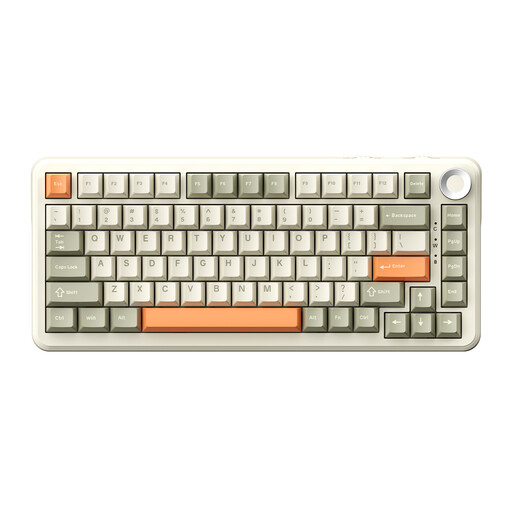 Image unavailable
AJAZZ AK820 MAX 75%, US QWERTY, Flying Fish switches
The compact layout could suit you if you want to leave desk space for your mouse.
The product information lists 82 keys, US QWERTY, Bluetooth, 2.4G and USB-C. It also mentions macro storage in the onboard memory.
Joybuy
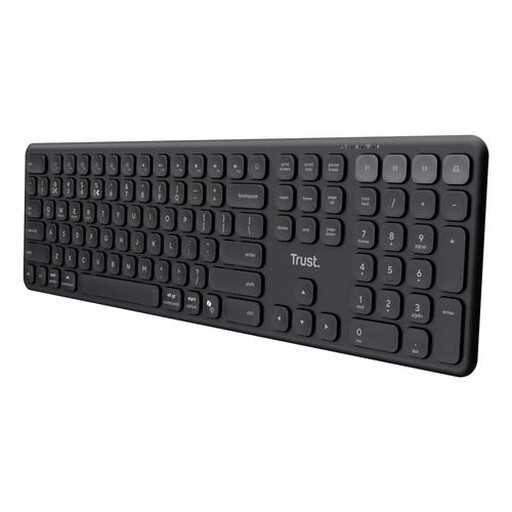 Image unavailable
Trust Vaiya, full-size, US QWERTY
This model could suit you if you’re looking for a full-size keyboard with a number pad and want to switch between devices.
The product information lists scissor keys and connection to up to four devices via Bluetooth and a USB receiver.
Joybuy
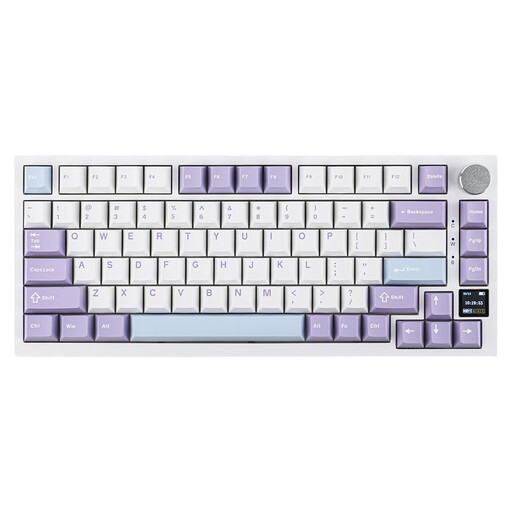 Image unavailable
Ajazz AK820 Pro 75%, US layout, Flying Fish Switch Purple
The 75% layout could suit you if you’re looking for a compact mechanical keyboard with US QWERTY.
The product information lists an 82-key layout with arrow and function keys. Connect via USB-C, Bluetooth or 2.4G.
Joybuy
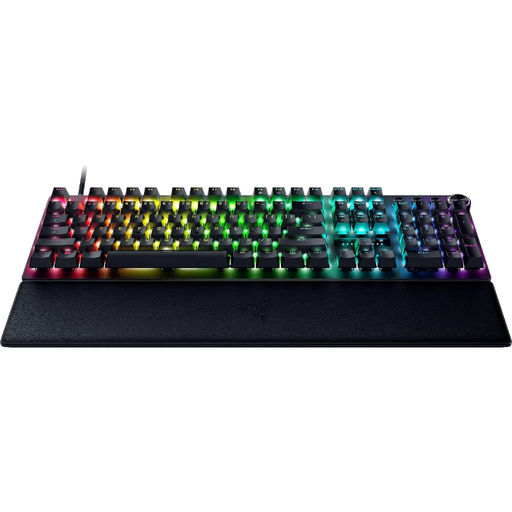 Image unavailable
Razer Huntsman V3 Pro, US QWERTY
This full-size keyboard could suit you if you want direct access to the number keys and the ability to adjust key actuation.
The product information lists 104 keys, USB-A and adjustable actuation via the onboard controls. Windows is listed as a compatible operating system.
Joybuy
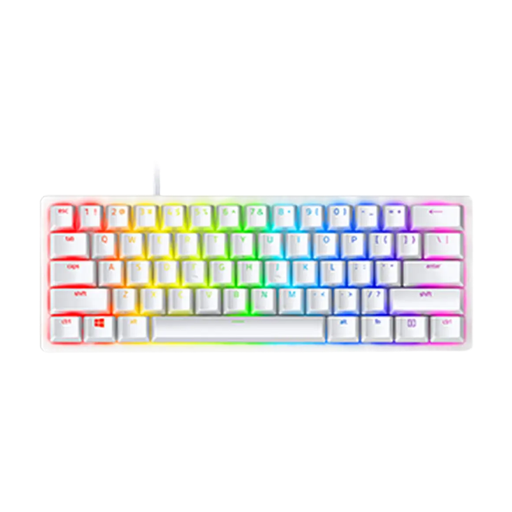 Image unavailable
Razer Huntsman Mini, Linear Optical Switch, US, Mercury
The compact 60% layout could suit you if you want to save desk space and are looking for a US QWERTY version.
The product information lists onboard memory for up to five profiles and a detachable USB-C cable.
Joybuy
Frequently asked questions
Do you need a special keyboard for multiple languages?
Not necessarily. You can add and change input layouts in Windows. Also check that the key legends on your chosen model match what you expect. This has no bearing on the translation features of your portal software.
How do you set up a keyboard for working in multiple languages?
In Windows, check which languages and input layouts are installed under Time & language, and add a layout if needed. Then test the characters and shortcuts you actually use in your editor.
Should you use a separate keyboard when working on a laptop for long periods?
For employees who work at a screen for more than two hours a day, the Dutch Arboportaal states that the screen and keyboard must not be attached to each other. In that case, it must be possible to use a separate screen or keyboard with a laptop. This is a conditional workplace requirement, not a general product specification for every buyer.
What rights do you have as a consumer when you buy a keyboard online?
According to ACM ConsuWijzer, online purchases generally come with a cooling-off period of up to 14 days after delivery, although exceptions apply. You’re also covered by the statutory guarantee if the product doesn’t meet reasonable expectations under normal use; this doesn’t simply mean every keyboard has a fixed two-year guarantee. These consumer rights don’t necessarily apply in the same way to business purchases.


