
Speakers who want to listen back to themselves
You practise close to your laptop and want to hear your own voice. Select the right microphone input and make a test recording; Microsoft Support explains how to do this in Windows.


If you’ll be staying at your laptop and want to listen back to your presentation, start with a wired computer headset that has the right connector and lets you test the microphone. If you’ll be moving around as you speak, a Bluetooth headset may suit your practice better; for a stage setup, the microphone must also connect to your recording equipment. Microsoft Support explains how to select and test your microphone input in Windows.
You practise close to your laptop and want to hear your own voice. Select the right microphone input and make a test recording; Microsoft Support explains how to do this in Windows.
You want to walk around as you deliver your presentation without a headset cable restricting your movement. A wireless headset does need pairing and charging, though; Logitech lists these features for the Zone 300.
You want to practise with a headworn microphone rather than a computer headset with earcups. Whether the setup is suitable depends on how it connects to the rest of your recording equipment; Shure and RØDE describe different connections for their models.
Choose this if: you’ll be staying at your laptop and mainly want to record and listen back to your presentation.
Bear in mind: the cable limits how far you can move away from your laptop.
Choose this if: you want to move around as you practise and your laptop supports Bluetooth audio.
Bear in mind: you’ll need to pair and charge it, and check which device is selected as the microphone.
Choose this if: you specifically want to practise wearing a stage microphone and have suitable recording equipment.
Bear in mind: the connector, microphone input and any power supply or transmitter you need; you won’t necessarily get headphone audio for listening back.
| What to consider | What to look for when buying | Who is this important to? |
|---|---|---|
| Listening back to your own voice | Check the microphone boom and mute controls. Select the intended input and listen back to a test recording. | If I want to assess my presentation in Dutch, I first want to hear whether my voice has been recorded clearly. Around 29% of consumers put recording their own voice first. |
| Connecting to your laptop | Compare the connector on the exact model with the ports available on your laptop; check whether you need an adapter. | I want to know before the rehearsal whether the headset can connect to my laptop and be recognised as an input device. Around 23% of consumers prioritise this compatibility. |
| Freedom of movement | Consider how far you’ll move from your laptop and test the connection where you plan to practise. | If I practise my presentation while walking around, I don’t want to be limited by the reach of a cable. Around 18% of consumers put freedom of movement first. |
| Comfort and awareness of surrounding noise | Check whether the model is mono or stereo and what adjustment and fit options it offers. | I want a style that suits me for a longer practice session and, where necessary, lets me keep one ear free. Around 18% of consumers say fit and awareness of their surroundings are the deciding factors. |
| Matching a stage setup | Find out which microphone and connection will be used at the seminar; check the entire chain through to the recording equipment. | If I want to recreate the way a presentation microphone is worn, I need to know whether it will work with my equipment. Around 12% of consumers prioritise recreating a stage setup. |
An XLR connector or a 3.5 mm TRS microphone that requires power does not automatically mean the microphone will work directly with your laptop.
Before buying, map out the complete connection from the microphone to your recording software, including any equipment in between.
A manufacturer’s noise-cancelling claim doesn’t confirm how clearly your presentation will come across in your own practice space.
Make a short recording at your normal speaking volume, with the microphone positioned as you plan to wear it during practice.
A headset range can include different styles and connections. Check the exact model, rather than basing your choice on the series name alone.
Compare the full model name, connector, any included accessories and the manufacturer’s details for that exact version.
If the connection isn’t right, you may also need a suitable adapter.
The H390 is a wired computer headset for practising at your laptop; the Zone 300 is a Bluetooth alternative if you want to move around as you speak.
The Ayda USB-ENC is a wired on-ear computer headset with an adjustable headband and a fold-up microphone boom.
The Blackwire 3200 series includes wired computer headsets in mono and stereo versions, so you can choose the style you prefer.
The IMPACT SC 30 USB ML is a wired, single-sided USB headset for use with a PC.
The WH20 is a headworn microphone for anyone wanting to practise wearing a microphone as part of a stage setup.
The HS2 is an alternative with a low-profile headworn microphone for recreating a stage setup.
This product selection focuses on computer headsets for practising with a laptop, including both wired and wireless models.
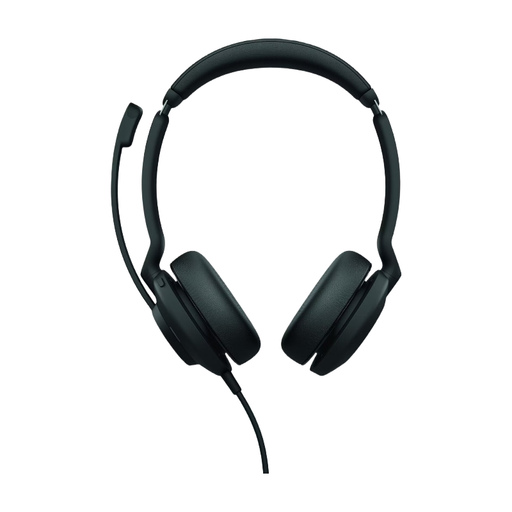 No image available
A wired computer headset for practising at your laptop. Check that the USB-A connection suits your laptop; you may need a suitable adapter for USB-C.
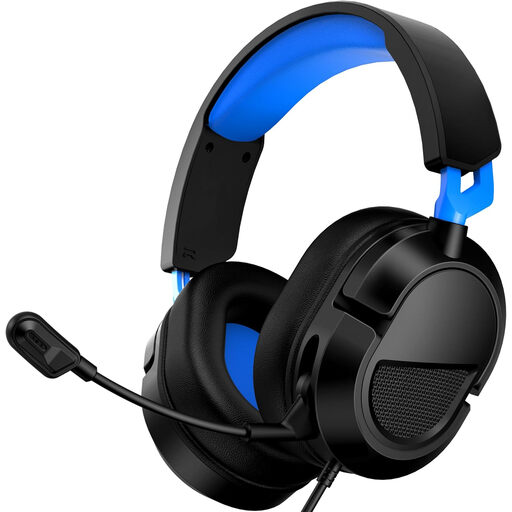 No image available
A wired headset with a microphone for practising on a PC via a 3.5 mm connection. Check that your laptop has a suitable port.
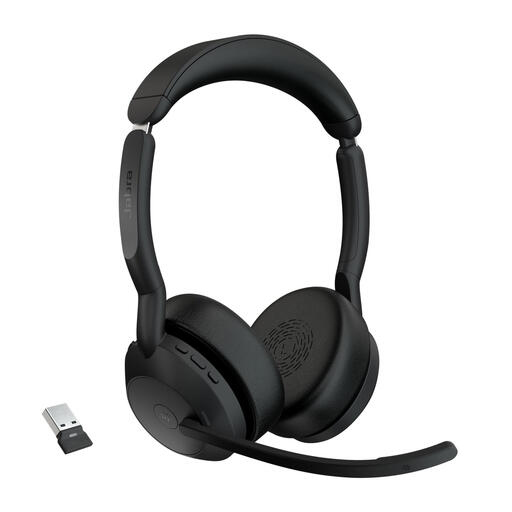 No image available
A wireless headset option if you want to move around during your rehearsal. Bear in mind that you’ll need to pair and charge it, and check which connection your laptop requires.
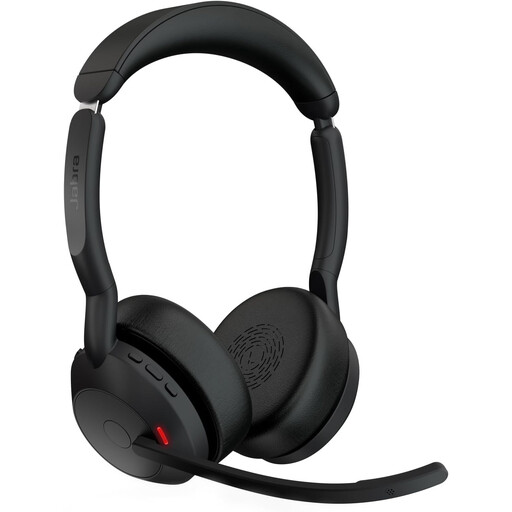 No image available
A wireless stereo headset for practising without a headset cable. Bear in mind that you’ll need to pair and charge it, and check that the connection suits your laptop.
 No image available
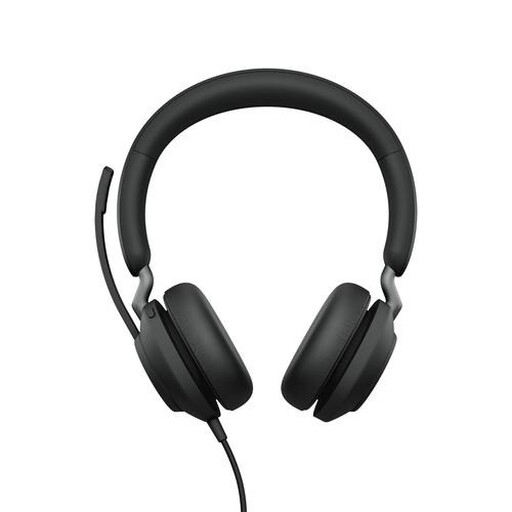
A wireless mono headset for practising at your laptop while keeping one ear free. Bear in mind that you’ll need to charge and pair it, and check that your computer supports the connection required.
In Windows, select the intended input microphone under Sound, start the microphone test, speak at a normal volume and listen to the sample. Also check that the headset itself isn’t muted.
First, compare the connections on the microphone and your recording equipment. Shure’s WH20XLR has a 3-pin XLR connector; RØDE’s HS2 has a 3.5 mm TRS output, which requires a compatible input with plug-in power or a suitable transmitter. So simply connecting it to the laptop doesn’t confirm that the complete setup will work.
Contact the seller. The Government of the Netherlands distinguishes between statutory warranty rights and an additional manufacturer’s warranty, and notes that there is no fixed statutory warranty period in the Netherlands. What you can reasonably expect from a product depends on the product and the circumstances.
According to the Dutch Data Protection Authority, recordings processed solely for personal or household use fall outside the GDPR. If personal data is processed for another purpose, you need an applicable legal basis under the GDPR; consent is one possible basis, but not automatically the only one. Discuss the recording with participants before you start.