
Developer testing enlarged text
You’re creating the rehearsal pages and want to check that text remains readable when enlarged, without losing content or functionality.


Choose a laptop that works well with your editor and browser and lets you view the choir website clearly. A larger screen can give you more room to work, but it doesn’t prove that the site is accessible: test each page separately with enlarged text and in a narrower window. If you work mainly in a browser, a Chromebook may be enough; if you need local development software, check in advance that it works with your chosen operating system.
You’re creating the rehearsal pages and want to check that text remains readable when enlarged, without losing content or functionality.
You often work on text and a preview of the site at the same time, so screen space and switching smoothly between programmes are important to you.
You take your laptop to rehearsals and want to edit text or pages there. Portability needs to be balanced against the screen space you want.
First, decide whether your development work can be done in a browser or requires local software. Then weigh up screen space, memory and portability. A larger screen can make it easier to work with text and preview windows, but you’ll still need to test the site’s accessibility separately.
| What to consider | What should you check? | Who is this important for? |
|---|---|---|
| Assessing enlarged text | Assess the screen for your own work, and test the site separately with enlarged text and in a narrower browser window. | If you want to enlarge text on the rehearsal page, you’ll need to check that the content and functionality remain usable; around 33% of consumers prioritise readability and magnification. |
| Editing and testing the site | Decide whether you’ll work in a browser or install local software. Compare the memory in the exact configuration and check software compatibility. | If I have my editor, browser and preview open at the same time, I want to be able to work between those windows easily; around 27% of consumers prioritise editing and testing. |
| Taking it to rehearsals | Compare the weight, screen size and ports on the specific configuration. Check the battery life under the stated test conditions. | If you take your laptop with you to update pages in different locations, you’ll need to balance screen space against portability; around 20% of consumers prioritise mobility. |
| Choosing the right configuration | Match the memory, storage and expandability to the programmes and files you use. | I don’t want to choose a configuration that’s more powerful than my work requires; around 20% of consumers prioritise specifications that suit the tasks they have planned. |
Readability on your own laptop and how the choir website works with enlarged text are two different things.
Choose a screen you find comfortable to work on, but also test the pages with enlarged text and reflow.
Working in a browser has different requirements from using locally installed development software. On a managed Chromebook, the Linux development environment may be limited.
Make a note of the editor and testing tools you want to use, then check they work on your chosen device before you buy.
The screen, memory, storage and ports can vary between laptop configurations.
Check the full model number and configuration, including the keyboard layout and the charging accessories supplied.
The IdeaPad Slim 3 range includes a 16-inch model for anyone looking for more built-in screen space.
The 15-inch MacBook Air with M5 is a macOS option if its software is suitable for the way you work.
The OmniBook 5 range includes 14-inch and 16-inch models, allowing you to weigh up screen space against portability.
The Vivobook 16 X1607Q is a 16-inch range worth considering if a wider workspace is important.
The Aspire Go Intel range is designed for everyday productivity and browser-based tasks.
The Joybuy selection below consists of Windows laptops with screens measuring between 15.3 and 16 inches. Compare the configuration with your development software, preferred screen space and way of working.
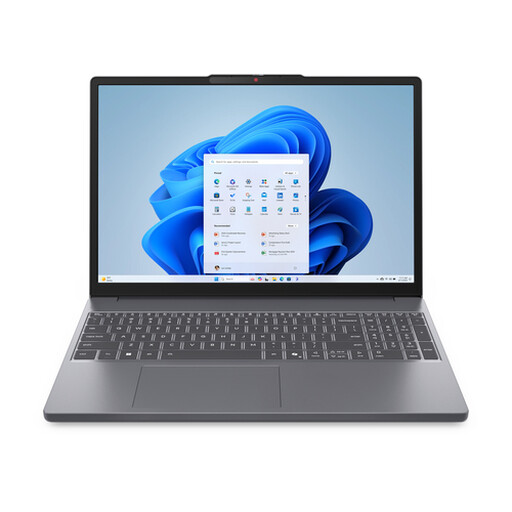 Image unavailable
Could suit anyone who wants to view text and preview windows on a medium-sized screen and uses local Windows software.
The product description lists a 15.3-inch WUXGA IPS screen with a 16:10 aspect ratio and anti-glare finish, 16 GB of memory, 512 GB SSD storage, Windows 11 Home and a QWERTY keyboard.
The mains adaptor must be purchased separately.
 Image unavailable
This Windows model could suit anyone who wants a spacious screen and several programmes open at once. Check that the specifications meet your software needs.
The description lists a 16-inch WUXGA screen with a resolution of 1920 × 1200 pixels and a 16:10 aspect ratio, 16 GB DDR5 memory, 1 TB SSD storage and Windows 11 Home.
The stated weight is approximately 1.95 kg and the keyboard has a Dutch QWERTY layout.
 Image unavailable
Could suit anyone looking for a 16-inch screen and a Windows working environment. Check in advance that the local programmes you need will work on this platform.
The product name lists a 16-inch WUXGA OLED screen, a Snapdragon X processor, 16 GB LPDDR5X memory, 512 GB SSD storage and Windows 11 Home.
The product description lists a weight of 1.70 kg.
 Image unavailable
Could suit anyone who uses several programmes while building and testing, and needs the listed ports.
The description lists a 16-inch anti-glare screen with a resolution of 1920 × 1200 pixels, 32 GB of memory, 512 GB SSD storage and Windows 11 Pro. The listed ports include HDMI and USB-C.
The stated weight is approximately 1.9 kg. The configuration is listed without a mains adaptor.
 Image unavailable
Could suit anyone looking for a medium-sized screen for managing a site and working with several programmes.
The description lists a 15.6-inch Full HD IPS screen with an anti-glare finish, 16 GB of memory, 512 GB SSD storage and Windows 11 Home. The listed ports include USB-C and HDMI.
The product description mentions a 45W USB-C adaptor.
No. The W3C Web Accessibility Initiative says that web content should remain usable when text is enlarged. Success criterion 1.4.4 includes enlarging text to 200% using a supported text-scaling method. Also check whether the content can reflow in a narrow window without losing information or functionality, subject to the exceptions in the reflow criterion.
For basic web development, MDN Web Docs recommends a code editor, modern browsers and a local test server. Choose how you want to work, then check that the software you need works with your intended operating system. On a Chromebook, the Linux development environment isn’t enabled by default, and work or school management may restrict its use.
In Windows, you can adjust the text size through Accessibility settings. You can also change the scale of text, images and apps in Display settings. Test the website separately in your browser: increasing the size of the Windows display isn’t an accessibility test of the site.
That doesn’t depend solely on the fact that it’s a choir website. The Authority for Consumers and Markets describes rules for e-commerce services, among others, where consumers can enter into an agreement online. Whether those rules apply to this site depends on its features and operator; assess these before reaching a legal conclusion.
Don’t assume you can publish information about other people freely. The Dutch Data Protection Authority says that, in principle, permission is needed to publish information about others on an organisation’s website. A lawful basis under the GDPR is required to collect and use personal data, so check what information the site actually displays and processes.