Choose a portable HDD if you mainly need to store choir recordings; an SSD is worth considering if you often move files between workstations. Before using a drive, check its capacity, USB connection, operating systems and access arrangements. The Library of Congress also recommends keeping copies on different storage media in separate locations, so a single external drive is not a complete archive.
Who is this choice for?
Choir archivist
You store finished takes and want to be able to find and restore them later. Think about having enough capacity, a clear folder structure and separate copies. The Library of Congress recommends keeping copies on different storage media in separate locations.
Recording editor
You regularly move or edit larger files, so you need to be able to connect the drive to the workstation you use. How often you transfer files will also influence whether an HDD or SSD is right for you.
Shared computer administrator
You manage who can access the recordings and whether the drive can be written to on the computers in question. According to the Dutch Data Protection Authority, audio recordings that identify someone may be personal data.
What to look for in an external drive
| What to consider |
What to look for |
Most important for |
| Finding and restoring archive files |
Calculate the space needed for takes and project files, and plan a separate copy at another location. The Library of Congress recommends keeping copies on different storage media and checking that files have been copied correctly. |
I want to find the right take later and be able to restore a copy. Around 33% of consumers put archive recovery first. |
| Access to identifiable recordings |
Decide who will manage the drive and who can open files. Assess what security measures are appropriate for the specific recording and way of working. |
I want to agree who can access identifiable choir recordings. Around 25% of consumers put access security first. |
| Writing to the drive on your computers |
Check the operating systems, USB ports and formatting. Seagate states that macOS can read NTFS by default, but cannot write to it; reformatting erases data on the drive. |
I want to be able to write to the drive on all the computers involved. Around 17% of consumers put computer compatibility first. |
| Transferring files between workstations |
Consider how often you move takes or project folders, and check the computer's USB connection. A manufacturer's maximum speed does not automatically reflect the speed of the entire connection. |
I often move recording files and want to factor that into my choice. Around 17% of consumers put transfer speed first. |
| Size of the archive plan |
Plan for the capacity you need and a separate copy, rather than focusing only on the first drive. |
I want to work out in advance what I need to store the full archive. Around 8% of consumers put the size of the archive plan first. |
Common mistakes when archiving choir recordings
-
Using your first external drive as the only archive
This leaves your archive dependent on a single storage medium in one location. The Library of Congress recommends keeping copies on at least two different storage media in separate locations.
Keep a separate copy elsewhere. After transferring files, check that important files have been copied in full and can be opened.
-
Not checking the formatting when using Windows and Mac
Toshiba says the Canvio Basics comes formatted as NTFS and needs to be reformatted for use with macOS. Seagate states that macOS cannot write to NTFS by default.
Check the computers you will use and make a safe copy first if you plan to reformat the drive; reformatting erases its data.
-
Treating an SSD's quoted speed as its guaranteed working speed
An SSD's maximum speed does not tell you how quickly the combination of drive, cable and workstation will transfer files.
Check the workstation's USB connection, and give an SSD particular consideration if you regularly transfer files.
-
Leaving a portable drive unattended on a shared computer
Audio recordings that identify someone may be personal data. If the GDPR applies, the organisation must protect personal data appropriately.
Appoint an administrator and agree who can access the drive. Assess what security measures are appropriate for the specific recording and way of working.
Brands to consider
Seagate
Expansion Portable is a range of portable HDDs. Seagate lists the STKM2000400 model with 2 TB of storage.
- The manufacturer specifies the model and capacity.
- Check the connection and formatting of the exact model on the shared computer; these details are not an independent reliability test.
Western Digital
According to Western Digital's product sheet, WD Elements Portable is a range of portable HDDs, with models including 1 TB and 2 TB versions.
- The product sheet lists USB 3.2 Gen 1/USB 3.0.
- The product sheet states that reformatting may be needed to use the drive with other operating systems.
Toshiba
Canvio Basics is a range of portable HDDs, including a 2 TB model.
- Toshiba specifies USB power and NTFS formatting for Windows.
- Toshiba states that the drive needs to be reformatted for macOS; bear this in mind if you use multiple operating systems.
Samsung
The Portable SSD T7 is an SSD range for anyone who regularly moves recording files. Samsung identifies the 1 TB grey model as MU-PC1T0T/WW.
- For this model, Samsung lists USB 3.2 Gen 2 and a maximum transfer speed of 1.050 MB/s.
- The quoted speed is a manufacturer's maximum, not a guaranteed speed on a choir workstation or proof that your archive is safe.
Joybuy products
This Joybuy selection includes portable external HDDs for storing files and SSDs for moving them.
 No image available
SanDisk Portable SSD 1TB
A portable SSD for storing and moving recording files.
Storage: 1 TB.
Joybuy
 No image available
My Passport for Mac 2TB Blue
A portable hard drive for storing recording files.
Storage: 2 TB.
Joybuy
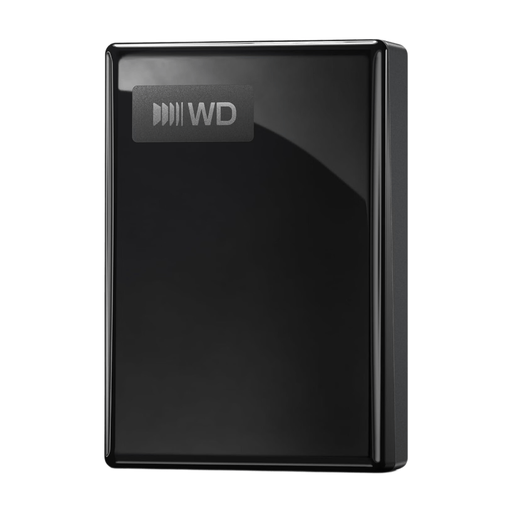 No image available
My Passport USB-C 5TB Black
A portable hard drive for an archive that needs the stated storage capacity.
Storage: 5 TB. Connection as stated in the product name: USB-C.
Joybuy
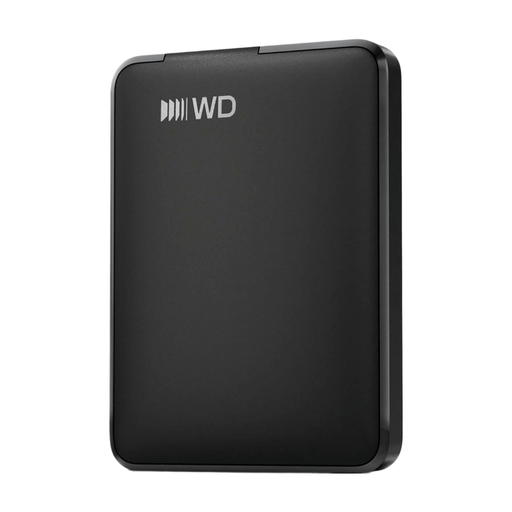 No image available
WD Elements Portable 1TB USB-C Graphite Black
A portable hard drive for storing recording files.
Storage: 1 TB. Connection as stated in the product name: USB-C.
Joybuy
 No image available
My Passport 2TB Red
A portable hard drive for storing recording files.
Storage: 2 TB.
Joybuy
Frequently asked questions
Is one external drive enough to store choir recordings?
Not as your only backup. The Library of Congress recommends keeping copies on at least two different storage media in separate locations. You should also agree who will check that important files have been copied in full.
Can Windows and Mac both write to the same drive?
That depends on how the drive is formatted. Seagate says macOS can read an NTFS drive by default, but cannot write to it; exFAT is one option for sharing files. Before reformatting, check that you have a safe copy of the files elsewhere, as formatting erases the data on the drive.
How should you look after your archive once files have been transferred?
Use clear, consistent folder and file names, and check that important copies can be opened. The Library of Congress recommends transferring stored files to a current storage medium later on, so don't treat an external drive as something that will last indefinitely without maintenance.
Can a choir store identifiable recordings on a shared workstation?
According to the Dutch Data Protection Authority, an audio recording in which someone can be identified is personal data. Collecting and using personal data requires a lawful basis under the GDPR; consent is one possible basis, but it is not automatically the only one. The organisation must protect personal data appropriately. Whether a particular recording and way of working meet all the requirements depends on the circumstances and is not determined by the choice of drive.


