
Volunteer archive manager
You keep the original take, project files and final versions so you can find them again later. The Library of Congress recommends storing digital files on different storage media and in separate locations.


A portable HDD is a good choice if you mainly store completed choir recordings and project versions, and capacity matters more to you than working from the drive regularly. An SSD is a better fit if you often take files with you, transfer them or edit them again. Work out how much space you need based on your own files, check the connections and formatting on the computers you’ll be using, and keep a separate copy in another location too. The Library of Congress recommends keeping copies on different storage media and in separate physical locations.
You keep the original take, project files and final versions so you can find them again later. The Library of Congress recommends storing digital files on different storage media and in separate locations.
You take your workstation and files between the recording location and your workspace. So it’s worth checking the connection, the cable you’ll need and how you’ll transfer your files.
If people can be identified in a recording, access and retention also matter, as well as storage. The Dutch Data Protection Authority notes that identifiable audio recordings may constitute personal data.
Best for: archiving completed takes, raw recordings and exports from time to time.
Bear in mind: an HDD needs careful handling when you’re carrying it around. Check the formatting and cable too.
Best for: regularly taking project files with you, transferring them or editing them again from the drive.
Bear in mind: check that the capacity and connection of the exact model suit your workstation.
First decide whether the drive will mainly be for archiving or whether you’ll also work from it. Then calculate the capacity you need and check that you can use your files on all the computers involved.
| What to consider | What to look for | Especially useful for |
|---|---|---|
| A separate copy | Decide where the original and a separate copy will be kept, and test that you can open the files from that copy. | I want to be able to recover the recording if a drive fails or goes missing. Around 29% of consumers put recoverability first. |
| Space for files | Add up your raw takes, project files and exports, then compare the total with the capacity of each drive you plan to use. | I want to keep my own recordings and versions without relying on a general estimate of how much capacity I need. Around 23% of consumers prioritise archive space. |
| Taking files with you and editing | Think about how often you’ll work from the drive and which USB connection and cable your workstation has. | I move files between locations and want to be able to open or transfer them again at each one. Around 18% of consumers put working on the go first. |
| Computer compatibility | Check the ports, operating systems, formatting and backup method you plan to use before transferring files. | I want to be able to write to the drive on the computers involved and use it with my backup method. Around 18% of consumers start with compatibility. |
| Access to identifiable recordings | If people can be identified, decide who will have access and assess the security and retention needs for the recording and its copies. | I may be managing recordings that can identify people, and want to handle access and retention carefully. Around 12% of consumers put access management first. |
A protective casing and plenty of storage space don’t, by themselves, give you a recoverable second copy. The Library of Congress recommends keeping copies on different media and in separate locations.
Decide where you’ll keep a separate copy, and check from time to time that you can retrieve the recording from it.
A separate copy needs extra storage space and management.
The connection alone doesn’t tell you whether a computer can write to the drive or whether its format will work with your backup method. For example, an NTFS drive may be readable on a Mac without being writable.
Check both computers and your intended backup method before transferring files. Make a copy before reformatting a drive.
You may need to prepare a suitable cable or set up the drive differently.
Quoted sequential speeds apply under the conditions described by the manufacturer. Your workstation’s connection can affect the speeds you get in practice.
Check which USB connection is available and whether you’ll work from the drive often enough for the connection you want to make a difference.
WD lists the Elements Portable as a range of portable HDDs. One model has 2 TB of storage and the model number WDBU6Y0020BBK-WESN.
The Portable SSD T7 Shield MU-PE1T0R/EU is a 1 TB model for anyone who regularly takes files with them or edits them again.
Seagate lists the Expansion Portable as a range of USB-powered HDDs and identifies the STKM2000400 model as having 2 TB of storage.
Toshiba lists the Canvio Basics HDTB520EK3AA as a portable, USB-powered 2 TB HDD model.
Crucial lists the X9 Pro CT1000X9PROSSD9 as having 1 TB of storage and coming formatted as exFAT. The manufacturer’s page marks this model as EOL.
This selection includes portable HDDs for archiving recordings and portable SSDs for files you regularly take with you or edit again.
 No image available
A portable SSD for files you regularly take with you or transfer.
The description lists read speeds of up to 800 MB/s and drop protection from up to 2 metres.
 No image available
A portable HDD for an archive where the space you need depends on your own files.
The product title lists 6 TB and USB-C; the description mentions USB 3.2 Gen 1.
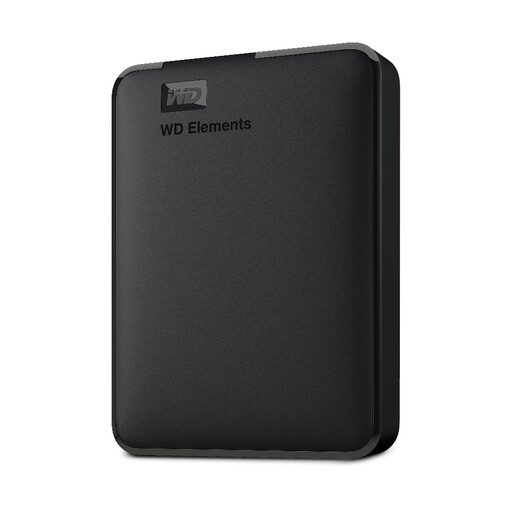 No image available
A portable HDD for storing recordings and project versions.
The title lists 2 TB and USB 3.0, and says the drive is formatted for PC and Mac.
 No image available
A portable HDD for an archive where you’ve worked out how much space you need.
The title lists 4 TB and USB Type-A/Micro-USB B; the description mentions USB 3.2 Gen 1 and formatting for Windows. According to the description, the drive needs reformatting for macOS.
 No image available
A portable SSD for large files you regularly want to transfer or edit.
The description lists USB 3.2 Gen 2, sequential speeds of up to 1.050 MB/s for reading and 1.000 MB/s for writing, and AES 256-bit hardware encryption. The quoted maximum speeds are based on a USB 3.2 Gen 2 host.
That depends partly on the formatting and whether both computers can write to the drive. Apple lists exFAT as compatible with Windows; a Mac may be able to read NTFS but not write to it. Toshiba lists NTFS as the format for the Canvio Basics model mentioned above. Make a copy before reformatting.
For Time Machine, Apple recommends APFS or encrypted APFS. Setting up a drive with a different format may require erasing and reformatting it. Choose and test your method before storing the only copy of your choir files on that drive.
Check that the files you need open from the destination and keep a separate copy. Microsoft recommends safely removing hardware in Windows before unplugging the cable, as disconnecting it unsafely can cause data loss.
When you buy as a consumer, your statutory rights apply alongside any manufacturer’s or seller’s warranty. According to ACM ConsuWijzer, the seller must resolve the issue, under the applicable conditions, if a product breaks sooner than you could reasonably expect with normal use. So don’t assume there’s one fixed statutory warranty period.
No. Buying a drive doesn’t automatically mean you can keep recordings indefinitely. According to the Dutch Data Protection Authority, identifiable audio recordings may constitute personal data. If an organisation processes this kind of data, it needs an applicable legal basis, security measures appropriate to the risks, and a retention period no longer than necessary. Consent is one possible legal basis; the right basis and retention period for your choir and intended use depend on the circumstances.