Who is this choice relevant to?

Anyone who wants a clear view of their tracks

You want to see more of the timeline, tracks or software windows at once while editing a choir recording. Screen width and the layout of your audio software will help you decide whether an ultrawide or a second monitor is right for you. Ableton explains how to work with two screens as well as how to display different windows on one large screen.

Anyone sharing a workspace

You take turns using different computers at the same workstation, or share connections and peripherals with others. Check the available inputs and whether your setup needs a KVM switch; BenQ specifies one for the PD2705Q.

Anyone working in longer sessions

You spend a long time at the screen and share the chair and monitor with people of different heights. Adjustability and a position without glare may therefore be important. Arboportaal advises adapting the workstation to the user.

What should you consider when choosing?

Ultrawide

Choose this when: you want to see lots of choir tracks, a long timeline or several windows side by side.

The trade-off: check that your desk and the shared computer’s video output are suitable; extra width isn’t the same as higher pixel density.

27-inch 4K

Choose this when: sharp text and controls take priority on a familiar screen size.

The trade-off: check how small the controls in your audio software will appear at your chosen scaling setting; 4K doesn’t automatically give you more width for a long timeline.

27-inch QHD with shared connections

Choose this when: you switch between computers at the workstation and a KVM switch would be useful for your setup.

The trade-off: check that the computers support the video and USB features you need; the BenQ PD2705Q has QHD resolution and a 60 Hz refresh rate.

What to consider What to look for Who should prioritise it?
Viewing tracks and the timeline Compare your desk dimensions with the screen’s aspect ratio and the window layout in your audio software. If I want to see lots of choir tracks and windows side by side while mixing, width matters more than extra pixel density. Around 31% of consumers say viewing tracks and the timeline is their top priority.
Connecting and switching For each computer, check the video output, USB-C video function and power delivery required; separately check whether a model has a KVM switch. Anyone using the same workstation with several computers will want to share peripherals and switch easily between them. Around 31% of consumers say shared connections are their top priority.
Adjustability Check the height adjustment, screen glare and whether each user can easily readjust the monitor. If several people spend long periods at the same workstation, I want to be able to adjust the screen for each user. Around 23% of consumers put adjustability at the top of their list.
Features you’ll actually use Start with the resolution, connections and stand you need; only consider extra screen features if they have a purpose in your shared workspace. Anyone who mainly edits audio won’t want to choose features without a clear purpose for their needs. Around 15% of consumers say spending wisely is their top priority.

Common pitfalls

  • Confusing a high refresh rate or colour calibration with better audio quality

    These features affect how images are displayed. A computer monitor shows tracks, the timeline and controls, but it can’t judge how your mix sounds.

    First, choose the workspace, connections and adjustability you need. Assess your mix using audio equipment designed for that purpose.

  • Assuming every USB-C monitor has a KVM switch

    USB-C video and power delivery don’t prove that a monitor can also switch between computers and shared peripherals.

    Check video, USB data, power delivery and KVM support separately for both computers.

  • Assuming every specification in a product listing applies to the same version

    Philips lists a 120 Hz refresh rate for the Philips 27E1N1600AE/00, while a product listing for that version states 100 Hz.

    Before buying, compare the full model number and the specifications for the version you’re looking at.

  • Mistaking a manufacturer’s warranty for the full statutory guarantee

    The Dutch government states that the Netherlands has no fixed statutory guarantee period. Your statutory rights are separate from any additional warranties.

    Keep your proof of purchase and check what any additional cover actually offers.

Brands to consider

ASUS

The ProArt PA278CGV is a 27-inch QHD option for anyone who also edits images or needs USB-C power delivery.

  • ASUS specifies USB-C Power Delivery of up to 90 W and an adjustable stand.
  • Tweakers describes the colour tuning as good, but also reports low contrast and a wobbly stand. Colour calibration and 144 Hz are not proven benefits for audio mixing.

BenQ

The PD2705Q is worth considering if several computers need to share the same controls.

  • BenQ specifies a KVM switch, USB-C Power Delivery of up to 65 W and 140 mm of height adjustment.
  • The screen has QHD resolution at 60 Hz. The stated colour accuracy relates to the image, not the sound.

Dell

The Plus S2725QC is a 27-inch 4K option with USB-C for anyone looking for sharp text and controls.

  • Dell lists an IPS panel, height adjustment and a refresh rate of up to 120 Hz.
  • Check the scaling in your own audio software. Dell describes the built-in speakers as an entertainment feature, not as a reference for audio mixing.

LG

The UltraWide 34U640B-B is designed as a single wide screen for a timeline and windows side by side.

  • LG specifies a 34-inch screen, 21:9 aspect ratio, 3440 × 1440 pixels, USB-C Power Delivery of up to 65 W and height adjustment.
  • The wide screen needs plenty of desk space. LG also positions the high refresh rate as a feature for gaming.

Philips

The 27E1N1600AE/00 is a 27-inch QHD USB-C option to compare if a simpler screen will do.

  • Philips lists 2560 × 1440 pixels for this version.
  • Philips lists a 120 Hz refresh rate, while a product listing for this version states 100 Hz. Check the full model number and specifications before comparing this monitor.

Joybuy products

The products below focus either on extra horizontal workspace with an ultrawide screen or on 27-inch 4K viewing. In particular, compare the available desk space and connections with those on the shared computer.

LG UltraWide 34U601B-B monitor

LG UltraWide 34U601B-B

A good fit if you want to see a timeline and several software windows side by side on one wide screen; check that it fits on your shared desk.

34 inches, 21:9 and 3440 × 1440 pixels. Curved VA panel, 1800R and 120 Hz.

View at Joybuy

LG UltraFine 27U711B-B monitor

LG UltraFine 27U711B-B

A good fit if sharp text and controls on a 27-inch screen matter more to you than the extra width of an ultrawide.

27 inches, 4K resolution of 3840 × 2160 pixels, IPS panel and 60 Hz.

View at Joybuy

Gawfolk 34-inch curved ultrawide monitor

Gawfolk 34-inch curved UWQHD monitor

A good fit if you want a wide layout for a timeline and windows side by side; measure the space on your shared desk first.

34 inches, 21:9 and 3440 × 1440 pixels. Fast VA panel, 1500R and 144 Hz. The product name indicates that it has no speakers.

View at Joybuy

Philips 27E1N1800AE/00 27-inch 4K monitor

Philips 27E1N1800AE/00

A good fit if you want sharp text on a 27-inch screen and need a height-adjustable stand for a shared workspace.

4K UHD IPS panel with 3840 × 2160 pixels and 60 Hz. The product name lists a height-adjustable stand, HDMI and DisplayPort.

View at Joybuy
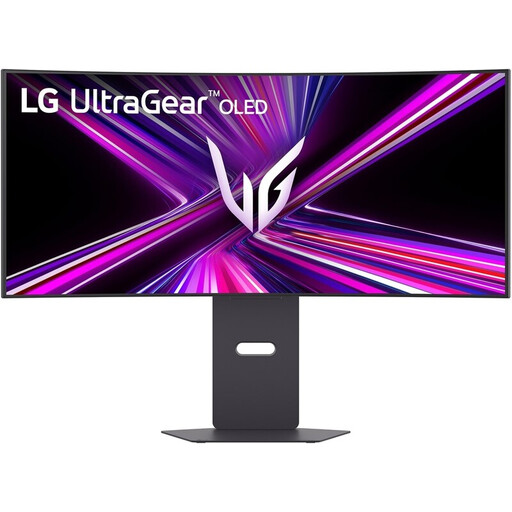
LG UltraGear 34GX900A-B monitor

LG UltraGear 34GX900A-B

A good fit if you want ultrawide workspace and need to adjust the shared workstation for different users; check that the screen fits on your desk.

34 inches, 21:9 and 3440 × 1440 pixels. The product name lists a curved WQHD screen with 240 Hz; the description mentions USB-C and a height-adjustable stand. The refresh rate is not a proven benefit for audio mixing.

View at Joybuy

Frequently asked questions

Do you need a computer monitor or a studio monitor for mixing?

Use a computer monitor for tracks, the timeline and the mixing desk; a studio monitor is a speaker for listening to sound. A better display won’t, by itself, help you judge how the mix sounds.

Should you buy a second monitor as well as a large screen?

Not necessarily: Ableton Live supports two screens, but you can also use two windows on one large screen. Check whether your own audio software supports the same layout.

How do you adjust a monitor for different users?

Readjust the screen and workstation for each user, and avoid glare. Arboportaal advises adapting the workstation to the user and recommends changing activities and taking short breaks during prolonged screen work.

Is an extended warranty compulsory or always necessary?

An extended warranty isn’t compulsory. According to the Dutch government, the Netherlands has no fixed statutory guarantee period; statutory rights apply alongside any manufacturer’s or separately purchased warranty. ACM ConsuWijzer explains that statutory protection can usually last longer than a seller’s warranty. Before buying extra cover, check exactly what it offers.

Do the rules on screen work apply to our choir too?

That depends on the working relationship and the screen work involved; volunteering as a choir member doesn’t automatically make you an employee. For employees, Arboportaal notes, among other things, that if they work at a screen for more than two hours a day, the screen and keyboard must not be attached to each other. This isn’t a general product specification for everyone buying a monitor for a choir.
