Start with your DAW’s requirements, the number of tracks and effects you use, and how much space you need for local project files. Choose Windows or macOS based on the software and audio equipment you already use, then check the storage, connections and upgrade options of the exact configuration.
Who is this desktop guide for?
Mixing multiple choir tracks
You combine vocal tracks and effects, and want your DAW to remain responsive while you mix. PreSonus points out that effects and small audio buffers can put a strain on the processor; requirements vary depending on your workflow and plug-ins.
Managing local recordings
You keep source files and mix versions, and want to be able to restore files. Microsoft explains how File History can include selected folders in a back-up.
Using existing studio equipment
You want to keep using your DAW, plug-ins or audio interface. Cockos describes how REAPER can import and mix audio; check the compatibility and connections required for your own software and interface.
What should you look for when buying?
Start with the requirements of your DAW and audio interface. Then work out how much space you need for projects and back-ups, and only then compare configurations.
| What to consider |
What to look for |
Who should prioritise this? |
| Processing headroom |
Check your DAW and plug-in requirements, and consider the number of tracks and effects you use. Advice for one DAW is no guarantee of performance on a specific desktop. |
If I’m mixing several vocal tracks and effects, I want my DAW to remain responsive. Around 36% of consumers give having enough processing headroom for mixing their top priority. |
| Local storage and recovery |
Compare the SSD capacity of the exact configuration with the space you need for your source files and mix versions. Also plan for a separate back-up and check that it includes your project folder. |
I want to keep and restore source files and earlier mix versions. Around 29% of consumers put local storage and file recovery first. |
| Compatibility |
Check which operating system versions your DAW and plug-ins support, as well as the connections and driver support for your exact audio interface. Recording requirements aren’t automatically relevant if you’re only mixing. |
If I want to keep using my current software or audio equipment, I check compatibility before buying. Around 21% of consumers make keeping their existing set-up compatible their top priority. |
| Configuration and space |
Compare the complete configuration, including the storage, screen and input devices you need. Check upgrade options for the specific model or product number, not just the product family. |
I want a set-up that fits my workspace and doesn’t include components I won’t use. Around 14% of consumers first consider the overall set-up and how easily it can be adapted. |
Things to consider when choosing
-
Confusing one configuration with the specifications for an entire product family
A desktop family may include configurations with different components; with configurable models, you may still need to choose the storage.
Check the full product number and the final processor, RAM, SSD and port configuration before comparing.
-
Assuming every interface is ready for recording straight away
Focusrite warns that, for some devices, a generic Windows driver isn’t intended for low-latency recording. This advice doesn’t automatically apply to every interface.
Check support for your exact interface model with your version of Windows and your DAW. Distinguish between mixing existing files and recording new vocals.
-
Keeping all your project files only on the internal SSD
Internal storage alone doesn’t give you a separate copy from which to restore lost or accidentally changed files.
Include your choir project folder in your back-up routine and test that you can restore a file.
Brands to compare
Apple
Mac mini for anyone looking for a compact macOS desktop, provided it’s compatible with their existing audio workflow.
- Apple lists 16 GB of unified memory for certain configurations and a 256 GB SSD for one base configuration.
- Check the storage, connections and peripherals included with the exact configuration you want; these specifications aren’t a test of choir-mixing performance.
HP
OmniDesk towers to compare if you’re looking for a conventional Windows desktop.
- HP lists 16 GB of RAM and a 1 TB SSD for the OmniDesk 16L M03-0612nd.
- Don’t assume that other HP models offer the same performance, noise levels or upgrade options as this configuration.
Lenovo
ThinkCentre M70s Gen 5 SFF to compare if a small business Windows desktop suits your set-up.
- Lenovo’s Dutch product page presents the M70s Gen 5 SFF as a desktop family with different configurations.
- Check the full product number and the storage you’ve selected; a family name doesn’t tell you which components a particular configuration includes.
PCSpecialist
Configurable audio PCs to consider if you have specific requirements for your software, interface and internal storage.
- PCSpecialist says it can tailor systems to your chosen software and external components.
- This describes the supplier’s offering; it isn’t an independent performance comparison. Ask for a full configuration suited to your workflow.
Compact desktops at Joybuy
These compact desktops and mini PCs are options to compare for mixing choir recordings locally. Check the storage, memory and connections you need for each configuration.
 No image available
Apple Mac mini M6, 16 GB, 256 GB SSD
A compact desktop option to compare if your existing software and audio equipment work with macOS.
Apple M6 chip with 12-core CPU and 12-core GPU; 16 GB memory; 256 GB SSD.
View at Joybuy
No image available
Apple Mac mini M6, 16 GB, 512 GB SSD
A compact desktop option to compare if your existing software and audio equipment work with macOS.
Apple M6 chip with 12-core CPU and 12-core GPU; 16 GB memory; 512 GB SSD.
View at Joybuy
No image available
Apple Mac mini M6, 24 GB, 512 GB SSD
A compact desktop option to compare if your existing software and audio equipment work with macOS.
Apple M6 chip with 12-core CPU and 12-core GPU; 24 GB memory; 512 GB SSD.
View at Joybuy
 No image available
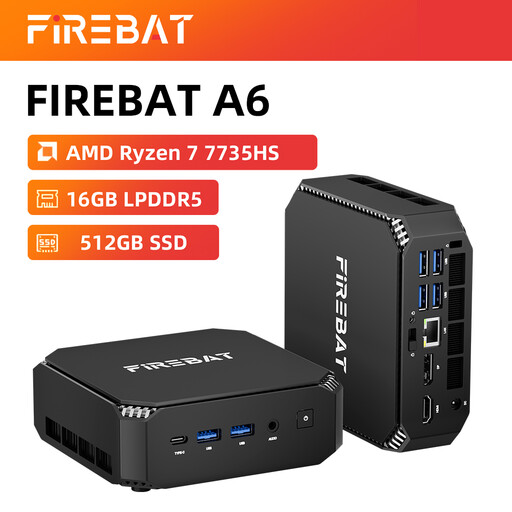
FIREBAT A6 Mini PC, Ryzen 7 7735HS, 16 GB RAM, 512 GB SSD
A mini PC to compare if you’re looking for a compact desktop set-up.
AMD Ryzen 7 7735HS; Radeon 680M; 16 GB RAM; 512 GB SSD; dual M.2 slots; support for three displays; Wi-Fi 6.
View at Joybuy
 No image available
FIREBAT F1 Mini PC, Ryzen 5 7640HS, 24 GB RAM, 512 GB SSD
A mini PC to compare if you’re looking for a compact desktop set-up.
AMD Ryzen 5 7640HS (6-core/12-thread); 24 GB LPDDR5 RAM; 512 GB PCIe 4.0 SSD; Radeon 760M; USB 4.0; HDMI 2.1; output to three displays.
View at Joybuy
Frequently asked questions
Do I need an audio interface to mix existing choir recordings?
Not just to import and mix audio files in a DAW. Cockos describes these features for REAPER. If you also want to connect microphones and record new vocals, check which interface and connections suit your set-up.
How can I prevent local choir recordings from being lost?
Keep source files and the project together in a clearly labelled folder, and make a separate back-up. Microsoft’s File History can create copies on an external drive or network location; check that your project folder is selected, and test that you can restore a file.
Can the choir publish a mix featuring recognisable voices or existing repertoire?
This depends, among other things, on the recording, the musical work and how you intend to publish it. The Dutch Data Protection Authority considers recognisable audio recordings to be personal data; organisations need a lawful basis under the GDPR to process them. Existing repertoire may also be subject to music rights. BumaStemra distinguishes between covers, adaptations and the use of existing recordings, among other things. Check which permission or licence applies to the work and your intended distribution; this doesn’t give general permission to publish every choir mix.


