
Family with one computer and two screens
Wants to look at the same family photos together. Microsoft Support and Apple Support explain how to set up multiple screens individually or mirror the display on a computer.


To view family photos on two screens, choose an external drive that can read the format of your existing CD or DVD. Your computer must also support the screen setup you want. If you’re using one computer, connect both screens to it and choose duplicate for the same image or extend for separate windows: the DVD drive itself isn’t a video output. If you’re using two separate computers, arrange access to the photos for the second computer separately, and check the USB connection and system requirements too.
Wants to look at the same family photos together. Microsoft Support and Apple Support explain how to set up multiple screens individually or mirror the display on a computer.
Wants to find out first whether the disc contains standard image files, a Photo CD or another format. Verbatim lists Photo CD as a separate read mode for model 43886; Apple Support explains how to import photos from a CD or DVD on a Mac.
Needs an external drive with a suitable USB connection and compatibility with their computer. ASUS and Verbatim provide connection and system information for specific models; any adapters needed for screens should be checked separately.
Start with the format of your existing disc. Then check your computer’s video connections and screen support, and only after that consider whether you need extra disc-burning features.
| What to consider | What should you check? | Who is this important for? |
|---|---|---|
| Reading your existing photo disc | If possible, find out whether it contains standard image files, a Photo CD or another CD or DVD format. Compare this with the read modes of the exact model. | If I have an old family disc, I want to know first whether the drive can read that particular format. Around 36% of consumers say that being able to read their existing disc is their top priority. |
| Showing photos on two screens | Check that your computer supports the number of screens you want and has the necessary video connections. Choose duplicate for the same image or extend for separate windows. | If we want to view the photos on two screens at the same time, the computer must support the setup. Around 29% of consumers prioritise viewing on multiple screens at once. |
| Connecting to your computer | Check that the USB cable or adapter supplied is suitable for the available port, and that the exact drive is compatible with your operating system. | If I’m using a laptop, I want to connect the drive directly and know it will work with my system. Around 21% of consumers prioritise compatibility with their computer. |
| Extra features | Compare disc-burning features and supplied software only if you also want to create new discs; check the software’s system requirements separately. | If I only want to view existing photos, I don’t want to choose features I don’t need. Around 14% of consumers prioritise avoiding unnecessary extras. |
The drive reads the disc through the computer. The computer connects to the screens and lets you choose between duplicating and extending the display.
Before you buy, check the video outputs and how many screens your computer supports. Microsoft Support and Apple Support explain the settings and limitations for using multiple screens.
Depending on the connections available, you may also need a suitable video cable or adapter for your screen setup.
Read modes vary by model. For example, Verbatim lists Photo CD separately for model 43886; the term CD/DVD alone doesn’t tell you whether a specific photo format is supported.
Try to find out what format your family disc uses and compare it with the read modes of the exact model.
Verbatim states that the supplied Nero Burn & Archive software is only suitable for Windows. Software compatibility is separate from drive compatibility.
Check the system requirements for the application you want to use separately. If you only want to view photos, disc-burning software shouldn’t be your first selection criterion.
If the application you want doesn’t work on your system, you may need to find another suitable way to view or import the photos.
Model 43886 is an external CD/DVD writer worth considering if dedicated Photo CD read modes and the supplied USB solution are important to you.
The ZenDrive U9M is worth considering if you want to choose between the supplied USB-A and USB-C cables for a laptop.
The GP57EB40 is worth considering if you’re looking at an external DVD writer with a USB-A connection.
The USB SuperDrive is a specific option to consider for a Mac, not a general choice for Windows computers.
This Joybuy selection covers an external drive for existing CD or DVD photo discs. Check your disc’s format and support for your preferred screen setup separately.
 No image available
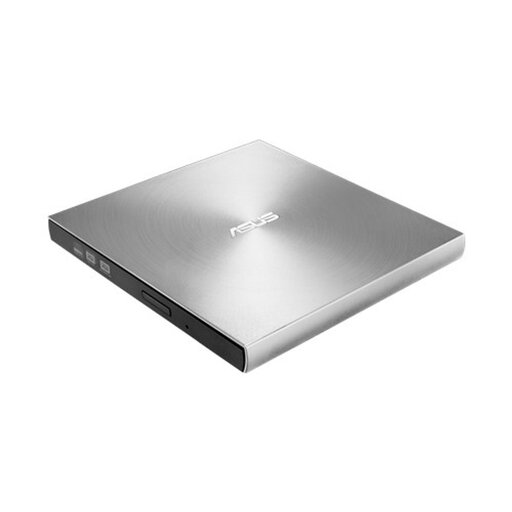
An option to consider for existing CD or DVD photo discs; check that it can read your disc’s exact format.
The product information lists USB 2.0, a 13 mm design, and CD and DVD read speeds.
Not if both screens are connected to one suitable computer: the drive reads the disc through that computer, and you can then duplicate or extend the display. If you’re using two separate computers, you’ll need to arrange access to the photos for the second computer separately.
First, check whether the disc is accessible as image files. Apple Support explains how to import photos from a CD or DVD into Photos on a Mac; Microsoft Support explains how to open and manage supported image files in the Windows Photos app. This doesn’t mean that every old disc format is supported.
Check the USB cable and the system requirements for the drive you’ve chosen. For the Apple USB SuperDrive, Apple specifies particular USB-C adapters. If the SuperDrive doesn’t respond through a hub or external screen, Apple recommends connecting it directly to the Mac; this advice applies to this model.
For eligible distance purchases from a business, you generally have a 14-day cooling-off period, according to the Dutch Government. You’re also entitled to a product that is in good working order; if there’s a problem, contact the seller about the statutory guarantee, which is separate from any manufacturer’s warranty.
The Dutch Government says that electronic products placed on the EU market must carry a CE marking. Check the marking on the product being offered; a brand name or model specification alone doesn’t confirm that the specific item carries that marking.