
Colour-critical catalogue creator
You assess reproductions of artwork or photographs and need a manageable colour workflow. A screen specification alone cannot predict the print result; Adobe also stresses the importance of colour management.


For colour-critical assessment of artwork and photographs, calibration options and a suitable colour workflow matter more than high resolution alone. For catalogue layout, sharpness and usable workspace matter too. Also check that you can position the monitor comfortably when sitting and standing, and that its connections meet your laptop’s display and power requirements. Adobe warns that connecting a calibrated monitor on its own does not guarantee accurate colour reproduction.
You assess reproductions of artwork or photographs and need a manageable colour workflow. A screen specification alone cannot predict the print result; Adobe also stresses the importance of colour management.
You check lots of text, images and pages, and want to adjust your monitor to suit long working sessions. Consider both how easy your layouts are to read and where the screen is positioned.
You change your working height and want to check that the display connection, any laptop power supply and screen position work for both sitting and standing. Arboportaal recommends placing the screen directly in front of you, with the top just below eye level.
First decide whether colour assessment or page layout is your main task. Then check that the monitor and its connections suit your workspace.
Choose this if: you assess reproductions of artwork or photographs and your workflow follows the print profile being used.
Trade-off: calibration and colour management require the right set-up; a stated colour gamut does not guarantee a match with the print.
Choose this if: you check both images and catalogue pages, and want to compare a 27-inch 4K model with stated Adobe RGB coverage, such as the ASUS ProArt PA279CRV.
Trade-off: even with a wide colour gamut, the screen settings, computer profile and print workflow need to work together.
Choose this if: easy-to-read pages and an adjustable workspace matter more to you than explicitly stated Adobe RGB coverage.
Trade-off: resolution, screen size and colour gamut each tell you something different. Don’t assume that a DCI-P3 specification means a model will suit a particular print workflow.
| What to consider | What should you check? | Who is this important for? |
|---|---|---|
| Colour assessment | Compare the stated colour gamut and calibration options with the monitor and print profiles you actually use. | If you assess reproductions for print, you’ll want your screen settings to suit your workflow. Around 36% of consumers put colour assessment first. |
| Sitting and standing | Check the adjustment range, footprint and whether you can position the screen directly in front of you in both working positions. | If you alternate between sitting and standing, you’ll want to adjust the screen to suit both desk heights. Around 29% of consumers put positioning first. |
| Sharpness and layout space | Compare screen size and native resolution, and check how readable your layout software is at your chosen scaling. | If you check catalogue pages with text and images, you’ll want to review them comfortably. For around 21% of consumers, checking pages and text is the top priority. |
| Laptop connection | Check that your computer supports the display connection and that the stated USB-C power output is sufficient for your laptop. | If you want to use your laptop with a single connection, you’ll want to know whether it carries a display signal and provides enough power. Around 14% of consumers put this connection first. |
A stated colour gamut doesn’t tell you which screen setting is active or what the final print will look like.
Check that the screen mode, computer profile and print job settings work together.
You may need to reposition the screen after changing your desk height.
Before buying, check the adjustment range and how the monitor will fit on your own sit-stand desk.
A USB-C port on a monitor doesn’t prove that your computer can output a display signal through it or be charged at the stated power level.
Compare your computer’s video output, the cable you’ll use and your laptop’s power requirements with the specifications for the exact monitor model.
The features below apply to the models listed and are based on manufacturer specifications; they don’t guarantee the results of a particular print workflow.
The PhotoVue SW272U is a model worth comparing for colour-critical image work as part of a catalogue workflow.
According to its own product information, EIZO designed the ColorEdge CS2740 for photography, image editing and graphic design.
According to ASUS, the ProArt PA279CRV combines specifications for graphic work with connections for a laptop workspace.
The UltraSharp U2725QE is worth comparing if layout and an adjustable, well-connected workspace are your priorities.
The UltraFine 27UP850K-W is a 4K option worth comparing for layout and general image work.
This selection includes monitors for catalogue layout, including models with 4K in the product name and one QHD model. Check which colour workflow, screen space and adjustability suit your work.
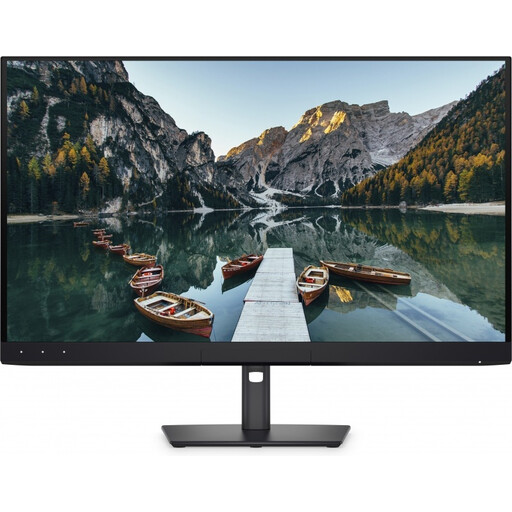 Image unavailable
Compare this model for catalogue work if its 32-inch size suits your desk. For colour-critical assessment, check which colour coverage and calibration features work with your workflow.
The product name lists 32 inches, 4K UHD, 120 Hz and QD-OLED.
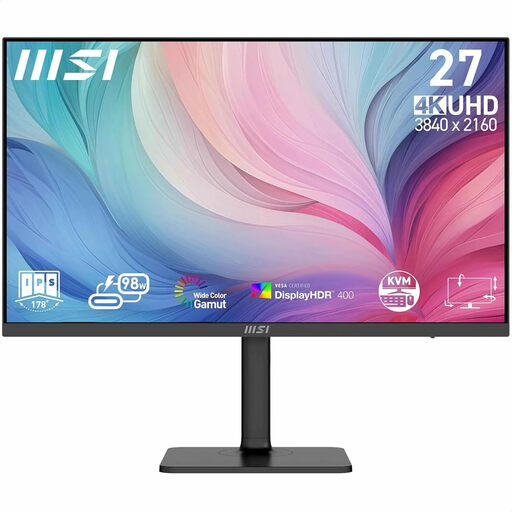 Image unavailable
Compare this model for a mix of photo and page layout work. For colour-critical work, check whether its colour and calibration features suit your print workflow.
The product name lists 27 inches, 3840 × 2160 pixels and 4K Ultra HD.
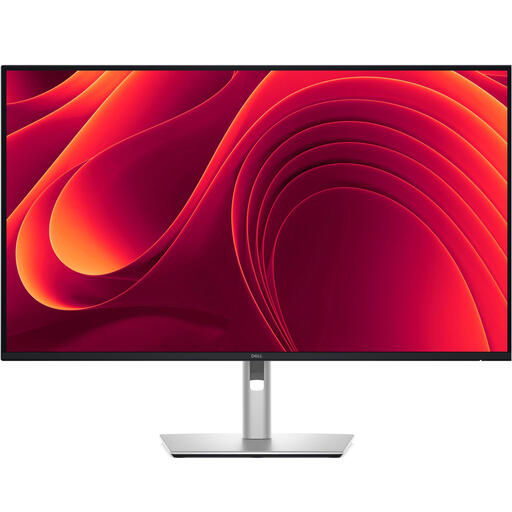 Image unavailable
Compare this model if a larger 4K screen suits your catalogue layout. Check the screen position at both desk heights and make sure the connection works with your laptop.
The product name lists 31.5 inches and 3840 × 2160 pixels.
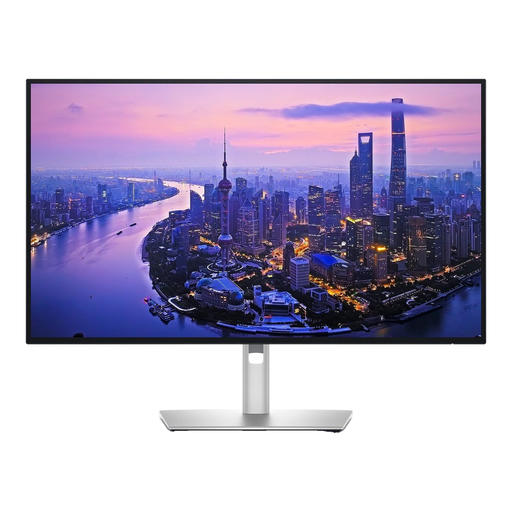 Image unavailable
This model is worth comparing for layout and general image work. Dell lists height adjustment; check that the adjustment range suits your working heights when sitting and standing.
The product name lists 27 inches and 3840 × 2160 pixels; Dell also gives this model a refresh rate of 120 Hz.
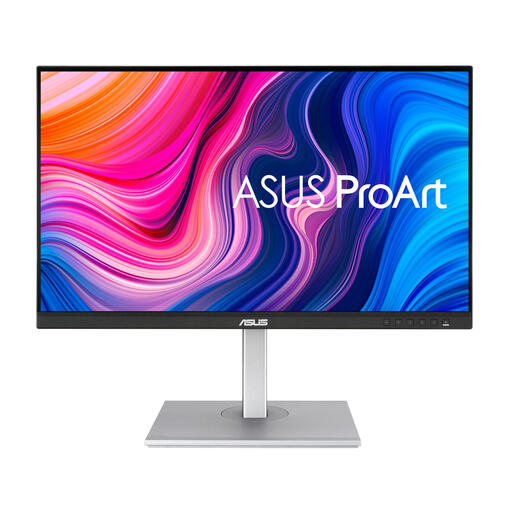 Image unavailable
Compare this model for creative work and changing working positions. If checking catalogue pages in 4K detail is important, bear in mind that the product name specifies Quad HD rather than 4K.
The product name lists 27 inches and 2560 × 1440 pixels.
No, a wide colour gamut alone isn’t enough. Match the active screen mode to the monitor profile on your computer, and to the colour settings and profiles for the print job. Adobe warns that simply connecting a calibrated screen doesn’t guarantee accurate colour reproduction.
Reposition the screen whenever you change your working height. Arboportaal recommends placing it directly in front of you, with the top just below eye level and a slight downward viewing angle.
That depends on your computer’s video support, your laptop’s power requirements and the USB-C power output of the exact monitor model. Manufacturer specifications for the BenQ SW272U, EIZO CS2740 and ASUS PA279CRV state maximum outputs of 90 W, 60 W and 96 W respectively; compare these with your laptop and cable.
For employees who work at a screen for more than two hours a day, Arboportaal states that the screen and keyboard must not be attached to each other. This is a specific requirement for screen work, not a product specification for every monitor or every buyer.
For online consumer purchases, you generally have a 14-day cooling-off period from delivery, although exceptions may apply. If the product breaks during normal use sooner than you could reasonably expect, you can contact the seller about your statutory guarantee rights. Consumer rules don’t automatically apply in the same way to business purchases.